
Two JSON payloads are never actually “the same” until you have walked every path and counted what changed, what was added, and what quietly disappeared. The JSON Diff Visualizer is the tool that does that walk for you — paste a left payload and a right payload, set the labels, flip the show-unchanged switch, and the report hands you a per-path inventory of additions, removals, and value changes with statistics on top. Every other JSON comparison workflow (manual file diff, generic text diff, eyeballing two JSON trees in two browser tabs) collapses into that single operation. The reason the tool earns its place on the workbench is that JSON diff is one of the rare developer tasks where the visible result and the structural answer diverge more often than they agree — a tiny reordering inside an array, a stringified number that lost its trailing zero, a nested key that flipped from snake_case to camelCase — all of those look like edits at the byte level but produce very different downstream behavior.
What a JSON diff report actually shows you (and why it is more than a text diff)
A text diff walks lines. A JSON diff walks paths. The distinction matters because two JSON payloads that are textually identical at the line level can still be semantically different when an object key moves from one parent to another, and two payloads that look wildly different at the text level can be semantically identical when arrays are reordered against a sorted-key normalization. The JSON Diff Visualizer resolves both cases: it parses each side into a tree of path/value pairs, then walks the union of those paths and tags each one as added, removed, changed, or unchanged. The output is a compact HTML table you can scan in a single pass, and the statistics row at the top tells you how many of each tag you got.
The three toggles that decide what the report shows are left-label, right-label, and show-unchanged. The two labels are not decorative — they appear in every row of the report, and they are the only context you will have when you read the diff three weeks from now. Set them to “v1” and “v2” and the report becomes a release-note artifact. Set them to “staging” and “prod” and the report becomes a deployment-checklist. Set them to “before” and “after” and the report becomes a forensic record of what a single migration touched. Leave them blank and the report is technically complete but operationally useless, because there is no anchor to tell a reader which side is the source of truth.
Why sort-keys is the toggle that decides whether your diff is readable or noisy
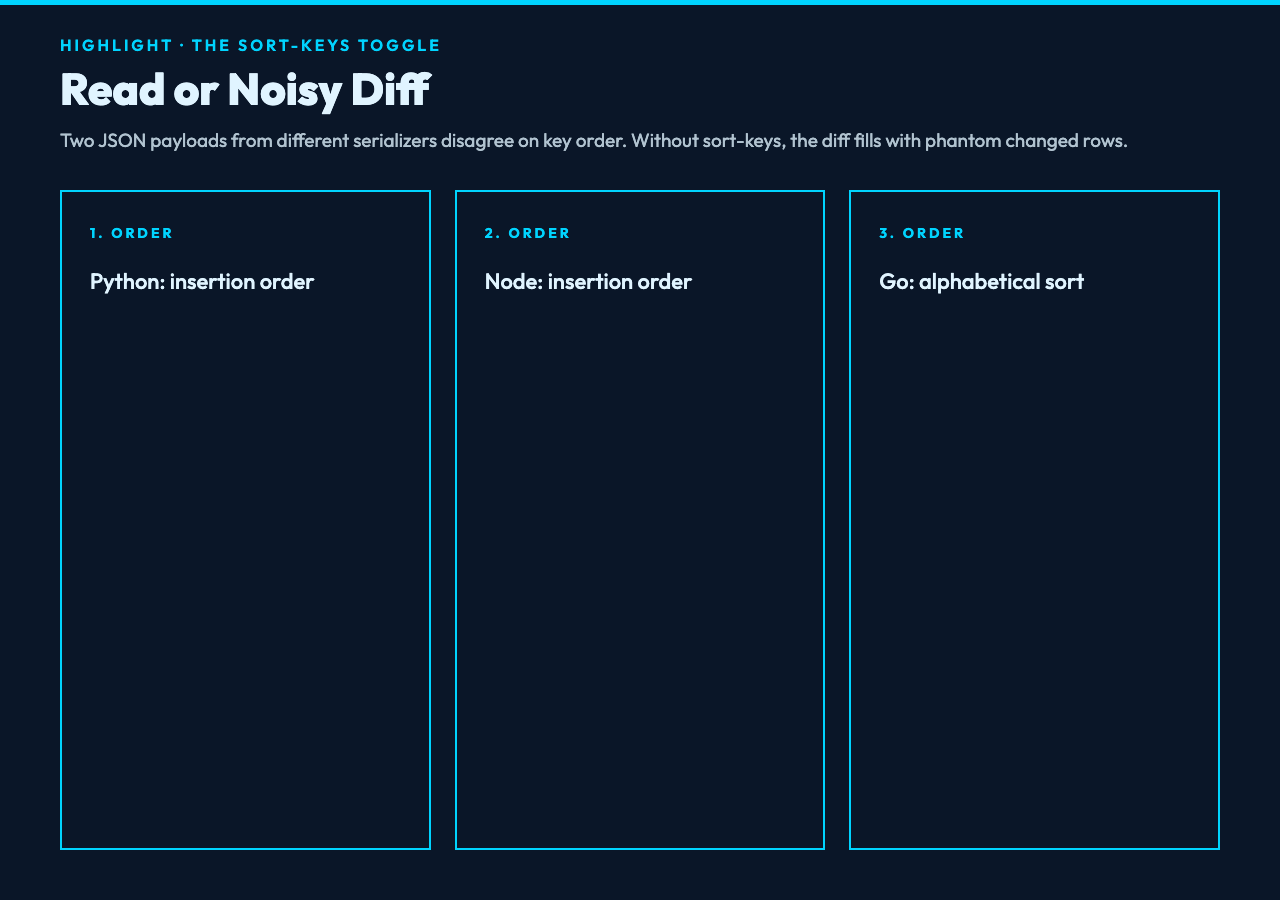
Two JSON payloads produced by the same serializer will frequently disagree on key order. Python’s default json.dumps preserves insertion order; Node’s JSON.stringify preserves insertion order; Go’s encoding/json sorts object keys by default. A diff between a Python response and a Go response therefore generates dozens of “changed” rows that are actually just key-reordering artifacts, and a reviewer who is not warned will spend an hour chasing a phantom regression. The JSON Diff Visualizer‘s sort-keys toggle is the single switch that decides whether that hour happens. With sort-keys on, both sides are sorted lexicographically before the path walk; with it off, you get the raw order from each serializer and the noise is real.
There is a class of false-positive diff that sort-keys does not fix: nested objects whose keys are semantically meaningful and which the sorter has flattened into alphabetical order. A JSON document shaped like {"first_name": "...", "last_name": "..."} sorts to {"first_name": "...", "last_name": "..."} and is fine, but a document shaped like {"city": "...", "state": "...", "zip": "..."} sorts to {"city": "...", "state": "...", "zip": "..."} and is also fine — the point is that JSON keys are unordered by spec, so any sort that yields a stable order is acceptable. What sort-keys does protect against is the silent key-reorder that a JSON prettifier with its own opinion produces. Always turn it on when the two sides come from different libraries or different versions of the same library.
How max-rows decides whether your report fits on one screen or scrolls forever
The default max-rows of 300 is calibrated for the diff most teams need: a config bundle, a single API response, a test fixture. Beyond 300 rows the report starts to dominate the page, and the statistics row at the top stops being the summary and starts being the only thing you read. The JSON Diff Visualizer lets you push max-rows higher when you need to (a full database snapshot diff or a large config tree) and lower when you need to (a single-object diff where anything beyond 30 rows is noise). The lower setting is underused: a 12-row cap forces the report to focus on the fields that actually changed, and the omitted rows go into the unchanged bucket silently.
The max-rows interaction with show-unchanged is the other setting worth understanding. With show-unchanged off and max-rows at the default 300, the report shows up to 300 added/removed/changed rows. With show-unchanged on, that 300-row budget is shared with the unchanged rows, so the changed-only view shrinks. For diffing two large config trees where you want to see what changed in the context of the rest of the tree, show-unchanged on with a higher max-rows is the right call. For diffing two release snapshots where you only care about the delta, show-unchanged off with the default max-rows is faster and cleaner.
Why left-JSON and right-JSON are not interchangeable (the source-of-truth trap)
The two textareas are labeled “Left JSON” and “Right JSON” and they are visually identical, which invites a class of mistake: pasting the wrong file into the wrong box. The JSON Diff Visualizer treats the labels as the only signal of direction — additions are reported against the right side, removals against the left, changes against both — so swapping the two payloads silently inverts every “added” and “removed” tag in the report. The defense is to always set the labels first and let the labels discipline the paste order. The labels become your audit trail: if the report says 14 additions in “v2” and you pasted v2 into the left box, the labels will not catch the mistake but a reviewer reading the report will.
There is a related trap with arrays. JSON arrays are ordered, so the diff treats array indices as part of the path. A payload with an array of 10 elements on the left and 12 on the right will report 2 additions at the end of the array, not 2 additions at the start, and a reordering of the same 10 elements will report 10 changes, not 0. The fix is to sort the arrays before pasting, but the sort is application-specific (sort by id? sort by name? sort by timestamp?) and the tool cannot know which sort is right. When the array order is not semantically meaningful — a list of permissions, a list of headers, a list of tags — the right workflow is to sort both sides by the same key before pasting. When the array order is semantically meaningful — a list of pipeline stages, a list of steps in a recipe, a list of rows in a report — the diff should preserve the order and you should expect the per-index changes to be real.
The five path classifications and what each one tells you about the change
The report classifies every path into one of five buckets: added, removed, changed, unchanged, and type-changed. The first four are self-explanatory; the last one is the silent killer. A field whose value moved from "123" (string) to 123 (number) will read as type-changed, not changed, and the report will surface that explicitly. The reason this matters is that JSON numbers and JSON strings are not interchangeable at the consumer — a frontend that does if (value === 123) will silently fail when value is the string "123", and a backend that does WHERE count = 0 will silently fail when count is the string "0". The type-changed bucket catches all of those cases in a single row of the diff.
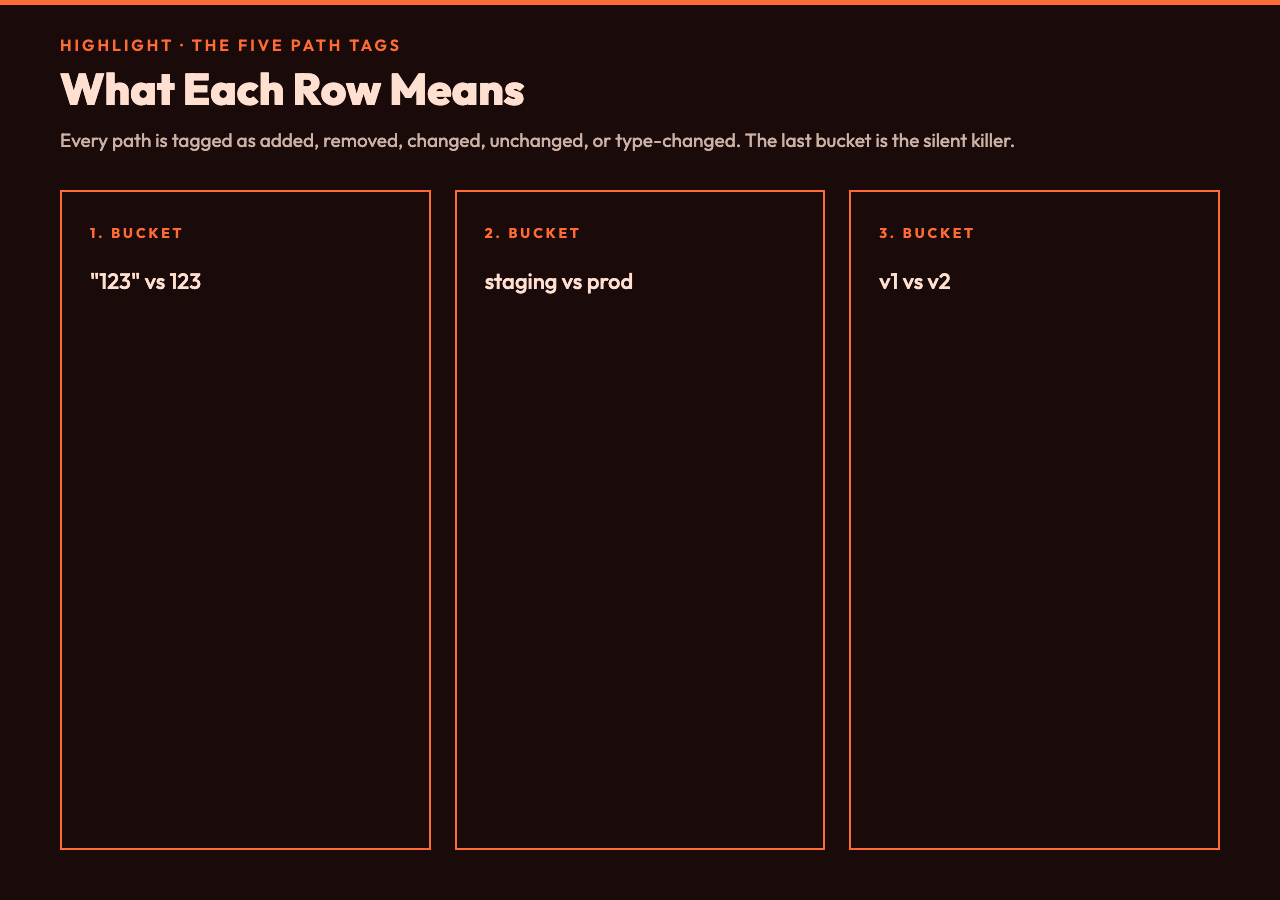
The five buckets also resolve a common confusion about which side “won” when two serializers disagree. If the report says a path is added and the label on the right is “v2”, then v2 has the field and v1 does not — and that is the answer to “what did the new release introduce?” If the report says a path is removed and the right label is “prod”, then prod does not have the field and staging does, which is the answer to “what drifted between environments?”. The five buckets turn the JSON diff into a structured query: you can read the report row by row and answer any “what changed between X and Y” question without re-running the diff.
How to validate a migration with one diff instead of three (the canonical workflow)
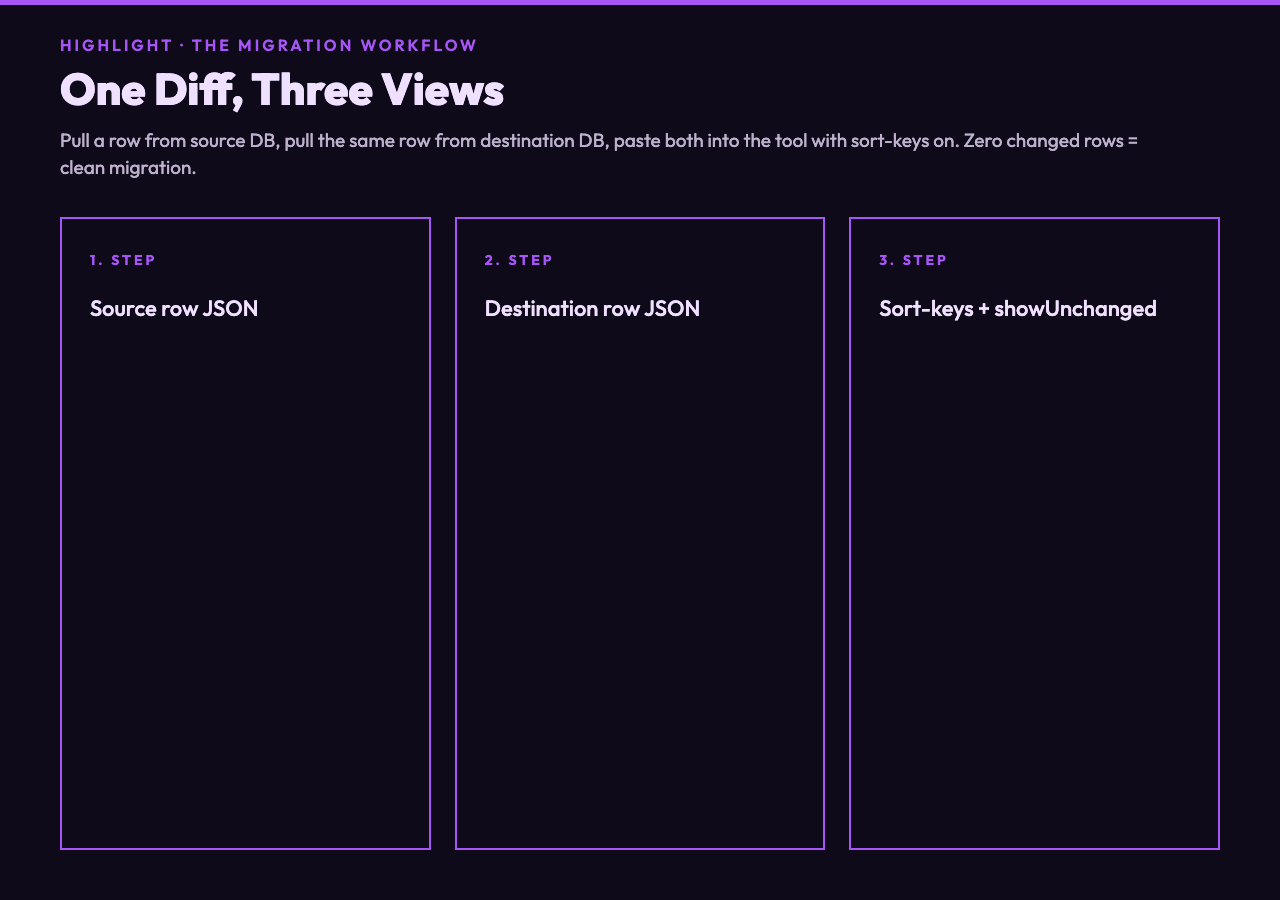
The standard migration validation is: pull a record from the source database, pull the same record from the destination database, diff them, and confirm zero changes. The JSON Diff Visualizer compresses that workflow to a single paste-pair. The pattern is to export the source row as a single JSON object, export the destination row as a single JSON object, label the source “before” and the destination “after”, turn sort-keys on (because the two database engines will disagree on column order in the JSON output), turn show-unchanged on only if the field count is small, and read the report. A clean migration returns zero changed rows; a partial migration returns a small cluster of changed rows whose paths point directly at the columns the migration script missed.
There is a three-way extension of this pattern for environments. Pull the same record from dev, staging, and prod as three separate JSON files. Diff dev against staging first; the report tells you what is different between dev (where you work) and staging (where the team reviews). Diff staging against prod; the report tells you what is different between staging (what was approved) and prod (what is live). The two reports together answer every “why is prod behaving differently” question that comes up. The JSON Diff Visualizer does not have a three-way mode, but the two-pair workflow above covers the three-way case with one extra paste operation and zero extra tooling.
Why the visual HTML report beats a CLI diff for every non-engineer stakeholder
The single biggest reason the JSON Diff Visualizer exists as a visual tool instead of a CLI script is that the audience for a JSON diff is rarely the engineer who ran it. The audience is the product manager who needs to know whether the schema change is safe, the QA engineer who needs to know which fields to update in the test fixtures, the on-call engineer who needs to know whether the config drift between environments is the cause of the incident. All three of those readers want a report they can scan, not a unified diff they can grep. The visual HTML report is the format that survives being pasted into a Slack thread, embedded in a Jira ticket, or printed to PDF for a compliance review. The CLI diff is faster to produce and harder to consume, and the cost of the slower consumption is multiplied by every stakeholder who reads it.
The visual report also enforces a discipline the CLI diff does not: every row has a path, a left value, a right value, and a tag. That structure forces the reader to engage with the diff one row at a time, which is the right cognitive load for a release-note review and the wrong cognitive load for a CI gate. For CI gates, the right tool is a CLI that returns a non-zero exit code on any changed row. For release-note reviews and deployment checklists and incident retrospectives, the right tool is a visual report that a non-engineer can read. The JSON Diff Visualizer is the second tool, and it complements rather than replaces the CLI.
What a JSON diff cannot tell you, and where it ends
A JSON diff is a structural comparison. It does not validate the schema of either side, it does not check whether the values are semantically consistent (a date string and a unix timestamp that represent the same moment will read as a changed row), and it does not warn you when a value is missing a unit. A payload with "timeout": 30 and a payload with "timeout": 30 in two different files might represent 30 seconds and 30 milliseconds, and the JSON diff will report them as identical. The fix is to layer a schema check on top of the diff: run a JSON Schema validator against each side first, then run the diff. If the schemas disagree, the diff is meaningless; if the schemas agree, the diff is the structural comparison the schemas imply.
The tool also does not handle binary diffs. JSON diffs are text-level: they work because JSON is text, and the path walk happens after parsing. Binary formats (Protobuf, MessagePack, CBOR) need a different toolchain, and the line between “JSON diff” and “binary diff” is the line between “I can read the payload” and “I need a schema file to read the payload”. For most API debugging, config drift investigation, and migration validation, the payload is JSON and the JSON Diff Visualizer is the right tool. For everything else, the right first step is still to convert both payloads to JSON and run them through the diff — the visual report you get back is the same report, and the conversion step is the price of a tool that has the broadest possible coverage of the inputs you will actually see.
The JSON Diff Visualizer earns its place on the developer workbench for one reason: it converts the question “what changed between these two JSON payloads?” from a 15-minute manual diff into a 5-second paste-pair. That ratio is what makes the tool worth opening every time, and the five-bucket classification plus the sort-keys toggle plus the visual HTML report is what makes the answer trustworthy enough to ship to a non-engineer stakeholder. Pair it with a schema validator for the cases where structural identity is not enough, and the diff stops being a tool you reach for and starts being a tool you build your release workflow around.
