
The fastest path from a pasted receipt to a clean spreadsheet is the one that never asks you to clean the input twice. You paste. The tool reads the tabs, the colon pairs, the embedded HTML table, the rogue double-spaces — and you get back three exports that all agree with each other. The article below walks through the six inflection points where this kind of tool decides between a five-second win and a forty-minute cleanup, and shows the worked inputs that produce typed, exportable rows on the first try.
The five-second win: auto-detection of the input shape
The workbench’s first job is to read your paste and decide what shape it is. You do not declare the format up front; the tool inspects the input and reports its guess. A line of name: Ada / age: 37 / active: true is read as a key-value record. A block of name age active / Ada 37 true / Linus 5 false is read as a TSV table with one header row. A snippet of <table> markup is unwrapped, header row extracted, cells trimmed. The detection rule lives entirely in the input, not in your selection — which is why Input Mode defaults to auto rather than to table or kv. When auto gets it wrong, you switch the mode explicitly; when it gets it right, you skip a step.
The detection that matters most is the delimiter one. Tabs win over spaces. Spaces win over commas inside fields that already contain commas. The tool does not strip whitespace before it picks a delimiter — it inspects the column-boundary evidence first and only trims cell values after the table is laid down. That ordering is why the same paste that fails in a spreadsheet import often succeeds here on the first try.
The four export shapes, and why they all agree
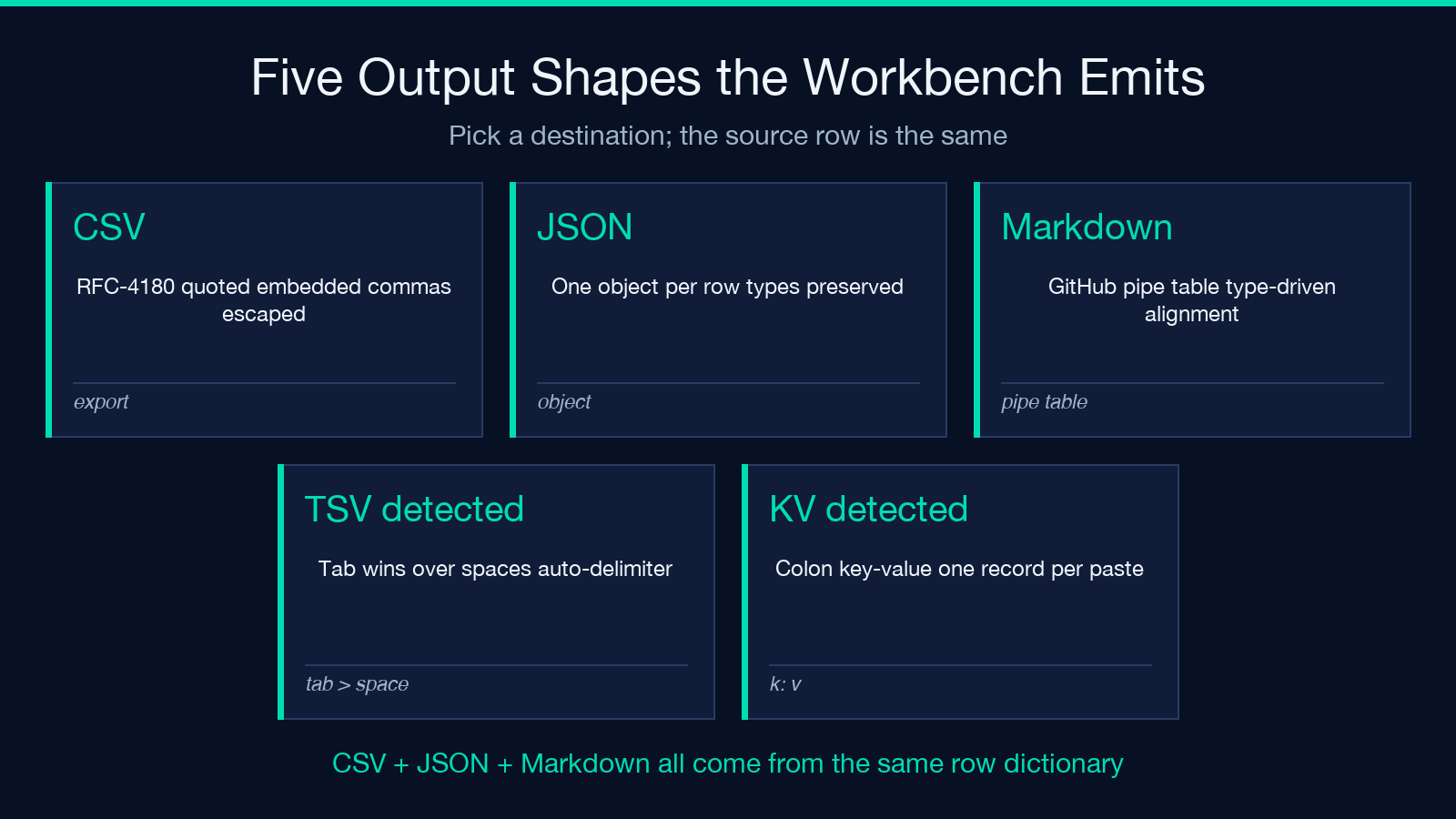
Three exports, one source row — CSV, JSON, Markdown. The CSV is RFC-4180-quoted, with embedded commas escaped and a trailing newline. The JSON is one object per row, with the header keys as the field names, types preserved where the inference was unambiguous (numbers stay numbers, booleans stay booleans, ISO dates stay dates). The Markdown is a GitHub-flavored pipe table with alignment hints taken from the inferred types. All three round-trip through the same row dictionary; none of them re-parse the source text independently.
This is the part that separates a workbench from a converter. A converter takes your text, splits on a delimiter, hands you a CSV. A workbench builds a typed row dictionary first and then emits three shapes from that dictionary, so the same 37 lands as a number in JSON, an unquoted field in CSV, and a right-aligned cell in Markdown. The mismatch that often shows up when you hand-roll the three exports — JSON saying 37, CSV quoting "37", Markdown rendering the cell — does not happen.
When auto-detection loses: the four cases that need a hint
Auto-detection is right roughly nine times out of ten on real paste contents. The four cases where it loses are predictable.
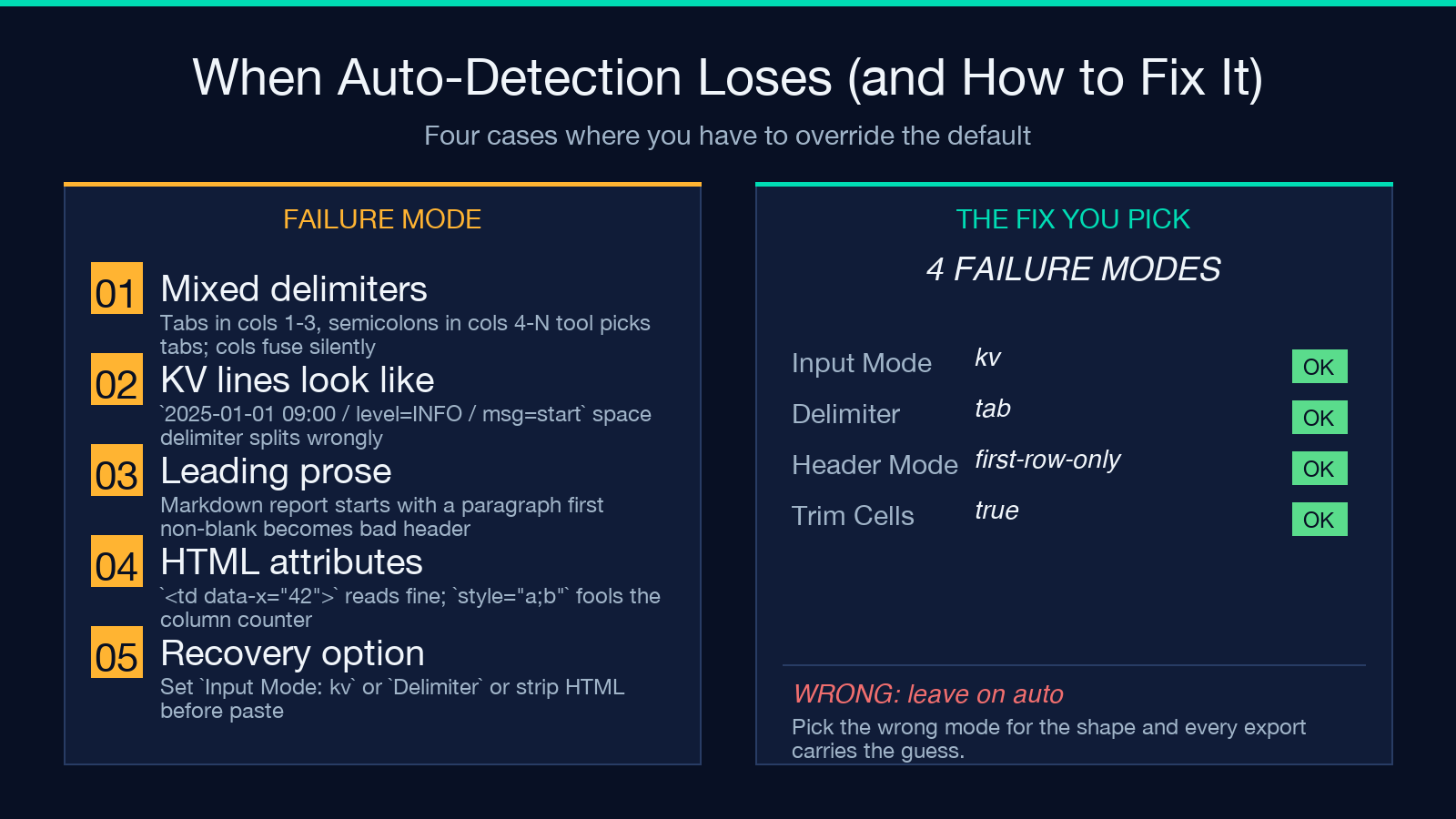
First, mixed delimiters inside one table. A report uses tabs in the first three columns and semicolons in the trailing columns because someone exported from a regional locale. The tool picks tabs and silently fuses the trailing columns. The fix is to set Delimiter to a tab and accept that the trailing columns will need manual splitting — or to convert the source first to a uniform delimiter.
Second, key-value lines that look like a table. A block of 2025-01-01 09:00 / level=INFO / msg=start reads to the eye as a log line, not as three columns. The workbench sometimes picks space as the delimiter and gives you four columns instead of three. Switch Input Mode to kv and you get one record with date, time, level, msg.
Third, leading prose before the table. A markdown report that starts with a paragraph and ends with a table. The auto-detector walks the first non-blank line and uses it as a header candidate, which leads to a header row made of prose. Set Header Mode to first-row-only and the detector waits for the first tabular block.
Fourth, HTML with attribute-laden cells. A <td data-x="42"> cell renders as text that the tool reads correctly, but if the HTML has inline style attributes with semicolons inside them, the column count gets confused. Paste the HTML through an HTML-stripper first or set Delimiter to a non-conflicting character.
The option set that does the actual work
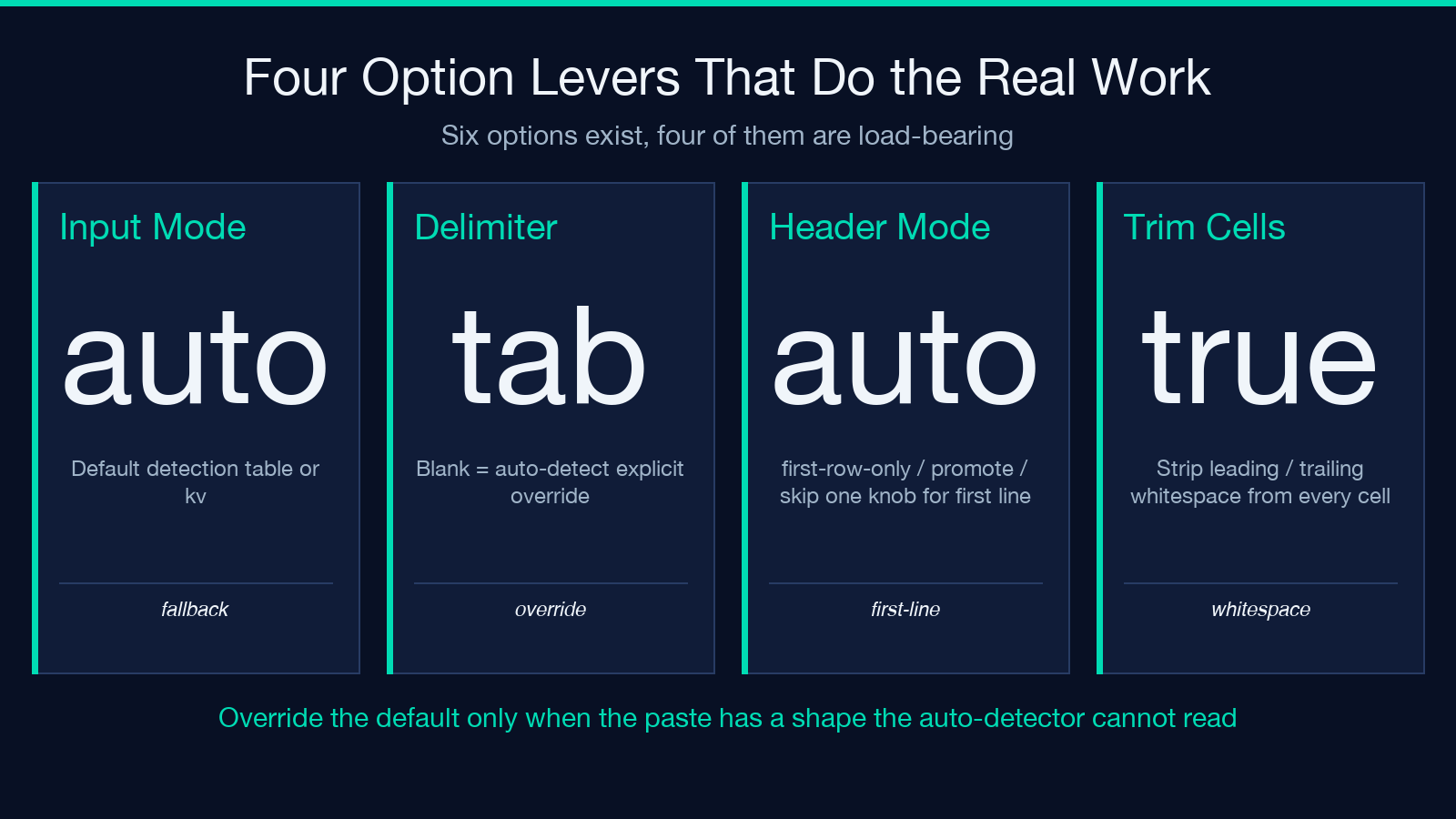
Six options, four of them genuinely load-bearing.
Input Mode defaults to auto and is the only knob you reach for in the four failure cases above. Delimiter is the explicit override; leave it blank and auto-detection wins. Header Mode defaults to auto and decides whether to treat the first row as a header (first-row-only), promote it (promote), or skip it (skip). Trim Cells defaults to true and strips leading and trailing whitespace from every cell — the single biggest source of “JSON has a key with a trailing space” bugs is here, and the default already does the right thing.
Use AI processing is the option most worth understanding. It defaults to false. When it is on, the tool routes the paste through an LLM that does better delimiter guessing, better header inference, and better type coercion for unusual cells (dates in DD/MM/YYYY form, currency strings, percentages). When it is off, you get the deterministic regex path which is faster, fully offline, and trivially auditable. The deterministic path is what you want for repeatable ETL work; the AI path is what you want for the one-off paste where the input is genuinely unstructured. Running the deterministic path first and switching to AI only when it fails is a discipline worth keeping.
The last option is the export-format toggle, which is not a setting so much as a destination switch. You pick CSV when the next stop is Excel, JSON when the next stop is an API or a database, Markdown when the next stop is a wiki or a README.
Worked example one: TSV to three exports
Paste the following block:
name	age	active
Ada	37	true
Linus	5	false
With Input Mode: auto, the detector sees three rows, two tab-delimited rows below a header row, and reads it as a 3-column TSV. The inferred types: name as string, age as integer, active as boolean. The CSV export has three lines plus header, the JSON export has two objects with the right types, the Markdown export has a pipe table with right-alignment on the age column. Total time from paste to three exports: under a second.
Worked example two: colon-delimited settings to a single record
Paste the following block:
name: Ada
age: 37
active: true
With Input Mode: auto, the detector sees three lines each containing a colon, reads the left side as the key, and emits a single record. The CSV export has one row with three columns. The JSON export is one object with name, age, active. The Markdown export is a 2-column pipe table (key, value) with three rows. The three exports agree because they all came from the same record dictionary; there is no second parse that could drift.
The workbench is at Elysia Tools and runs entirely in the browser. Pasting real input is the fastest way to find out which of the four failure cases applies to your data — and then to discover that the option set already has the fix.
The cleanup path when the input is genuinely dirty
Sometimes the paste is past saving. HTML with broken tags, smart quotes inside cells that look like ASCII quotes, mixed line endings, a column that lost its header in transit. The right move is to run the paste through a smaller cleanup tool first — a quote normalizer, a whitespace stripper, an HTML-to-text converter — and then into the workbench. Three short passes are usually faster than one long one, because each pass has a job it can finish in under a second.
The text-to-binary converter is the unexpected neighbor in this workflow: when the paste contains characters that the workbench cannot read as text (binary blobs, base64 with newlines, percent-encoded URLs), the binary converter normalizes the encoding first and you can paste the result back in. Two tools in series handles the cases that one tool alone cannot.
The closing move
Three exports from one paste, three lines of source, three seconds. The workbench is the right tool for the moment when the question is not “what is the right schema” but “what was the right input”. Once you have the typed row dictionary, the schema question becomes a downstream problem you can solve with the data-bom-remover, the csv-malformed-row-surgeon, or the header-alias-resolver — three more tools in the same Text Processing cluster. Browse all Text Processing tools when the schema question does arrive; the workbench handles the input question first.
