
Lead phrase. Batch conversion between CSV and XLSX looks like one toggle until you add encoding, delimiter, and BOM to the same run, and then the output file size, the number of sheets, and the downstream tool’s tolerance for mojibake all move at once. The right combination turns a 50-file CSV dump into a tidy ZIP of UTF-8-with-BOM CSVs that Excel, Numbers, and Google Sheets all open cleanly. The wrong combination gives you 50 files of é in place of é and a customer who swears your tool ate their French product names. This field guide walks through the three real decisions (mode, source encoding, output encoding), the delimiter pairing that surprises people, and the alwaysZip toggle that matters when your batch is small but your folder is big.
The tool is the XLSX CSV Batch Converter, and the workflow it sits inside is the broader format-conversion cluster where input shape and output shape meet at a single upload box.
What “batch” actually means here
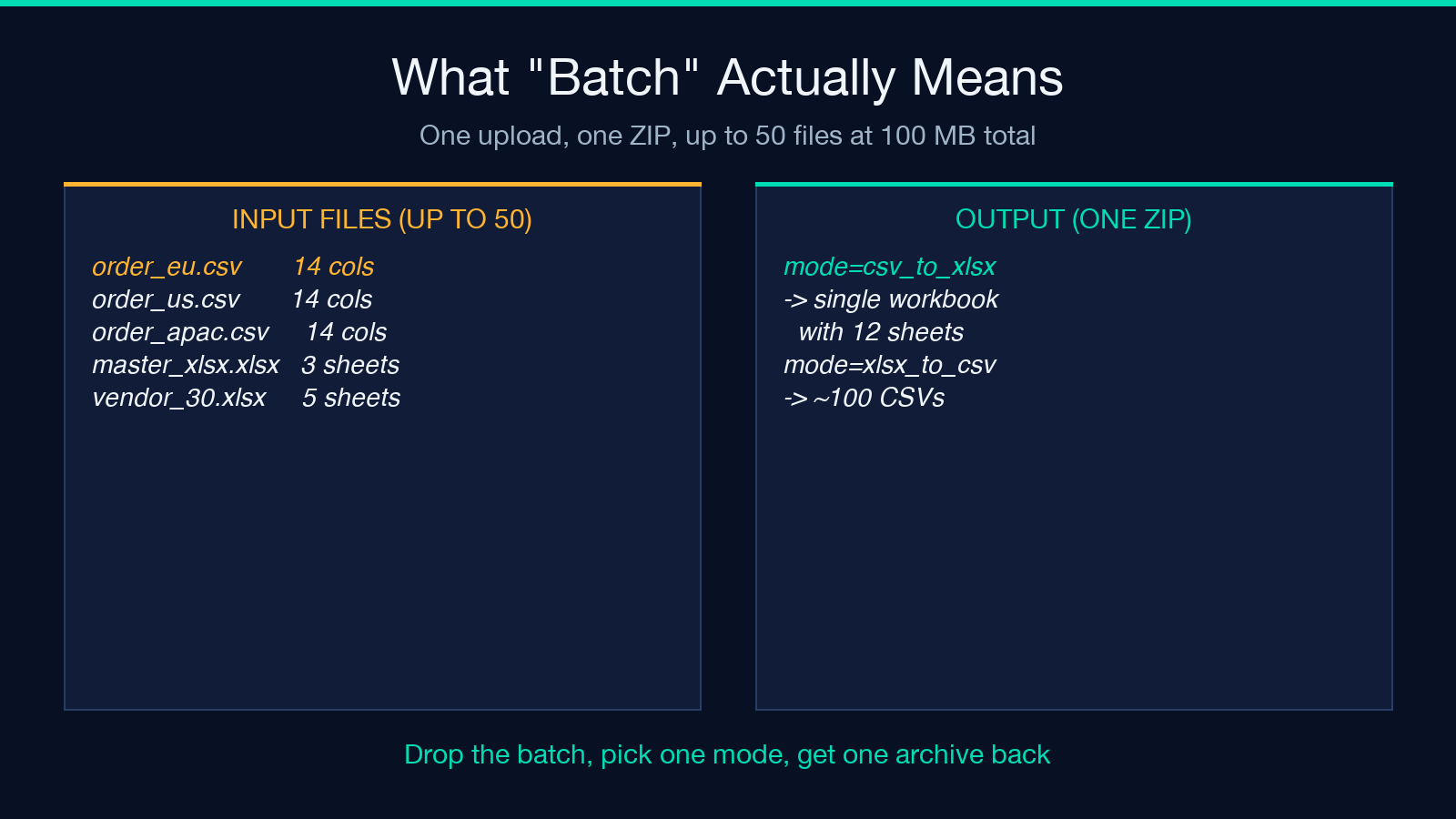
A “batch” run is a single upload of up to 50 files (the Source Files option accepts text/csv, text/tab-separated-values, text/plain, .xlsx, and .xls up to 100 MB total) followed by a single ZIP download. You do not queue 50 separate conversions; you drop all 50 into the file picker, pick one mode, pick one encoding pair, and the tool returns one archive with the converted set inside. For teams that process nightly exports from a CRM, an ERP, or a public-data portal, that single-archive model is what makes the tool usable rather than toy-grade: the alternative is opening 50 browser tabs and waiting for each to finish, which is what most free online converters force you into.
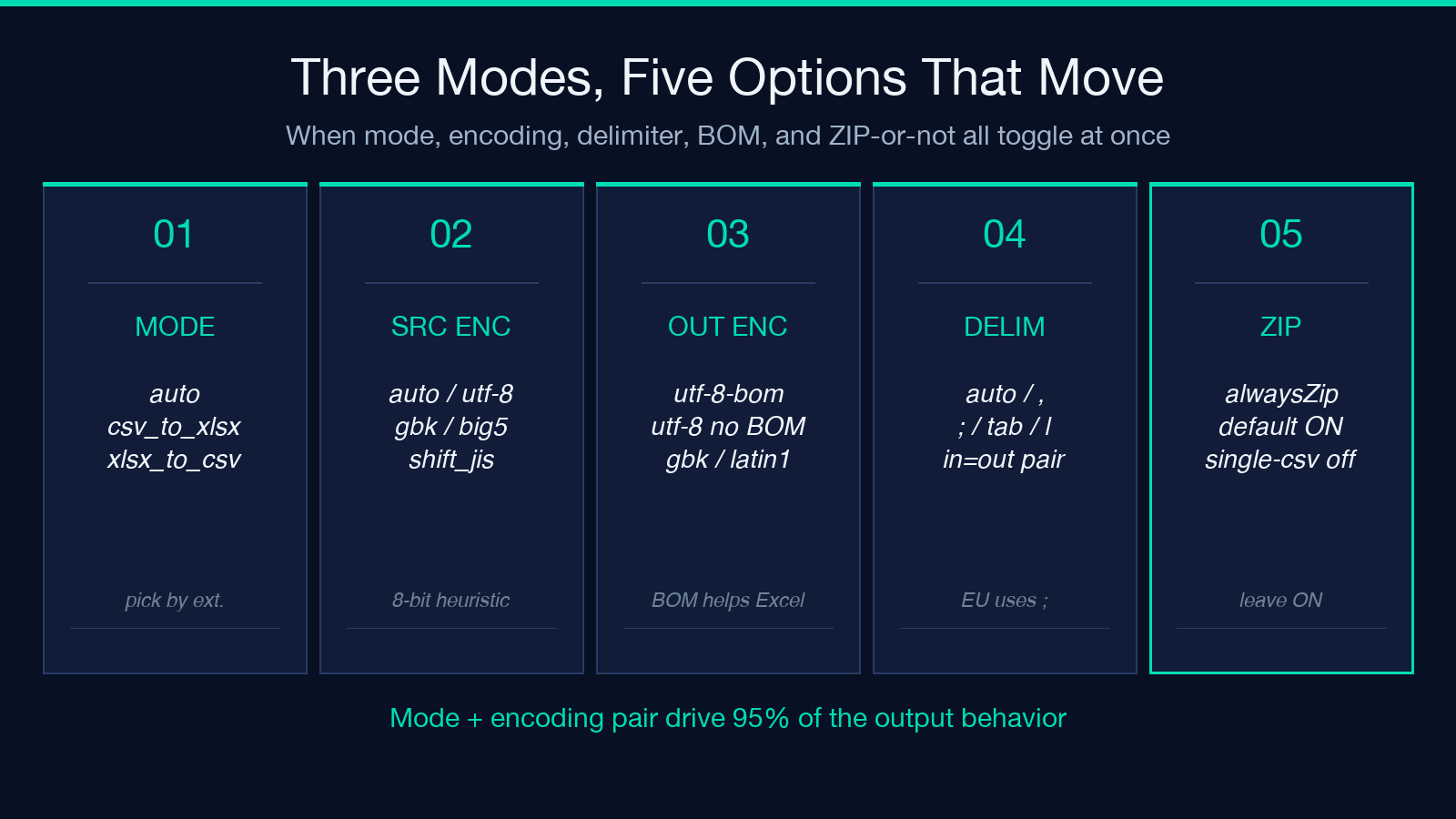
The mode switch (auto, csv_to_xlsx, xlsx_to_csv) is the first real decision. auto looks at the file extension and routes each input to the right direction individually, which is the right pick when your batch is a mixed pile of CSVs and XLSXes. csv_to_xlsx is a forced one-way conversion for the entire batch – if even one input is .xlsx, it will be skipped or errored, depending on the version. xlsx_to_csv is the forced reverse – useful when an upstream system drops everything as Excel and you need a flat-text pipeline downstream.
The encoding pair trap: source encoding and output encoding are independent
The two encoding selectors (sourceEncoding, outputEncoding) are independent, and that independence is the source of most of the mojibake reports. auto for source tries UTF-8 first, then falls back to GBK, Big5, Shift_JIS, and Latin1 by byte-pattern heuristics. auto is right for roughly 80 percent of real-world CSVs because most modern exports are UTF-8, and the heuristic gets the rest of the obvious Latin-1 dumps too. For Japanese ERP dumps that are Shift_JIS-encoded but labeled .csv, the heuristic will guess wrong and you will get a CSV where every Japanese character renders as ??? or, worse, as a different character that happens to share the byte sequence. The fix is to set sourceEncoding explicitly to shift_jis and re-run.
Output encoding is a different decision. The default utf-8-bom is correct almost everywhere because Excel on Windows insists on a UTF-8 BOM (EF BB BF at byte 0) to detect UTF-8 – without the BOM, Excel will guess Windows-1252 and your Japanese or accented-Latin text will display correctly only by accident. utf-8 without BOM is the right pick only when the downstream consumer is a Unix tool that does not understand BOM (some awk pipelines, some log shippers, and certain older ETL scripts will silently include the BOM bytes in the first column name). GBK output is for systems that are hard-coded to GBK and would rather receive GBK directly; Big5, Shift_JIS, and Latin1 follow the same logic.
The delimiter pair: input and output are independent too
Like encoding, the input delimiter (auto, ,, ;, \t, |) and output delimiter (,, ;, \t, |) are independent. auto for input scans the first 4 KB and picks the delimiter that produces the most consistent column count, which works for the standard comma-CSV and tab-TSV cases but fails on semicolon-CSV (the European Excel default that uses ; because the comma is the decimal separator in many locales). If your input is a semicolon file with European number formatting, you must set inputDelimiter to ; explicitly.
Output delimiter is the more interesting decision because it controls how well the CSV round-trips back into Excel. If the receiving team is in Germany or France and uses Excel with European locale, the comma-CSV you ship will be imported as a single column because Excel splits on ; by default in those locales. Setting outputDelimiter to ; is the right pick for European recipients, regardless of where the data originated. The default , is correct for the US, UK, and most engineering pipelines.
Mode-specific gotchas worth knowing
For CSV/TSV to XLSX: every CSV becomes a sheet in a single XLSX file unless alwaysZip is set, in which case each input CSV becomes its own XLSX file and they are returned as a ZIP. The sheetName option lets you name the output sheet (default Sheet1); with alwaysZip, the ZIP entry names default to the original filenames with the extension swapped. Multi-file batches where each CSV has the same number of columns all land in one XLSX nicely. Batches where each CSV has a different column count will each produce a separate XLSX, not a multi-sheet workbook – the tool does not concatenate heterogeneous tables.
For XLSX to CSV/TSV: every sheet in the source workbook becomes a separate CSV file in the output archive. The includeHeader option controls whether the first row is treated as a header row in the output CSV; the default is true, which matches Excel’s own behavior when you Save As -> CSV. Sheets that contain formulas will be written with the calculated values, not the formula text, because the openpyxl library that backs the conversion evaluates formulas at read time. Cells with rich text formatting will lose their formatting and become plain strings in the CSV – there is no way to preserve bold, italic, or cell colors in a flat-text output, by definition of the format.
Three concrete edge cases the mode switch does not handle
The mode toggle assumes every file in the batch is a clean CSV/TSV/XLSX with no surprises, but real exports are messier. First, files with embedded trailing-comma columns (where the input tool exports an extra comma at end of line because of an upstream bug) will trip the column-count heuristic used by auto delimiter detection; the tool will still parse them, but the extra empty column may shift downstream type inference. Second, XLSX files with merged cells across columns will write only the top-left cell of each merged region to the output CSV – the merged-cell boundary information is not preserved because CSV has no concept of merged cells. Third, CSV inputs where the header row contains a literal comma inside quoted strings (e.g. Product,Category,"Notes, internal") require auto delimiter detection to identify the right boundary; this works for English-text quoted commas but fails for European-decimal quoted commas inside numeric columns.
Why ZIP-or-not is a real toggle
The alwaysZip checkbox defaults to true, and that default is right for two scenarios: (1) any batch of more than one input file, where a single ZIP is more convenient than 50 separate downloads; and (2) any single-file conversion where the file is large enough that you want to verify the download completed before opening it. Set alwaysZip to false only when you have a single-file conversion and the downstream system is a script that ingests one file at a time – most ETL pipelines and one-off shell scripts prefer a single .csv over a .zip containing one .csv. For interactive use, the ZIP wrapping costs nothing and is worth leaving on.
How this fits a real workflow
A common batch use case: a sales-ops team gets a daily export from a CRM as 12 CSVs (one per region), all comma-delimited, all UTF-8, all with the same 14 columns. They run the tool with mode=csv_to_xlsx, sourceEncoding=auto, outputEncoding=utf-8-bom, outputDelimiter=,, alwaysZip=true, and get back one ZIP containing a single XLSX with 12 sheets named after the region. They open it in Excel, click each sheet, and the data is clean. The same batch without the BOM would still misread on opening; the same batch with outputDelimiter=; would land as a single column. Both edge cases are one toggle away.
The other common use is the reverse: a finance team has 30 XLSX workbooks from 30 vendors, each with 3 to 5 sheets of expense data, and they need to pipe everything into a single PostgreSQL staging table. They run the tool with mode=xlsx_to_csv, outputEncoding=utf-8, outputDelimiter=,, alwaysZip=true, and get back one ZIP with about 100 CSVs (each sheet from each workbook becomes its own CSV). The staging table loader reads each CSV with a header row, infers types from the first 100 rows, and the pipeline continues.
When the tool is not the right pick
Three failure modes where this tool is the wrong choice: (1) your batch needs per-file encoding detection that varies file to file within the same batch – the tool uses one sourceEncoding for the whole batch, not per-file auto-detect with override. For mixed-encoding batches, you need to split the batch into encoding-homogeneous sub-batches. (2) your CSVs contain multi-line cells with embedded newlines inside quoted strings – the tool handles quoted multi-line cells correctly, but only when the delimiter is set explicitly; auto input delimiter detection can misread files where quoted multi-line cells contain the delimiter character. (3) you need to preserve formulas, formatting, or comments – CSVs are flat text, by definition, and the tool does not preserve XLSX-side metadata in the round trip.
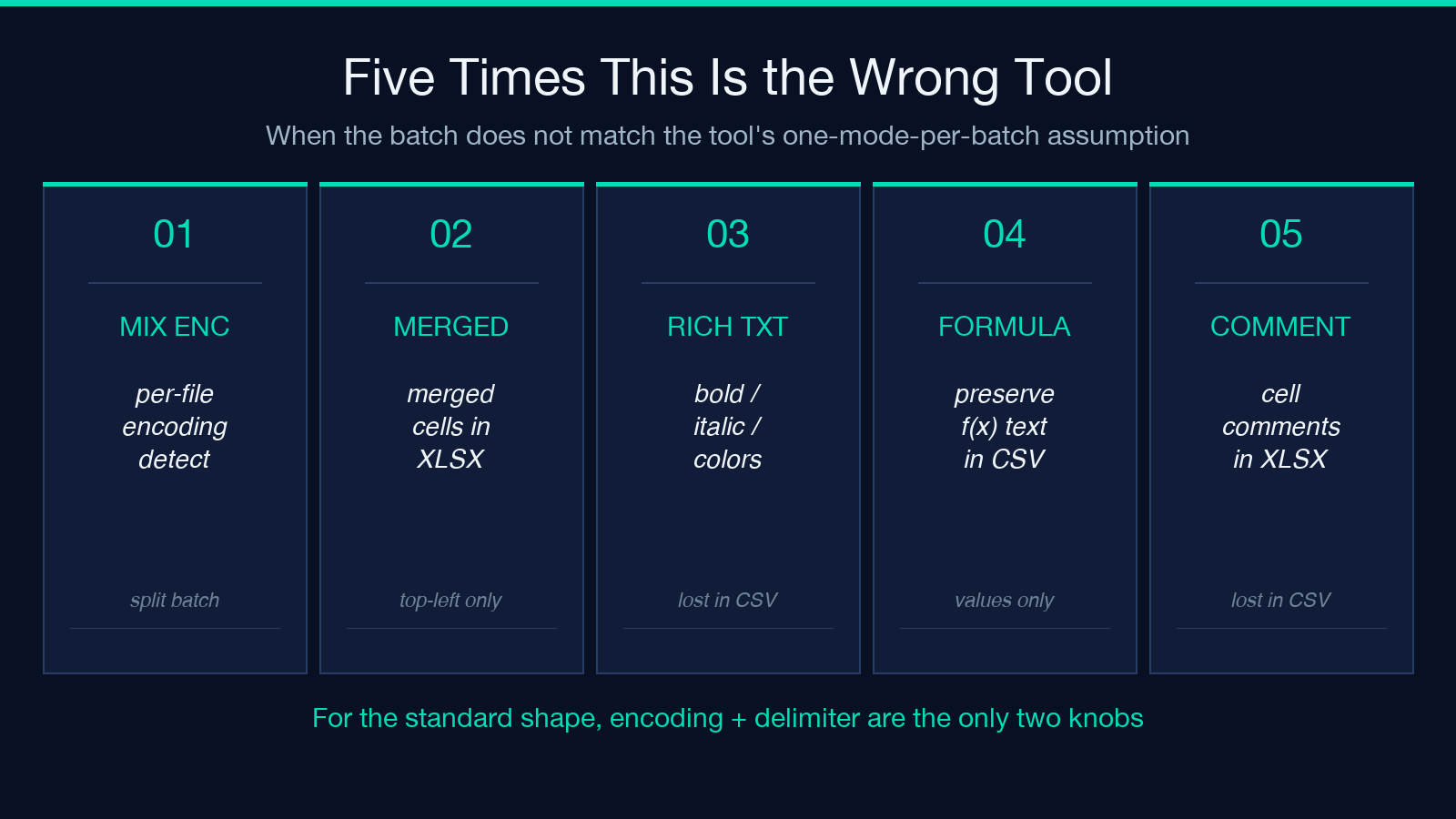
For batches that fit the standard shape (homogeneous encoding, comma or semicolon delimiter, no exotic formula preservation), the tool is fast, predictable, and the encoding-and-delimiter decisions are the only two real knobs you need to understand. The rest of the options are defaults that match Excel’s own conventions.
Explore more format-conversion tools at Elysia Tools.
