Most CSV pipelines die at the first row. A database export arrives as four anonymous numeric columns, an API response lands without a header line, or a third-party data dump lists fields as Column 1, Column 2, Column 3 and forces the consumer to guess the schema. The fix is a single-purpose tool that adds the missing header row – and the decisions you make while using it decide whether the downstream parser treats your data as typed records or as one long string of confusion. The Header Adder does exactly this: it reads headerless CSV and emits header-bearing CSV (or JSON, or HTML table), with five header modes, five separators, three output formats, and one preview-only toggle that turns the whole tool into a header-generation auditing lab.
When the Header Row Goes Missing
Three everyday situations land a CSV on your desk without a header line. Database exports from legacy systems (Oracle, SQL Server, and Access, in particular) often emit the data rows without their column names when the query was crafted against a SELECT * shortcut or a view without column metadata. API responses occasionally return raw arrays of arrays, not arrays of objects, and the consumer is left to label them. Numeric datasets – benchmark scores, measurement logs, or simulation output – arrive as a flat matrix where every column has meaning but none has a name.
The mistake most people make is to type the headers in manually. That works for two columns. It does not work for thirty. And it does not survive schema drift: when the source adds or removes a column, your hand-written headers silently go wrong.
The Five Header Modes and What Each Produces
Header Mode is the most important decision in the tool. It decides what the first row of your output becomes, and it has five choices, each tuned for a different downstream consumer.
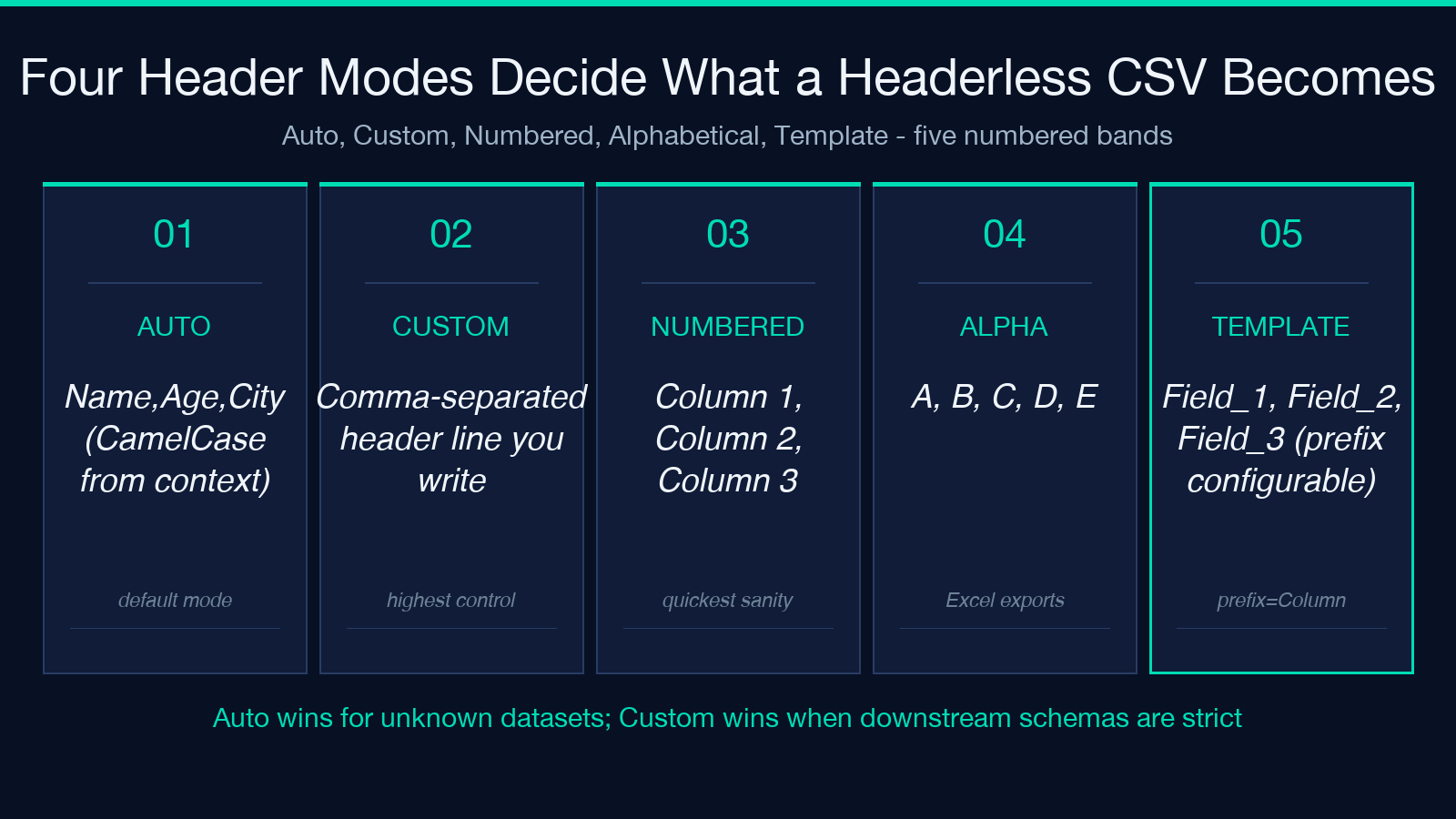
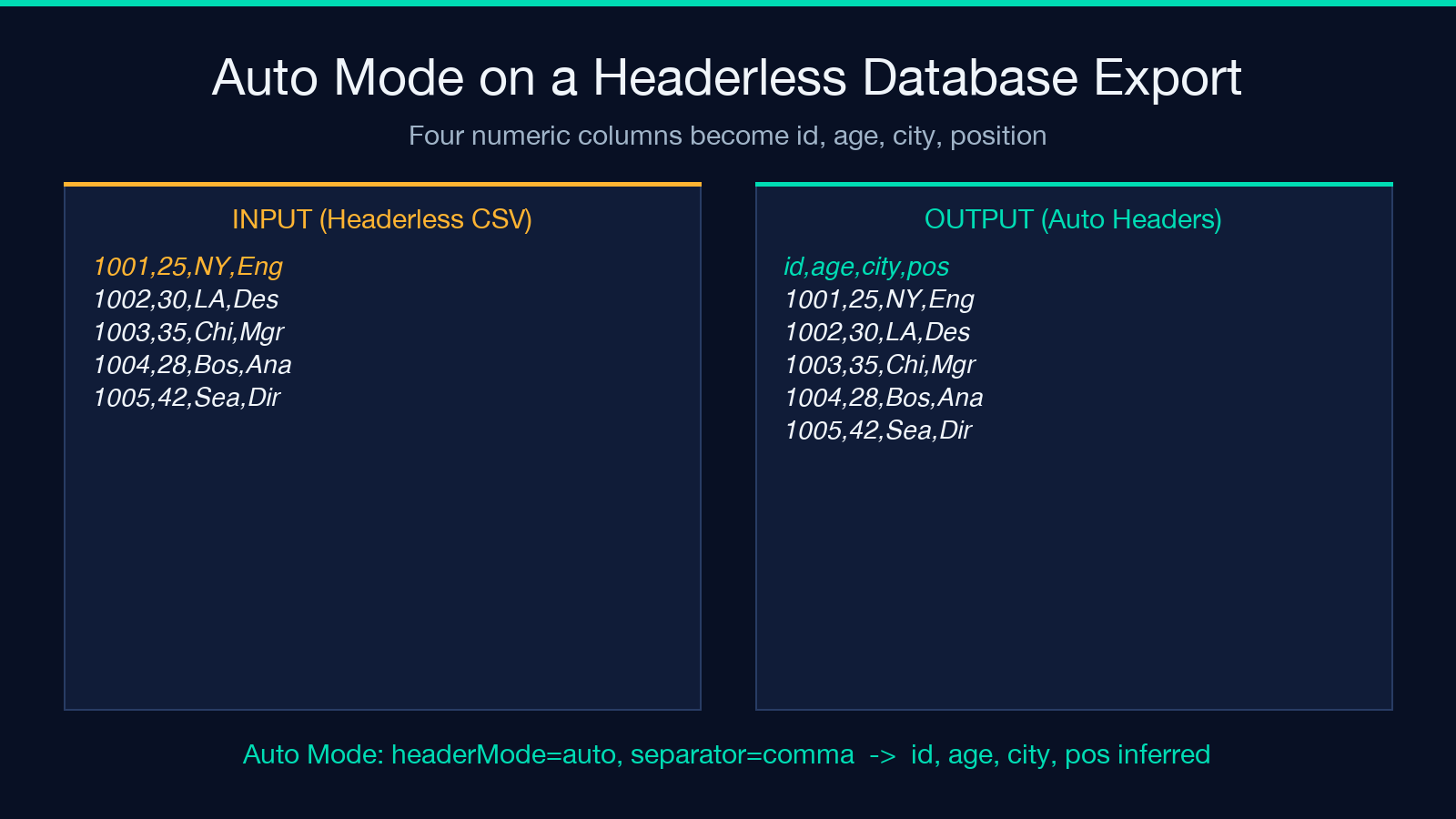
Auto-Generate is the default. The tool analyzes the data rows and infers the most likely column names – Name, Age, City, Position for a database export of employees; date, value, unit for a measurement log. It uses a CamelCase naming convention and reads the first data row to disambiguate columns that look numeric. It is the mode to reach for when you genuinely do not know the schema.
Custom lets you supply your own header line. You paste Name, Age, City, Position into the Custom Headers field and the tool emits those exact strings as row zero. This is the mode to reach for when the downstream consumer has a defined schema and your input is just missing the labels.
Numbered produces Column 1, Column 2, Column 3 and so on. Useful for quick sanity checks and for cases where the column name does not matter but the column index does. Excel and most CSV viewers treat this as the universal fallback.
Alphabetical produces A, B, C, D, E. It looks terse in the spreadsheet but it is also the only mode that does not require the consumer to know any internal naming convention. Use it when you are handing the file to a non-technical stakeholder.
Template produces Field_1, Field_2, Field_3 with a configurable prefix (default: Column). Use it when you need the headers to look like placeholder schema names that downstream tooling can rename via sed or find/replace.
The Five Separators Decide How Columns Split
Comma is the default, but the tool accepts five separators. Semicolon is the second-most-common – particularly in European exports where the comma is the decimal separator. Tab is the third, used by Excel on Windows when the file is saved as .txt and by Unix tooling that wants to avoid quoting entirely. Space and pipe are the rare-but-not-zero options, mostly seen in academic corpora and in some log formats. Choose the separator that matches your source file; the tool defaults to comma but the choice matters because a misaligned separator will silently collapse the entire row into one column.
The Three Output Formats and the Preview-Only Toggle
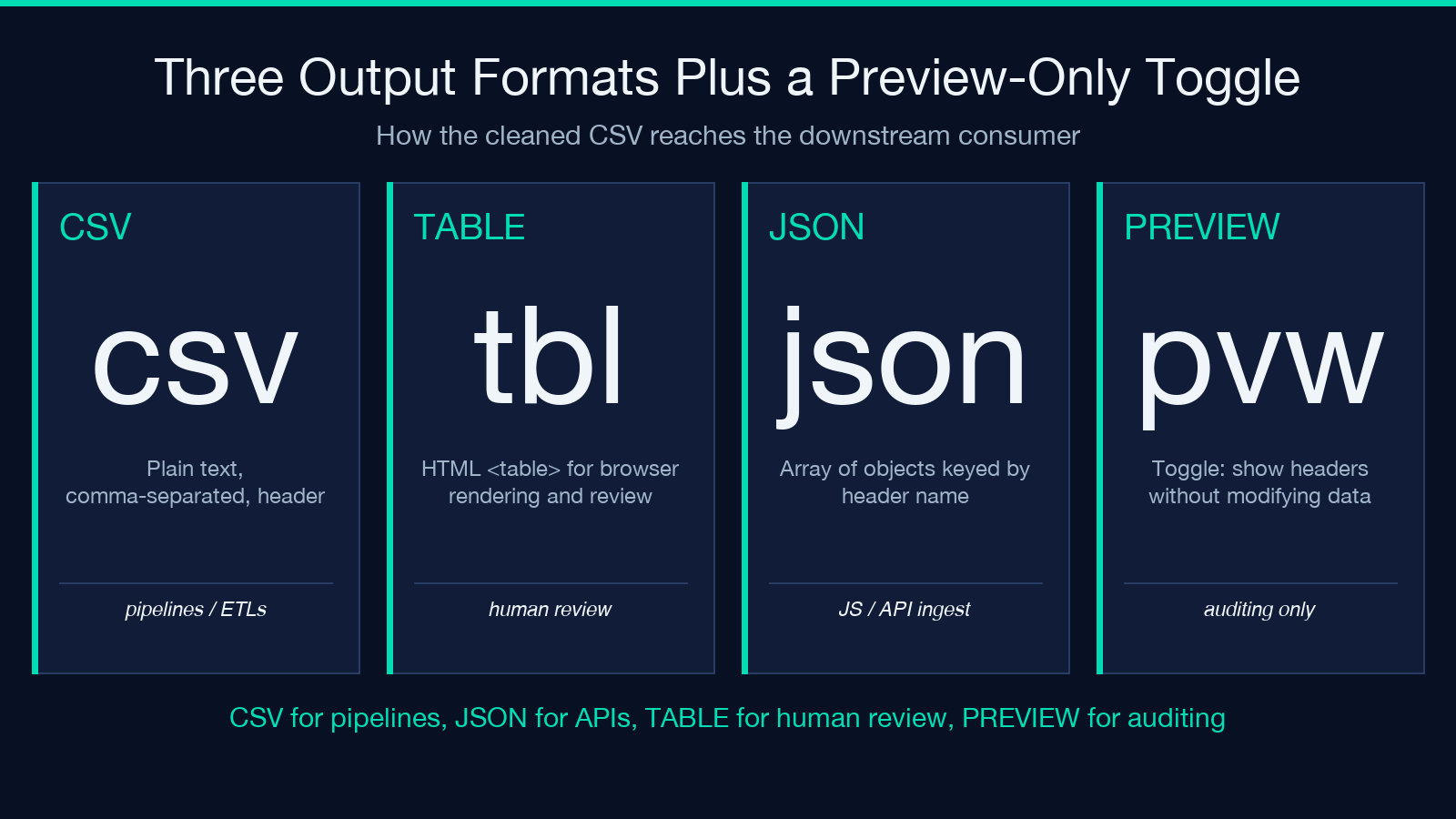
CSV is the default output, with a header row on top and the original data rows below, separated by your chosen separator. TABLE emits an HTML