
Correlation analysis looks simple on the surface: paste a CSV, get a coefficient between -1 and 1, move on. The Coefficient Is Not the Story reveals where that surface breaks down. Three correlation methods on the same dataset can return three different rankings. A coefficient of 0.6 can sit beside a p-value of 0.18, which silently invalidates the entire “strong relationship” narrative. And a single CSV with three non-numeric columns can produce a correlation matrix that looks plausible until you realize two of the columns were string-typed all along.
This field guide walks through the practical decisions behind Correlation Analyzer: how the three methods differ, what the significance test actually computes, why the heatmap is a visualization layer rather than a numerical result, how missing values and outliers change the answer, what the group-by column unlocks, and how to read the confidence intervals without over-trusting them.
What the Tool Actually Returns
Paste a CSV into the input area and the analyzer produces a structured output: the correlation matrix itself, the p-value matrix, the confidence interval band (when enabled), a heatmap visualization, scatter-plot recommendations for the strongest pairs, and a textual summary that names the largest positive and negative coefficients. The output is plain text plus an SVG heatmap — both can be copied, screenshotted, or piped into a downstream pipeline.
The CSV format is intentionally minimal: a header row of column names followed by numeric rows. There is no required schema and no configuration file. Columns that are non-numeric are silently skipped, which is the right default behavior for exploratory analysis and the wrong default for production data where you want the tool to fail loudly on a bad column type.
Why Three Correlation Methods, Not One
Pearson is the default and the one most tutorials reach for first. It measures the strength of a linear relationship between two continuous variables. It assumes both columns are roughly normally distributed, free of heavy outliers, and free of obvious non-linearity. When those assumptions hold, the coefficient is straightforward to interpret.
Spearman is the rank-based alternative. Instead of using the raw values, it replaces each value with its rank and computes a Pearson-equivalent on the ranks. This makes Spearman robust to monotonic non-linearity: if Y rises with X but not in a straight line (think exponentially growing revenue against marketing spend, or a saturating dose-response curve), Spearman sees the trend and Pearson misses it.
Kendall is the third option and is the right choice on small samples (n < 30) or when many observations share the same rank. Kendall’s tau is more conservative than Spearman’s rho — its values are smaller in magnitude — and it has a more direct probabilistic interpretation: the probability that two randomly chosen observations are ordered the same way in both columns.
The mistake to avoid is treating the three methods as interchangeable. On a dataset of 40 observations with two tied values in each column, Pearson might report 0.62, Spearman 0.71, and Kendall 0.48. Each is “correct” under its own assumptions; none of them is the right answer to the question “how strongly do these variables relate?” without knowing what kind of relationship you’re looking for. Pick Spearman or Kendall for ordinal data, ranked survey responses, or any input where the raw values carry no interval-scale meaning. Pick Pearson for continuous measurements on a stable scale. The Method switch on Correlation Analyzer is the lever; the article body should explain when to pull it.
P-Values, Significance Levels, and What They Actually Mean
The significance test asks a yes/no question — “would we observe a coefficient this large if the two variables were actually independent?” — and returns a probability, the p-value. A p-value of 0.04 means: under the null hypothesis of independence, we’d see a coefficient at least this large only 4 percent of the time. The significance level sets the rejection threshold: at the default 0.05, any p-value below 0.05 is flagged as “this coefficient is unlikely to be noise.”
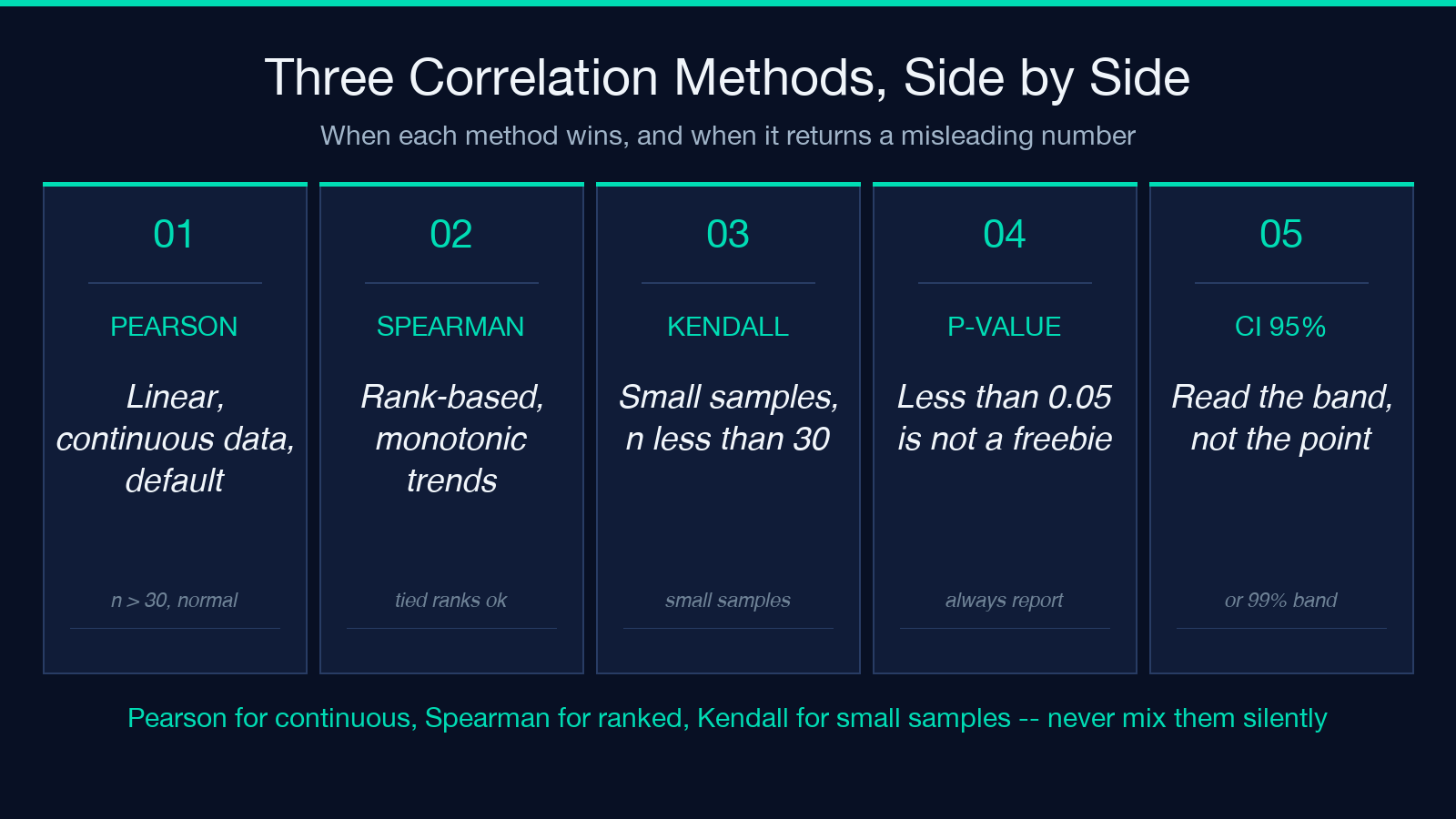
The trap is treating the p-value as a quality score. A coefficient of 0.05 with a p-value of 0.001 is statistically significant but practically worthless — the two variables share almost no linear trend. Conversely, a coefficient of 0.6 with a p-value of 0.18 on n=12 is real signal that the small sample can’t distinguish from noise. Always read the coefficient and the p-value together. The Significance Level select (0.01 / 0.05 / 0.10) just changes the threshold; it does not change the underlying test.
For exploratory work on large datasets (n > 200), the 0.01 threshold is safer than 0.05 — at n=1000 even tiny coefficients cross 0.05, and the 0.01 cutoff keeps the false-positive rate manageable.
The Correlation Matrix and Why Heatmap Color Misleads
The matrix is the canonical output: every variable paired against every other variable, with the diagonal trivially 1.000. The heatmap colors each cell by coefficient magnitude, typically blue for strong negative, white for zero, red for strong positive. Two warnings before you trust it.
First, the heatmap color scale is symmetric around zero, but “strong negative” and “strong positive” have very different downstream meanings. A -0.85 between rates and growth is a useful inverse signal; a +0.85 between two price series is a redundancy signal. The heatmap makes them look equally important.
Second, with k variables the matrix has k(k-1)/2 unique off-diagonal cells. For k=10 that’s 45 correlations. With the default 0.05 significance threshold, expect 2-3 false positives even on truly independent data. The matrix is an exploration surface, not a decision surface. The Heatmap toggle on the tool is for human consumption; the matrix text output is what you actually copy into a downstream model.
Missing Values and Outliers: Two Decisions That Change Everything
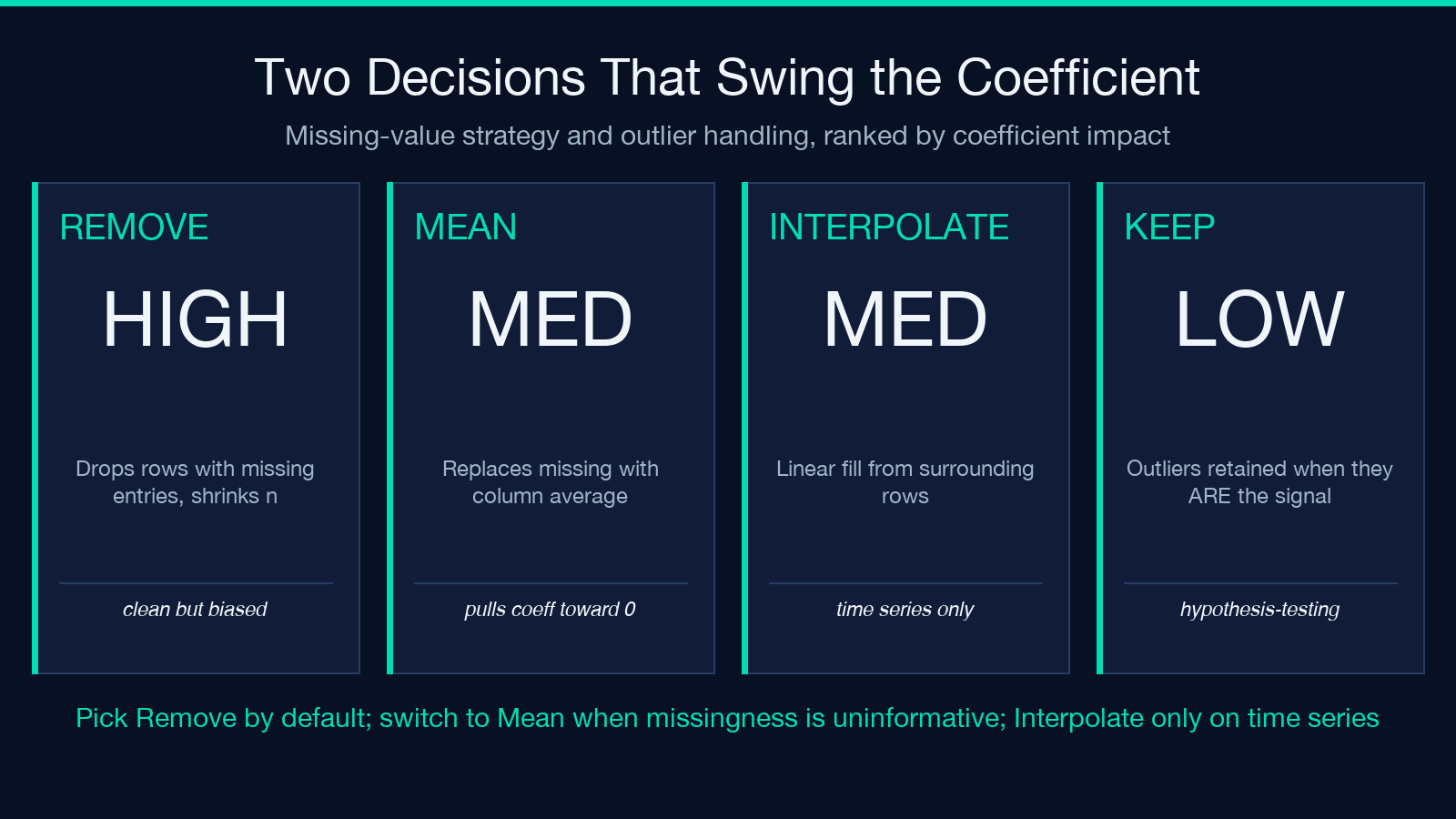
The Missing Value Handling select has five options, and the choice between them can swing coefficients by 0.3 or more on dirty data. Remove drops any row with a missing entry, which keeps the analysis clean but shrinks the sample size and biases the result toward observations with complete data. Mean replaces missing entries with the column average, which preserves sample size but flattens variance in that column and pulls coefficients toward zero. Median does the same with the median, more robust to outliers. Interpolate fills missing values using the linear trend from the surrounding rows — useful for time series, dangerous for cross-sectional data where there is no meaningful “previous” or “next.” Ignore runs the analysis on whatever rows have complete data for the specific pair being evaluated, which is mathematically defensible but produces a different sample size for every cell of the matrix.
The Outlier Handling select is the second lever. IQR flags values outside Q1-1.5IQR or Q3+1.5IQR, which is the textbook choice for moderately skewed data. Z-score flags values more than 3 standard deviations from the mean, which works well on near-normal data and badly on heavy-tailed data. Modified Z-score uses the median absolute deviation and is the most robust to extreme outliers. The Keep outliers default is correct for hypothesis-testing workflows where the outlier IS the signal; switch to one of the methods when the outlier is a data-entry error or sensor glitch.
Group Analysis: When One Coefficient Hides Three Stories
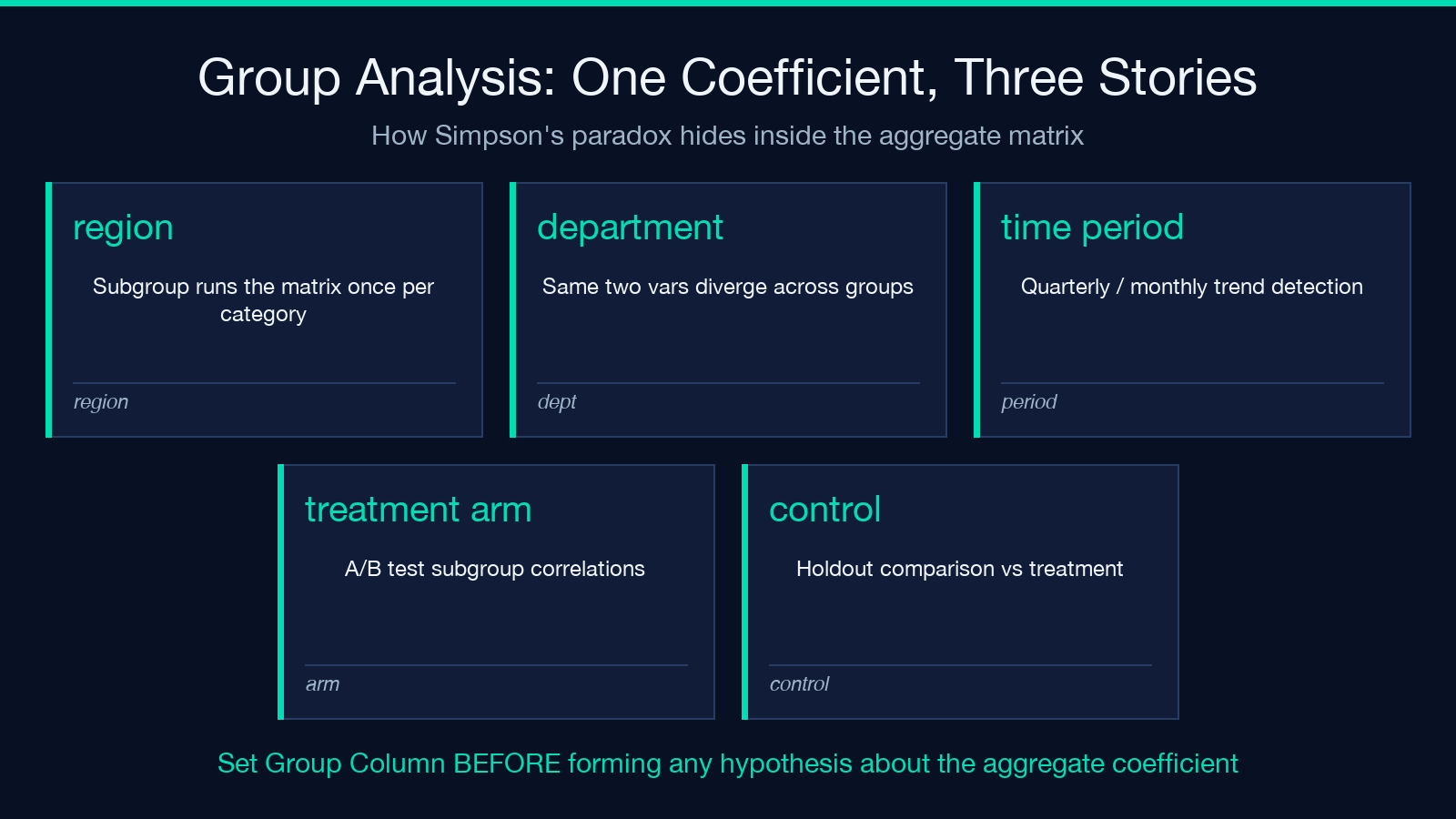
The Group Column field is the most underused feature in the tool. Drop in a categorical column — region, department, time period, treatment-vs-control — and the analyzer runs the correlation matrix once per group. The same two variables can show a +0.7 correlation in one region, a -0.2 in another, and +0.4 in a third. That’s Simpson’s paradox in action: the aggregate coefficient is a weighted average of subgroup correlations and can land almost anywhere on the [-1, +1] scale depending on the subgroup means.
If the tool’s first takeaway sits around zero but the subgroup coefficients diverge sharply, the dataset is not telling you “no relationship exists” — it’s telling you “the relationship depends on which subgroup you ask about.” The group analysis output is what makes the tool usable for A/B test diagnostics, regional pricing analysis, and any workflow where the unit of analysis is the subgroup rather than the dataset as a whole.
Confidence Intervals, Decimal Places, and the Audit Trail
The Calculate Confidence Intervals checkbox returns a 95 percent confidence band around each coefficient, which is the right way to communicate the precision of the estimate. A coefficient of 0.62 with a 95% CI of [0.41, 0.78] is informative; the same 0.62 with a CI of [0.18, 0.85] tells you the underlying signal is real but the estimate is shaky. Without it, every coefficient looks equally trustworthy, and downstream readers tend to overweight the lowest-quality cells.
Decimal Places controls the reported precision. The default 3 is correct for most workflows — at 4 places you’re reporting precision the underlying data doesn’t have, at 2 places you’re hiding meaningful variation in the third digit. The Detailed Statistics toggle adds the n per pair and the degrees of freedom, which is what you need if any downstream reader is going to recompute the p-values by hand or compare against an external benchmark.
Putting It Together
The fastest path through the tool: paste the CSV, leave Method on Pearson for continuous data (switch to Spearman or Kendall if you see ties, outliers, or non-linearity), set Significance Level to 0.05 for exploratory work or 0.01 for confirmatory analysis, leave Missing Value Handling on Remove unless the missingness is informative, leave Outliers on Keep unless you have a documented cleaning recipe, and toggle Group Heatmap off. Read the matrix text output rather than relying on the colored heatmap; the colors are decoration. Read the coefficient and p-value together, never the coefficient alone. And if the question is “does this relationship hold across subgroups?” — set the Group Column first, before you form any hypothesis about the aggregate coefficient.
Correlation analysis looks simple because the output is a single number per pair. The work happens upstream, in the decisions about which method, which sample, which threshold, and which subgroup. Get those right and the coefficients read themselves.
Explore the full configuration at Correlation Analyzer, and find more statistical tooling at Elysia Tools.
