10 Free PDF Tools That Do the Tedious Work You’re Still Doing Manually
A 200-page scanned PDF lands in your inbox at 2 PM. It needs to be searchable by 4. Every page is a photograph, not text. You know what this means.

That’s the problem this suite tackles. ElysiaTools runs a complete PDF utility set in your browser — merge, split, compress, watermark, anonymize, OCR, form-fill, rasterize, encrypt, redact — no Adobe license, no install, no command-line archaeology.
Here are the ten most useful.
1. PDF Merge Documents — Combine Multiple PDFs Into One
Drop in several PDFs, get back a single stitched document with an auto-generated table of contents. One upload assembles what used to take copy-paste-and-pray across dozens of files.
Use it when: Assembling multi-chapter submissions, bundling quarterly invoices, or preparing a complete archive from scattered files.
2. PDF Split by Pages — Extract Exactly What You Need
The inverse problem. Sometimes you only need page 7 from a 300-page filing. This tool splits by custom ranges (`1-3, 5, 9-12`) or outputs every page as a separate PDF, packaged in a ZIP.
Use it when: Pulling exhibits from depositions, extracting a specific chapter, or preparing individual case files from a batch submission.
3. PDF Compress Optimize — Cut File Size Without Killing Quality
A 47MB PDF is almost always a resolution problem. This tool runs Ghostscript and qpdf: downsamples images to screen/ebook/printer/prepress presets, subsets fonts, strips redundant objects. Result: typically 60-90% smaller, identical visual quality for digital use.
Use it when: Emailing a portfolio under a size limit, submitting a paper with a hard file cap, or archiving where full resolution is unnecessary.
4. PDF Watermark Confidential — Stamp Every Page With Dynamic Labels
Static watermarks are easy to forge. This tool stamps watermarks that include dynamic content — username and timestamp. If a document leaks, you know exactly who accessed it and when. Tiled across all pages or placed once; color and opacity configurable.
Use it when: Distributing confidential reports to internal teams, marking “Internal Use Only” on pre-release documents, or adding “Draft” to files under review.
Link: PDF Watermark Confidential
5. PDF Anonymizer Report — Automatically Redact Names, Emails, and Phone Numbers
Before sharing any internal document externally, scrub it. This tool scans for three PII categories — email addresses, phone numbers, and labeled names (fields like “Applicant:” or “Recipient:”) — and replaces them with audit-safe placeholders (`[EMAIL_REDACTED]`, `[PHONE_REDACTED]`, `[NAME_REDACTED]`). It generates a SHA hash of each original value for compliance tracking without storing the raw data.
Use it when: Submitting internal reports to ethics boards, sharing HR documents with legal counsel, or preparing case files for external auditors.
6. PDF OCR Text Layer — Make Scanned Documents Searchable
Old scans, photos of contracts, pages photographed in poor lighting — these are images, not text. This tool runs Tesseract OCR to add a selectable, searchable text layer while preserving the original scan’s visual quality.
Use it when: Digitizing paper archives, processing signed contracts that arrived as scans, or feeding historical documents into a search system.
7. PDF AcroForm Filler — Populate PDF Forms Programmatically
PDF forms are everywhere — grant applications, intake questionnaires, government filings. Filling them manually means clicking each field, repeatedly. This tool takes a JSON payload and injects it directly: text fields, checkboxes, radio buttons, dropdowns.
Use it when: Processing bulk survey responses, automating grant submissions, or generating customized contracts from a data source.
8. PDF Rasterize Pages — Convert PDF to High-Resolution Images
Sometimes a PDF has to become an image. This tool renders pages to PNG, JPEG, or WebP at configurable DPI — 150 for web thumbnails, 300 for print, 600+ for archival. All pages or a specific range, bundled in a ZIP.
Use it when: Generating preview thumbnails for a document portal, creating image-based archives, or preparing pages for video or presentation formats.
9. PDF Password Protector — Lock PDFs With Open and Permission Restrictions
Before sending sensitive documents externally, encryption matters. Set an open password (required to view) and permission restrictions — block printing, text copying, or modifications. No Adobe subscription required.
Use it when: Sending contracts that recipients should view but not copy, distributing financials with no-print restrictions, or preparing files for regulatory submission where encryption is mandatory.
10. PDF Redaction Helper — Visually Cover Sensitive Regions
Not all sensitive information lives in text fields. Sometimes you need to physically black out a region — a face in a photo, a handwritten note in the margin. This tool overlays solid boxes over user-specified regions on each page.
Use it when: Preparing court filings where visual redaction is required, cleaning archival photos before publication, or masking annotations in shared review copies.
The Real Value: A Complete Document Pipeline in the Browser
What makes this suite worth bookmarking isn’t any single tool — it’s the coverage. Between merge, split, compress, watermark, anonymize, OCR, form-fill, rasterize, encrypt, and redact, you have a full document pipeline that runs without installing anything.
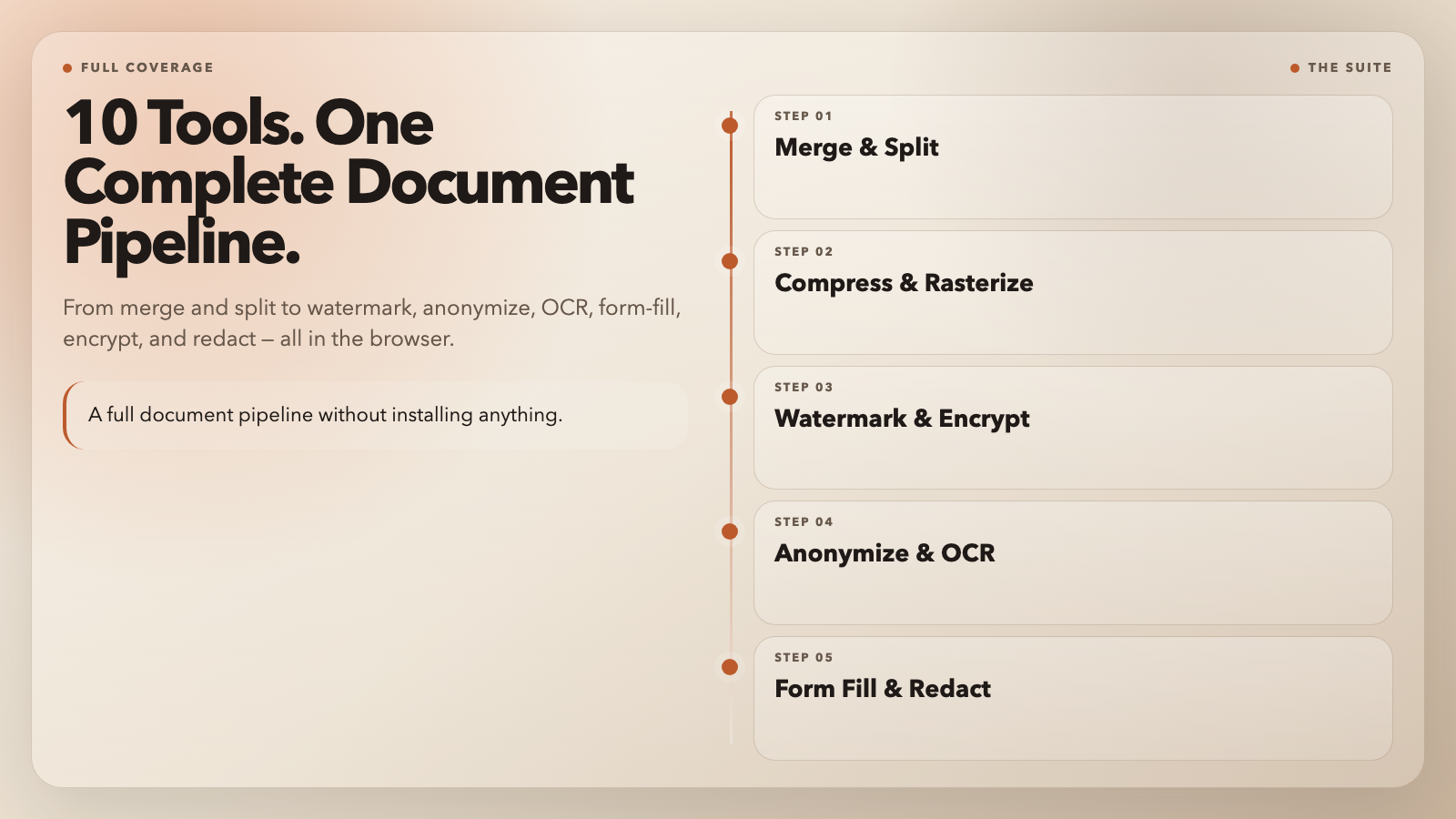
The tools accept JSON configuration, which means they slot into scripts and automation flows. A typical pipeline: merge uploaded chapters, apply watermarks with username and timestamp, run compression, deliver the result — all without touching Adobe software.
Bookmark elysiatools.com/en/categories/pdf-tools and stop treating document grunt work as a required Friday ritual. What’s the first PDF task you’ll automate?