8 Free Audio Cleanup Tools That Make Your Podcast Sound Professional
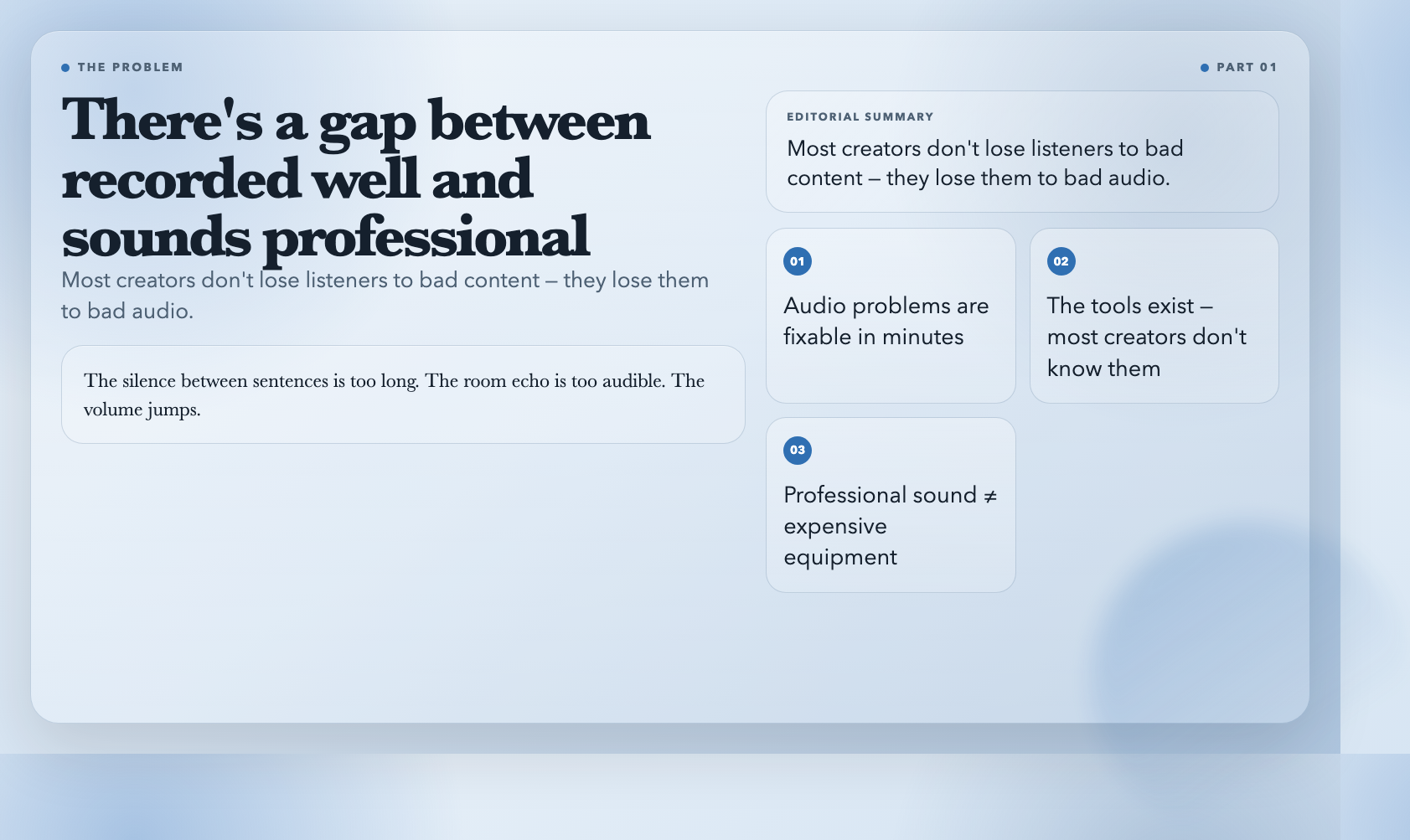
There’s a gap between “recorded well” and “sounds professional” that most creators never close — not because they can’t, but because they don’t know the tools exist.
The silence between sentences is too long. The room echo is too audible. The volume jumps every time the speaker moves away from the mic. These are fixable problems. For free. In minutes. Here’s the toolkit that handles it.
1. Audio Remove All Silence — Kill the Dead Air
Nothing kills pacing faster than silence where there should be none.
Audio Remove All Silence strips every detected silent section from your file. Upload any recording — Zoom call, interview, voice memo — and it removes gaps below your chosen threshold, down to the millisecond.
The key control is Minimum Silence Duration — set it to 0.5 seconds and anything quieter than your threshold for longer than half a second gets cut. Upload a 60-minute interview, and this tool can compress it to 45 minutes of actual content without touching a single spoken word.
For comparison: Audacity’s Silence Find dialog requires you to manually mark each region before deletion. A one-hour interview with natural conversation (roughly 300–400 silent segments) could take 2 hours of tedious clicking. This tool does the same job in under 60 seconds.
This means you get a tight, professional-sounding edit without the tedious frame-by-frame silence hunting that used to come with the territory.
Use it when: editing podcast episodes, cleaning up webinar recordings, preparing transcribed content where silence is just noise.
Try Audio Remove All Silence →
2. Audio Truncate Silence — Keep Breathing Room
Not all silence is the enemy.
Audio Truncate Silence takes a different approach: instead of removing all silence, it caps each silent gap at a maximum duration you choose. Silences longer than 2 seconds get trimmed to 2 seconds. Everything under the limit stays untouched.
The difference matters for spoken content. Removing all silence makes a podcast sound frantically compressed. Truncating long pauses keeps the natural rhythm — the kind of beat a speaker uses for emphasis — while eliminating the awkward gaps that make listeners reach for the skip button.
Threshold control lets you set what counts as silence, from a strict -50 dB (only true dead air) to gentler settings that treat near-silence the same way.
Use it when: editing conversational content where you want pacing but not chaos, trimming intros and outros that run too long. A 30-minute episode with a 90-second intro can have its intro silence trimmed to 10 seconds in seconds — keeping the music bed intact while removing the dead air before the host starts.
3. Audio Loudness Normalize (LUFS) — Broadcast-Ready in One Click
LUFS is the standard unit for measuring perceived audio loudness — and if you’re publishing to Spotify, YouTube, or any major platform, you’re already being measured against it.
Most platforms target -14 LUFS for podcasts, -16 for broadcast, and -23 for streaming radio. Spotify’s loudness normalization applies -11 LUFS of gain reduction to anything louder than -14 LUFS — meaning a file at -9 LUFS gets turned down by 5 dB, which often creates audible pumping artifacts on bass-heavy tracks. Audio Loudness Normalize (LUFS) brings your file to whichever target you specify, using the EBU R128 standard that the industry actually uses.
The tool adjusts three parameters: Integrated Loudness (I), True Peak (TP), and Loudness Range (LRA). Most users just pick a target LUFS and go. The tool handles the rest — including the two-pass analysis that ensures the output meets your spec precisely.
This means you can take a recording made on a laptop microphone in an untreated room, normalize it to -16 LUFS, and it will play back at the same perceived volume as everything else in a listener’s queue.
Use it when: preparing audio for Spotify, YouTube, or any platform with loudness requirements; ensuring consistent volume across a multi-episode podcast series.
Try Audio Loudness Normalize (LUFS) →
4. Audio Normalize (Peak) — Fix the Quiet Recording
Sometimes you don’t need broadcast-standard LUFS. You just need to turn up a recording that’s too quiet.
Audio Normalize (Peak) uses a two-pass approach: first it measures the maximum peak in your file, then it applies exactly the gain needed to bring that peak to your target level. A recording that peaks at -12 dB and needs to hit -0.1 dB gets exactly 11.9 dB of gain — no more, no less.
The advantage of peak normalization over LUFS normalization is predictability: you’re directly controlling the headroom, which matters when you’re layering multiple audio tracks in a video editor or mixing podcast episodes with music beds.
Use it when: fixing individual tracks recorded at inconsistent levels, preparing stems for video mixing, standardizing a collection of field recordings. For video editors: if your dialogue sits at -6 dB and your music bed at -18 dB, peak normalization on each stem gives you a predictable starting point before your DAW’s volume automation.
5. Audio Gate Trim — Silence the Noise Floor
Every room has a noise floor — the constant low-level hiss of electronics, ventilation, and ambient environment. A noise gate mutes everything below a set volume threshold.
Audio Gate Trim applies a proper noise gate with controls most plugins reserve for paid software: Threshold, Ratio, Attack, Release, and Makeup Gain. Set the threshold at -45 dB and anything quieter than laptop fan noise gets cut. The attack and release controls let you shape how the gate opens and closes, avoiding the “choppy” sound that cheap gates produce.
Professional DAWs like iZotope RX use noise gates with similar parameter sets — but they cost $349 and require a full audio workstation to run. For the specific use case of cleaning up a single recording before upload, this tool delivers comparable gate behavior with a fraction of the overhead.
The Makeup Gain control compensates for the overall level drop that gating introduces — so you’re not trading quiet noise for an unexpectedly quiet voice.
Use it when: cleaning up recordings made in noisy environments, removing background noise from Zoom calls, preparing field recordings for analysis where ambient noise would skew measurements.
6. Audio Trim — Cut to the Exact Frame
The simplest tool in the set, and sometimes all you need.
Audio Trim takes a start time and end time — in seconds, or in hh:mm:ss format — and extracts that exact segment from your file. It uses stream copy (no re-encoding), so the output is bit-perfect, preserving the original quality.
This is the tool for extracting the best 90 seconds from a 3-hour recording, pulling out a clip for a social media trailer, or removing an accidental interruption from an otherwise clean take.
Use it when: extracting clips for repurposing, removing unwanted segments from recordings, creating precise audio segments for video sync. Content repurposers use this to pull a 90-second highlight from a 2-hour interview for a LinkedIn clip — keeping the exact timestamp of the best moment without re-recording or screen recording.
The Stack: How to Use These Together
These 6 tools work in a predictable pipeline:
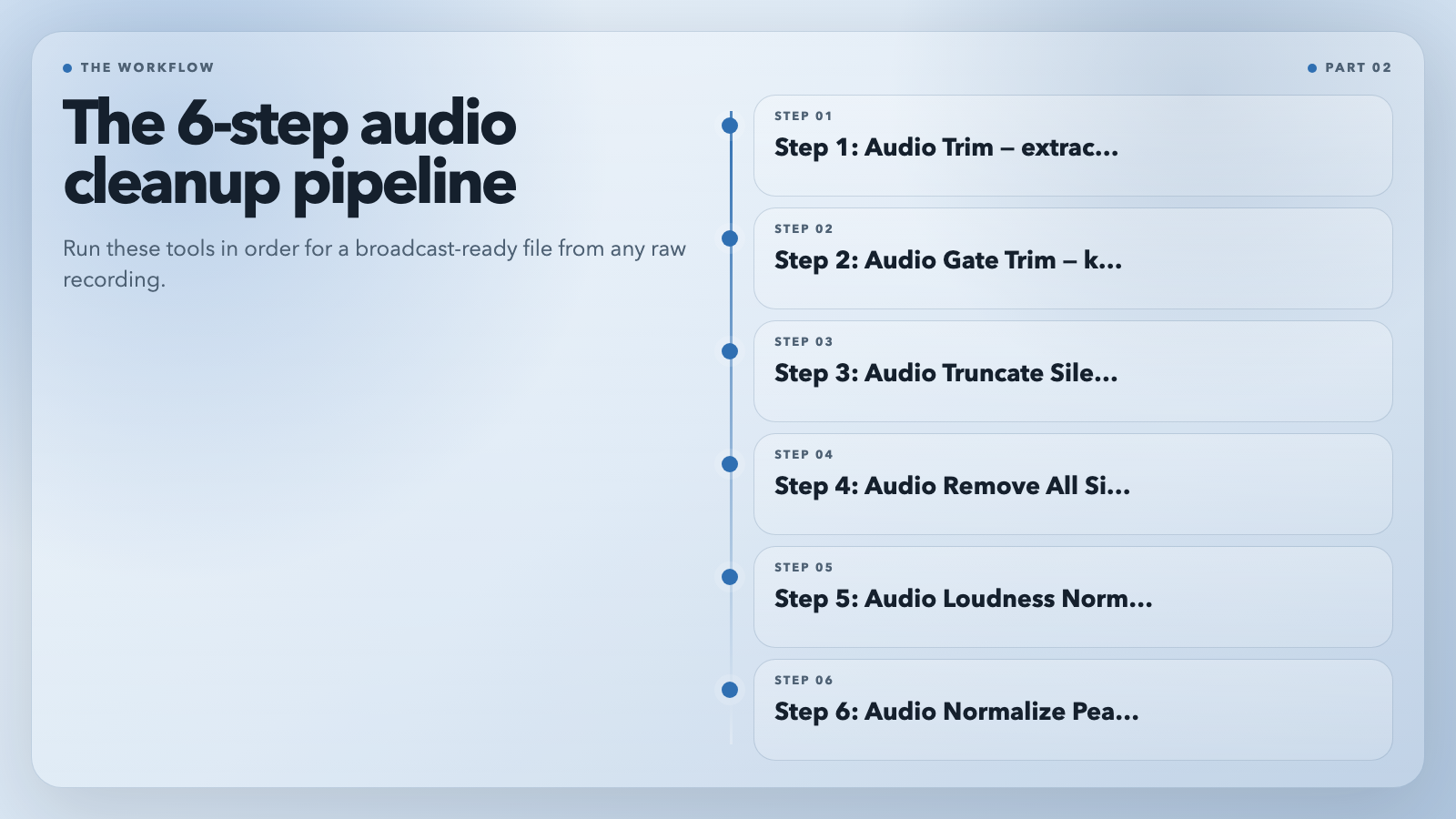
- Audio Trim → Remove the unwanted sections first
- Audio Gate Trim → Clean up the noise floor
- Audio Truncate Silence → Bring long pauses down to a reasonable length
- Audio Remove All Silence → For tightly edited content, strip remaining dead air
- Audio Loudness Normalize (LUFS) → Bring everything to broadcast standard
- Audio Normalize (Peak) → Final peak adjustment if your editor needs headroom control
Each step is non-destructive — upload the original each time and keep a master file untouched.
The One Thing These Tools Can’t Fix
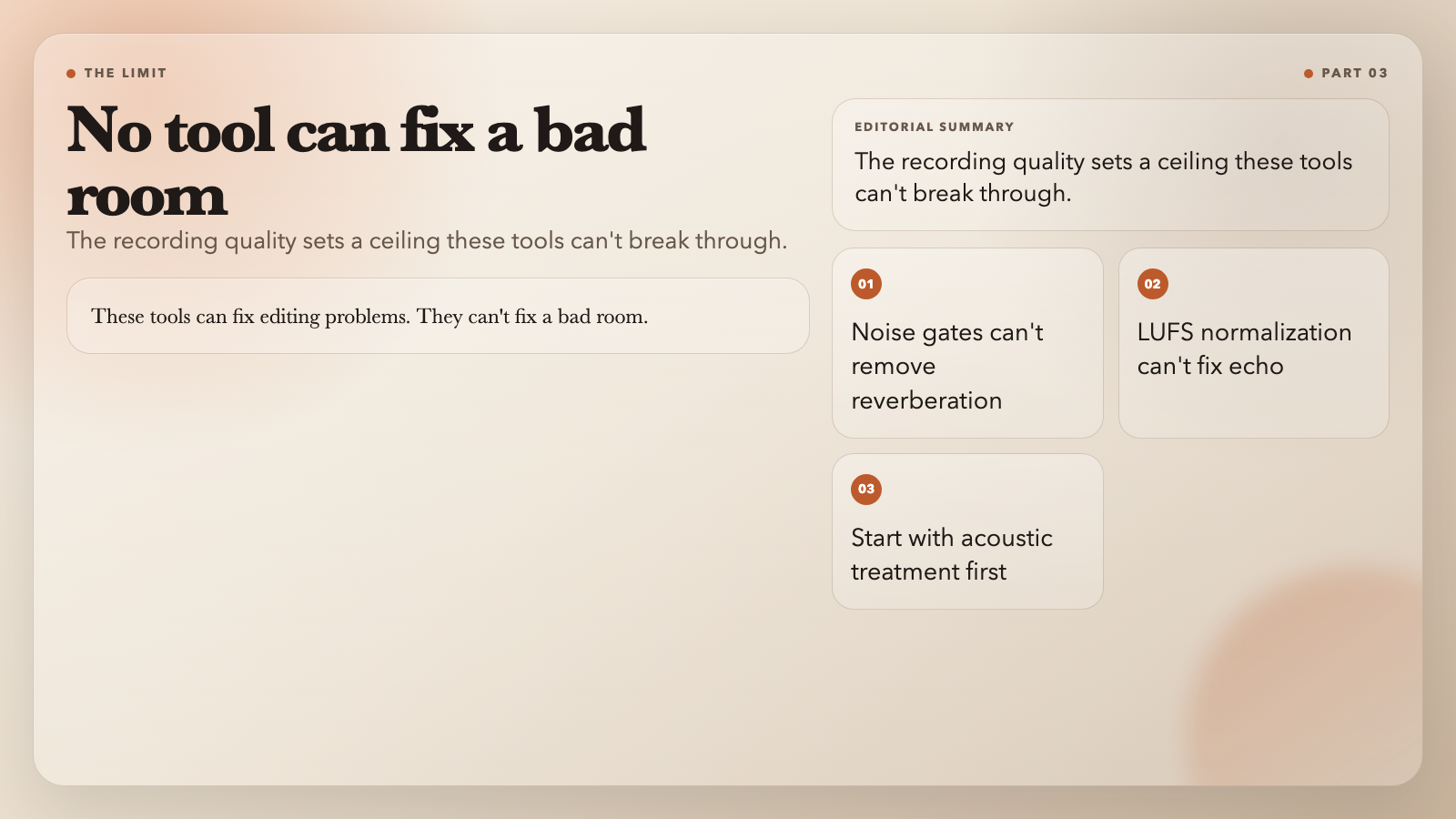
None of these tools can rescue a recording made in a kitchen with tile floors and a laptop fan running. A noise gate applied to a reverberant room mutes the decay of spoken consonants — making every sibilant sound chopped and unnatural. LUFS normalization evens out the volume, but it doesn’t remove echo.
The recording quality sets a ceiling these tools can’t break through. No plugin, no normalization pass, no silence-trimming algorithm replaces the clean signal that only a treated room can provide.
So before you run your file through this pipeline, ask: is this recording worth saving? If the room was bad enough, the honest answer might be to rerecord it entirely. These tools can fix editing problems. They can’t fix a bad room.