Three choices that decide whether your JSON→CSV export survives the next person who opens it
A JSON-to-CSV conversion looks like one click. It is actually three decisions you have to make on every export: what delimiter, what to do with nested objects, what date format to write. Each default is wrong for some real workflow. The people who get bitten are the ones who treat the conversion as a one-button operation and only find out later — when the spreadsheet columns line up in Numbers, the report breaks in Excel, the timestamp shows up as `###` in Google Sheets, the nested address object shows up as the literal string `[object Object]`.

This article walks through the three decisions as a sequence, explains why the defaults are not always right, and shows how the JSON to CSV Converter keeps the three controls visible at the top of the page so you do not have to discover them the hard way. At the end there are three sample pairs — small, real-looking JSON inputs and the CSV they turn into — chosen so you can copy them, see what each control does, and then make your call for your own data.
Decision 1 — Delimiter: comma is not always right
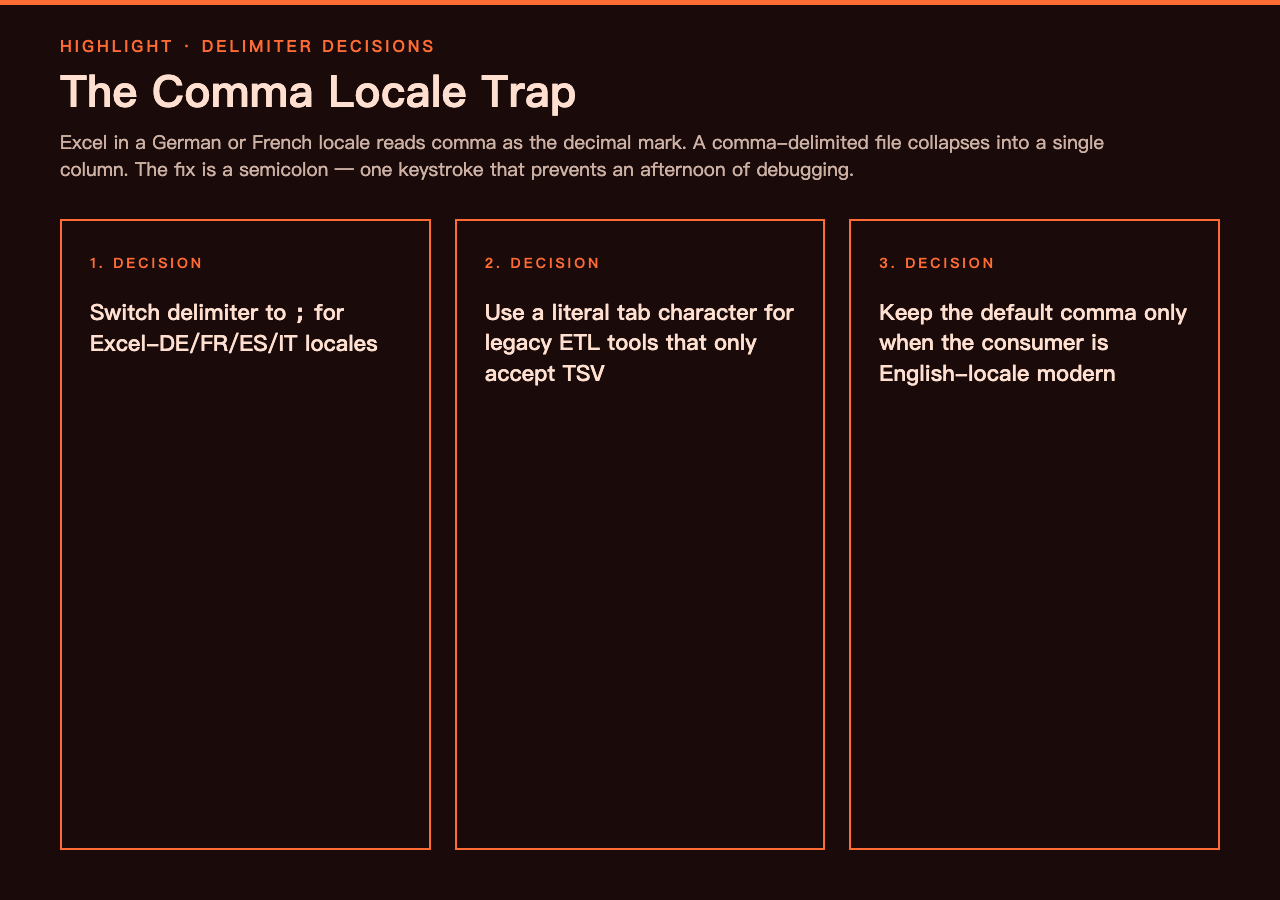
Most exports default to comma, and most of the time comma is fine. The two cases where it breaks:
- Locale compatibility. Excel in a German or French locale treats comma as the decimal separator. Open a comma-delimited file in Excel-DE and the columns collapse into one, because the comma is being read as a decimal mark. The fix is a semicolon (`;`) for those locales. Spain and Italy are the same.
- Tab-separated requires tab. Some downstream tools — legacy ETL pipelines, accounting software, certain Pandas scripts — only consume tab-separated files (`.tsv`). A comma-delimited file looks the same to you but fails to parse in those tools. Switching the delimiter to a literal tab is the only fix.
If you are exporting for an internal English-locale spreadsheet, keep the comma. If you are exporting for a multinational team or for any tool that auto-detects the delimiter, switch on the locale, not the file. The control is a single text field — type `;` or a tab directly.
Decision 2 — Nested objects: flatten, stringify, or drop
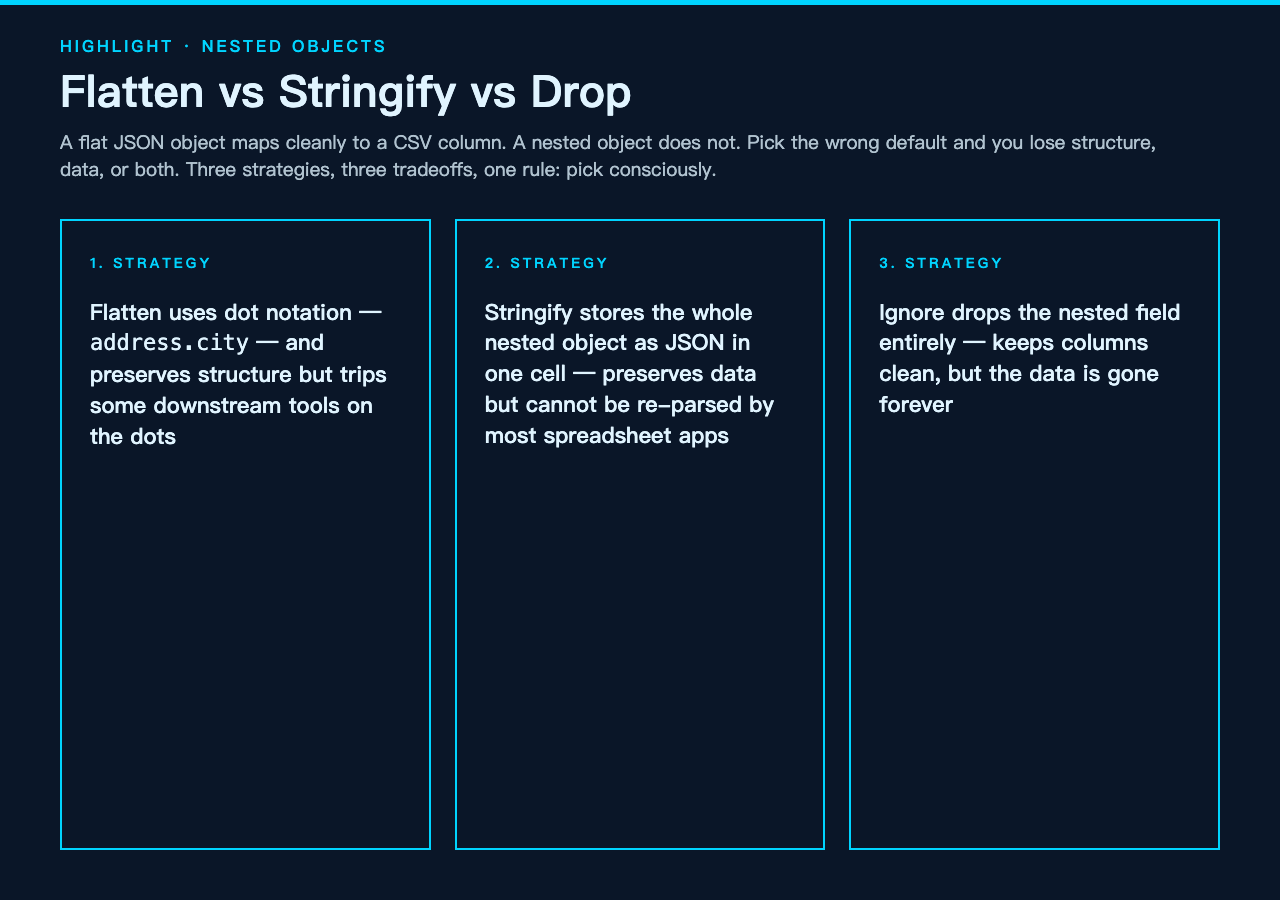
A flat JSON object maps cleanly to a CSV column. A nested object does not. You have to choose what to do with it. Three options, in order of how aggressively they lose information:
- Flatten with dot notation. `{“address”: {“city”: “Berlin”}}` becomes a column called `address.city` with value `Berlin`. The structure is preserved, but the column name gets harder to read and downstream tools sometimes trip on the dots.
- Stringify as JSON. The whole nested object becomes one CSV cell containing a JSON string. The data is preserved exactly, but most spreadsheet tools will not parse it back — they will just show you the curly-brace string.
- Ignore. The nested object is dropped. The columns on either side stay clean, but the data is gone.
The right choice depends on what the consumer wants. A spreadsheet user probably wants flat. A log-analysis tool probably wants JSON strings because it can re-parse them. A cleaned-up export for a report probably wants ignore — the nested fields were never going to make it into the report anyway. The default is flatten, which is the safest option that preserves the most information, but you should think about it explicitly.
Decision 3 — Date format: ISO by default, US or EU when downstream requires it
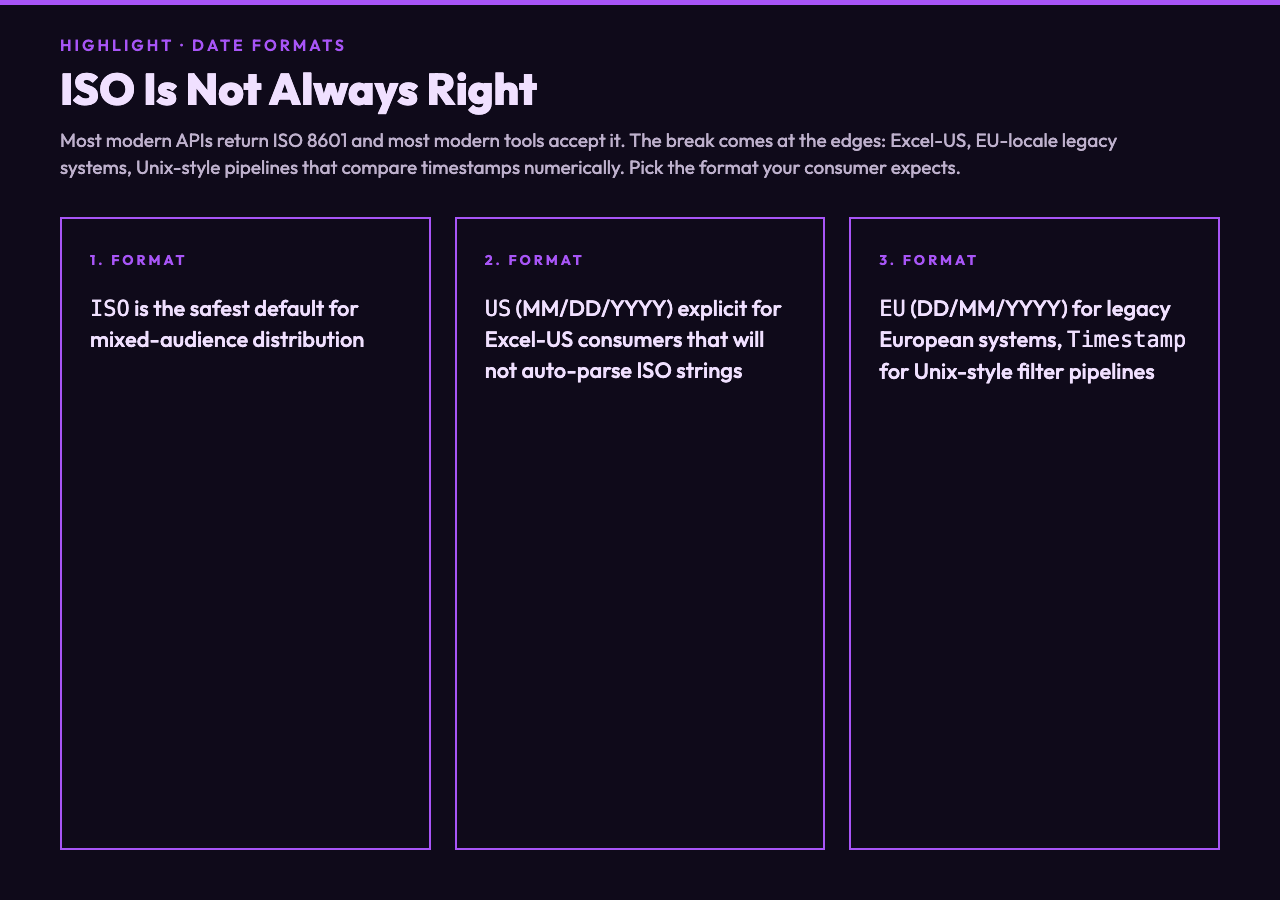
Most modern APIs return ISO 8601. Most modern tools accept it. The break comes when the consumer is:
- Excel in a US locale. Excel parses an ISO date as a date only sometimes — Excel will not always recognize an ISO string even with the right cell format set. Switching to `MM/DD/YYYY` makes it explicit.
- A legacy system that expects the local date convention. European format `DD/MM/YYYY` is the fix here.
- A Unix-style pipeline that compares timestamps numerically. A Unix timestamp is just an integer; no parsing at all.
The fourth option, `Timestamp`, also matters for filtering — most BI tools can sort and filter Unix timestamps natively, but only some handle ISO strings.
If you are exporting for a mixed audience, ISO is the safest single default, but the loss is that one consumer — the one whose locale you cannot predict — will see a string they cannot sort as a date.
Why these three are the ones that matter
There are other controls on the converter — include headers, quote every field — but those have correct-enough defaults for nearly every workflow. The three above (delimiter, nested handling, date format) are the three where picking the default will cost you an afternoon of debugging later. Which is why the converter puts them at the top, in that order. The surface itself, with each control inline next to a live preview, is on the JSON to CSV Converter page — load your real input and you can see the consequence of each click before you commit to the export.
Sample pairs: copy these and see what each control changes
To make this concrete, here are three small inputs and the CSV each control produces under different settings. To see these inputs in their canonical form — same shape, different domains — start at the JSON samples hub; the variants below are shortened to highlight the conversion behavior specifically.
Sample 1 — A list of orders with a nested address
Input:
[ {“id”: 1001, “customer”: “Ada”, “total”: 42.50, “ordered_at”: “2024-03-15T14:30:00Z”, “address”: {“city”: “Berlin”, “country”: “DE”}}, {“id”: 1002, “customer”: “Grace”, “total”: 19.00, “ordered_at”: “2024-04-01T09:15:00Z”, “address”: {“city”: “Dublin”, “country”: “IE”}} ]
With the defaults (comma delimiter, flatten, ISO date), the CSV is:
id,customer,total,ordered_at,address.city,address.country 1001,Ada,42.5,2024-03-15T14:30:00Z,Berlin,DE 1002,Grace,19,2024-04-01T09:15:00Z,Dublin,IE
Switching nested handling to `stringify` puts the whole address object in one cell:
id,customer,total,ordered_at,address 1001,Ada,42.5,2024-03-15T14:30:00Z,”{“”city””:””Berlin””,””country””:””DE””}”
The CSV-formatted side has the same shape rules — quoting, delimiter, header row — and you can see those rules in the CSV samples hub for comparison.
Sample 2 — A log of structured events, one per line
Some pipelines emit NDJSON (one JSON object per line), not a wrapped array. The converter accepts either, but the surface case is different:
{“event”: “signup”, “ts”: “2024-05-01T10:00:00Z”, “user_id”: “u-001”} {“event”: “purchase”, “ts”: “2024-05-01T10:05:00Z”, “user_id”: “u-001”} {“event”: “logout”, “ts”: “2024-05-01T11:42:00Z”, “user_id”: “u-001”}
Pastes in as-is, the converter parses it line-by-line and gives you a three-row CSV. Switch the date format from `iso` to `timestamp` and the column goes from strings to Unix numbers:
event,ts,user_id signup,1714557600,u-001 purchase,1714557900,u-001 logout,1714566120,u-001
A longer feed of NDJSON-shaped events in the same format is in the NDJSON samples hub, useful for stress-testing that the converter handles larger pasted inputs without dropping rows.
Sample 3 — Two rows, locale-sensitive
Input:
[{“name”: “Müller”, “score”: 0.87, “tag”: “premium”}, {“name”: “García”, “score”: 0.92, “tag”: “standard”}]
Default comma output:
name,score,tag Müller,0.87,premium García,0.92,standard
Open in Excel-DE and the comma is read as a decimal mark; the columns collapse. Switch the delimiter to `;` and the file parses correctly across locales.
Putting the three decisions together
If you have to pick one default and ship, the combination is comma + flatten + ISO for English-locale modern tools; semicolon + flatten + EU date format for German/French locale Excel; tab + stringify + Unix timestamp for log pipelines. None of those combinations is right for everyone — that is the point. The defaults of a converter are a single point of view; the controls are an admission that the single point of view is not always yours.
Pick the combination that matches what you want to ship, run your real input through it once on the JSON to CSV Converter, and verify the output against the kind of consumer that will actually open it.