If you handle PDF reports, invoices, or scanned documents at any volume, you already know the failure mode: you ask for “just the text” and get a wall of joined-together paragraphs, broken columns, or pages that look like text but read like alphabet soup. PDF Text Extractor at Elysia Tools exists to make that pain go away. Pick the page range, choose your output format, decide whether to preserve the original layout, and the tool gives you back text you can actually paste, search, or feed into another pipeline. No retyping, no reformatting, no staring at columns. Run the extraction once and you have the text — the way you wanted it.
The rest of this article walks through the three decisions that matter, the four output formats that cover almost every downstream use, and the page-range syntax that handles the 80-percent case in a single line. If you only have time for one section, jump to The Page-Range Syntax That Handles 80% of Cases.
Why “Just Extract the Text” Is Never Just One Thing
Every PDF looks the same on the outside: a stack of pages, text laid out somewhere on each one, maybe a logo or two. So when someone says “just extract the text,” it sounds like a single, simple operation. In practice, a PDF document is a placement map — a coordinate system where characters, images, and rectangles are positioned with no semantic structure. Text “inside” a PDF is closer to a printing plate than a Word document: characters know where they sit on the page, but they don’t know they belong to the same paragraph, the same row in a table, or the same column on a multi-column layout.
That placement map is exactly why a naive copy-paste out of a PDF viewer gives you garbage. The viewer is doing the work of stitching characters into readable words, words into lines, and lines into paragraphs, and that stitching breaks as soon as the layout gets complicated. Multi-column layouts collapse into single-column mush. Tables lose their row and column boundaries. Headers and footers end up spliced into the body text. Footnote markers float free of their associated footnotes. If you’ve ever pasted a PDF table into a spreadsheet and spent ten minutes fixing the columns, you’ve felt this problem firsthand.
The text extractor solves this by giving you three independent controls — which pages, what output format, and whether to preserve the original layout — and by exposing the page-range syntax in a way that’s flexible enough for the cases that matter. Each of those controls is a real decision with real trade-offs, and the right answer depends on what you plan to do with the text next.
The Page-Range Syntax That Handles 80% of Cases
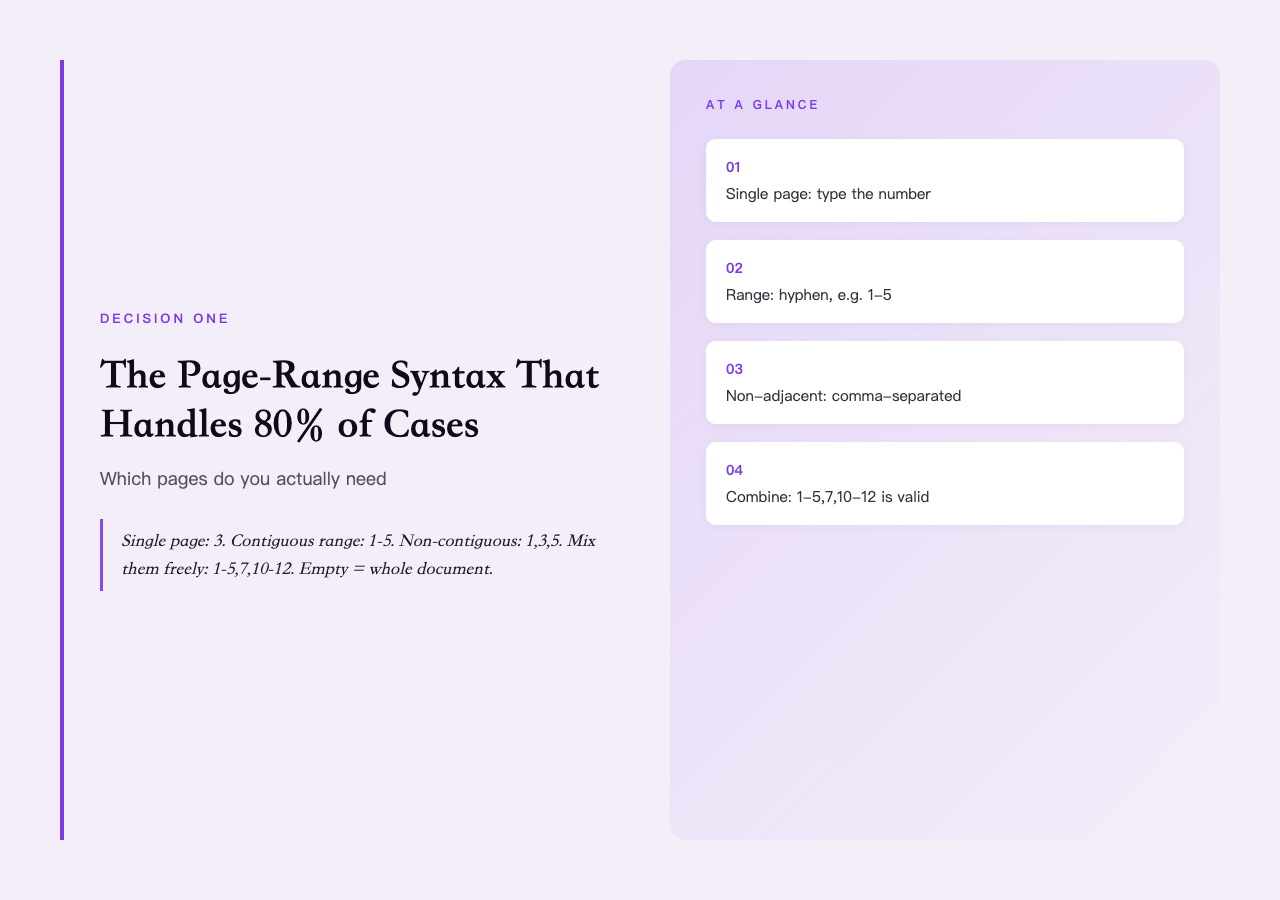
The most important decision is the one you make first: which pages do you actually need? Extracting only the pages you need is faster, gives you cleaner output, and prevents the most common error of all — including cover pages, blank pages, table-of-contents filler, or scanned appendices that would otherwise pollute the result. PDF Text Extractor uses the same page-range syntax you’ll find in most printer drivers and PDF utilities, so you can drop it in without learning a new notation.
For a single page, type the page number: 3. For a contiguous range, use a hyphen: 1-5 means pages 1 through 5. For a non-contiguous selection, comma-separate the entries: 1,3,5 extracts pages 1, 3, and 5. The three patterns can be combined freely — 1-5,7,10-12 is valid and means “pages 1 through 5, plus page 7, plus pages 10 through 12.” If you leave the field empty, the tool extracts every page in the document, which is the right answer for short documents where you genuinely want the whole thing, and the wrong answer for long documents where most of the pages are not what you came for.
The 80-percent pattern in practice is the comma-separated mix: extract the executive summary (1-3), the financial table (15,17,19), and the appendix chart (42) in a single command, instead of running the tool three times or pulling the whole document and deleting 39 pages you didn’t want. For documents where you genuinely want everything, leave the field blank; for documents where you want a single section, use a contiguous range; for the common case where you want several non-adjacent sections, use a comma-separated mix.
The Four Output Formats That Cover Almost Every Use
The second decision is the output format. This is where most casual extraction goes wrong — the default is plain text, but plain text is the wrong default for most non-trivial documents, because it discards the layout information you actually need to reconstruct the structure. PDF Text Extractor offers four output formats, and the right choice depends entirely on what you plan to do with the result.
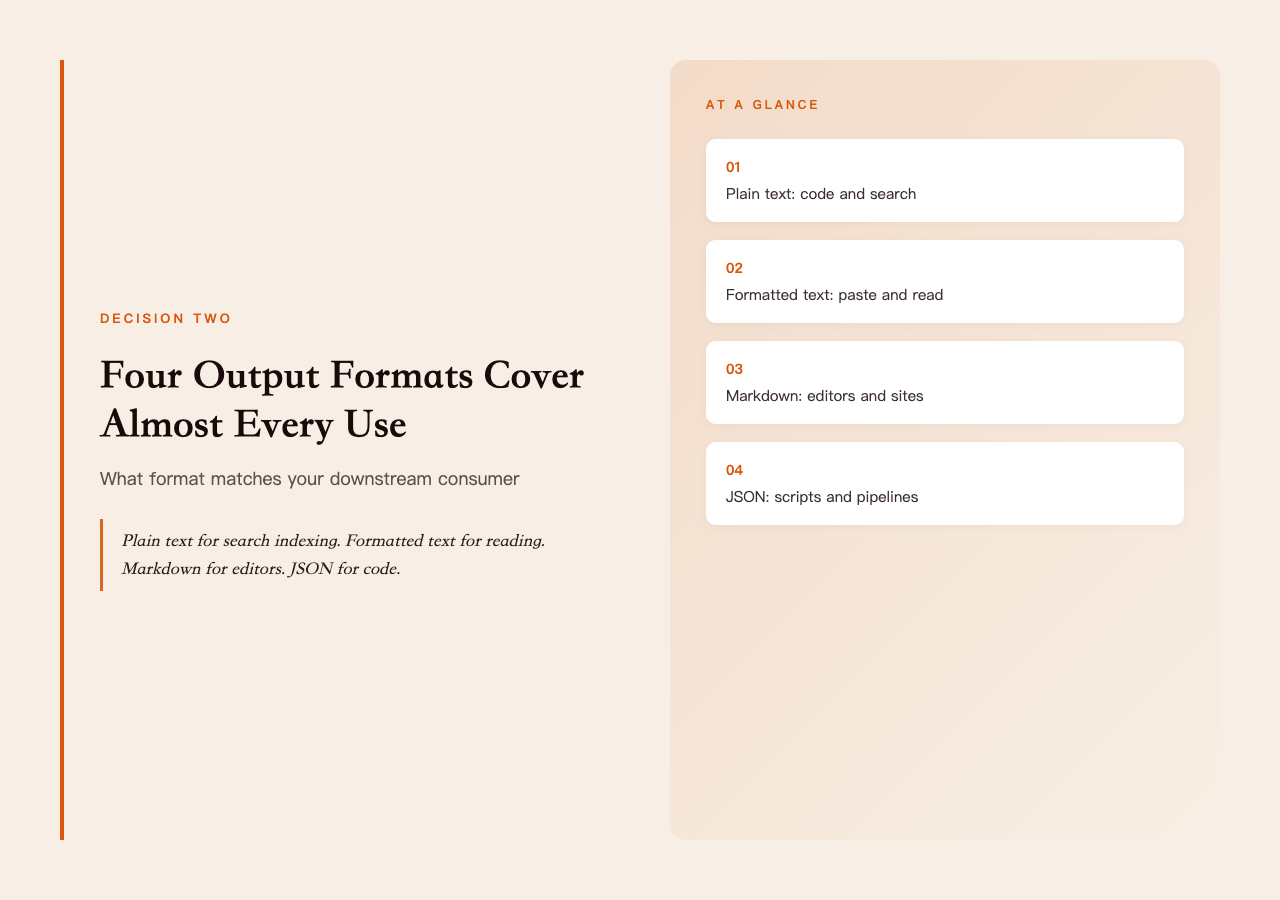
Plain text is the right answer for downstream text-only tools — search indexing, word-counting, machine-translation pre-processing, copy-paste into a chat window, or anything where you genuinely want the text without any layout information. It is the most forgiving format because there’s nothing to go wrong: every character in the PDF becomes a character in the output, in reading order, with whatever whitespace the tool can recover. The downside is that any visual structure in the original — tables, columns, headings — is flattened into a single stream of words, so if you need to preserve the structure you want a different format.
Formatted text is plain text with the layout recovered as best the tool can manage: line breaks where the original had line breaks, indentation where the original had indentation, paragraph breaks where the original had paragraph breaks. It’s the right answer for documents where the structure matters but you don’t need machine-readable structure — reading an extracted chapter back as a chapter, pasting an extracted section back into a document with the headings intact, or feeding it into a tool that respects whitespace. If you’ve ever copy-pasted from a PDF viewer and spent ten minutes deleting the hard line wraps, formatted text is what you wanted.
Markdown is formatted text with markdown headings and emphasis recovered where the PDF carries the metadata to identify them. It’s the right answer for documents where you plan to paste the result into a markdown editor, a static-site generator, a note-taking app, or any workflow that expects structured plain text. If the source PDF has properly tagged headings, the headings come through as #, ##, and ### levels; if the source has bold or italic runs, those come through as bold and italic; if the source has bulleted or numbered lists, those come through as actual lists.
JSON is the right answer when the result is going to be consumed by code — a pipeline, a parser, a script, or a downstream tool. The JSON output gives you the extracted text per page, the page metadata, and any recovered structure as fields in a structured document, which means your code can iterate over pages, filter by page number, or extract specific sections programmatically. If you are writing a script that processes PDFs in bulk, JSON is almost always the right choice because it gives you the data in a form your code can address directly.
Preserve Formatting, Remove Whitespace, and the Other Checkboxes
The third decision is whether to preserve the original formatting. By default, PDF Text Extractor preserves formatting, which is the right default for most documents — it keeps the line breaks, paragraph breaks, and indentation that the original PDF intended, and the result is something you can read as a document. But there are several cases where you want the opposite, and the tool exposes three more checkboxes to handle them.
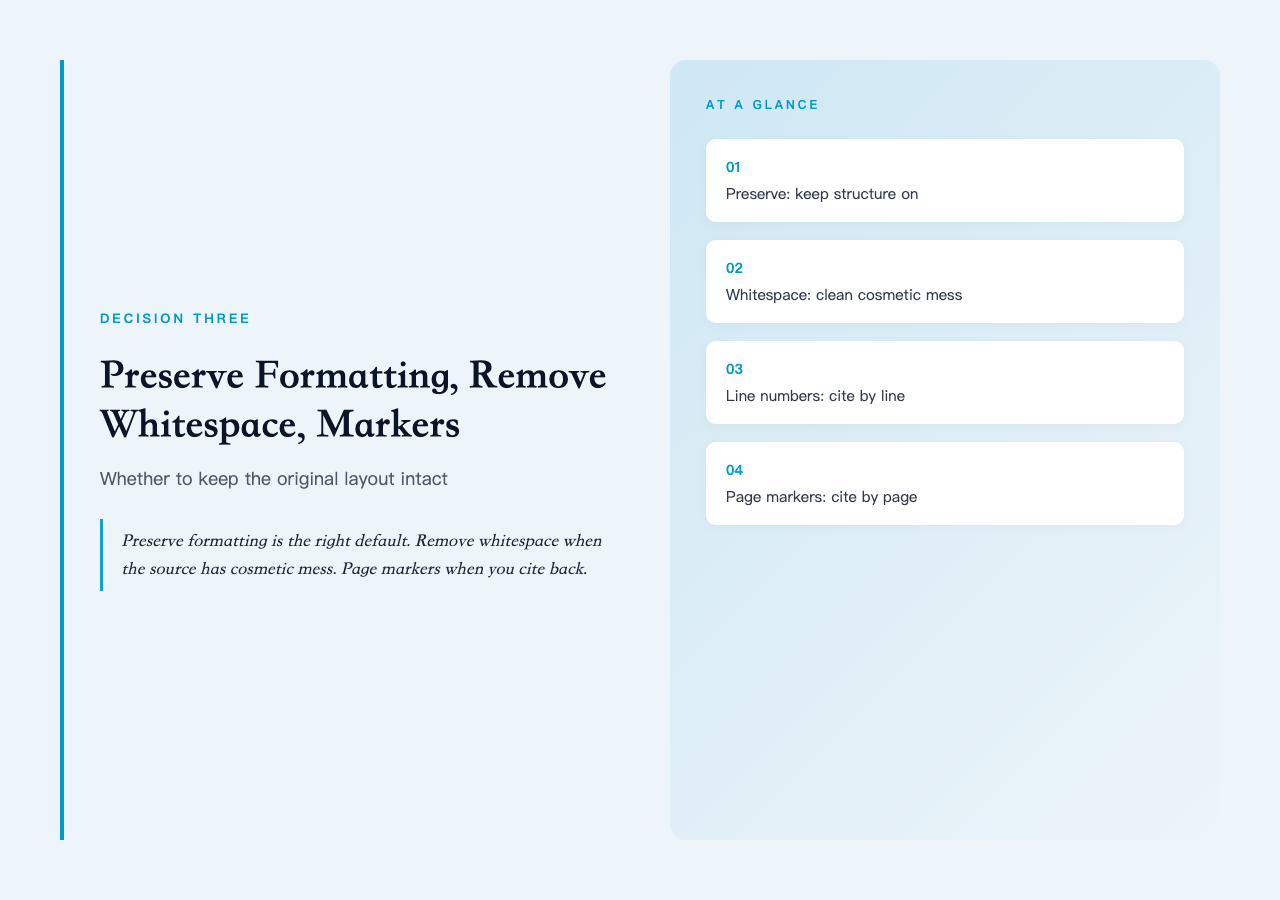
Preserve original formatting is the default and is correct for most documents. It keeps the layout information that makes the text readable. Remove extra whitespace is the right complement when the source PDF has been generated from a tool that emits a lot of unnecessary whitespace — reports generated from web-to-PDF tools, for example, often have multiple consecutive blank lines, runs of spaces from HTML formatting that wasn’t cleaned up, or trailing whitespace on every line. For these documents, turning on “remove extra whitespace” cleans up the output and gives you tighter, more readable text. The two are not mutually exclusive: preserve formatting keeps the structural whitespace (line breaks, paragraph breaks, indentation), while remove extra whitespace cleans up the cosmetic whitespace (runs of spaces, blank lines, trailing spaces).
Include line numbers is the right choice when you’re going to be quoting or referring back to specific lines — for legal review, code review, citation, or any workflow where you need to say “look at line 42 of the extracted text.” The line numbers appear as a fixed-width prefix at the start of each line, which makes them easy to grep for and easy to copy. Include page markers is the related choice when you need to refer back to specific pages of the source PDF — for citation, cross-reference, or any workflow where you need to say “the data I’m citing is on page 17 of the original.” Page markers appear as a separator line between pages with the page number, so you can find the page break in the extracted text and count forward to the original page number.
The cleanest workflow for most documents is: pick the page range you need, choose the output format that matches your downstream use (plain text for indexing, formatted text for reading, markdown for editors, JSON for code), keep “preserve formatting” on, turn on “include page markers” if you’ll need to refer back to the original page numbers, and only turn on “remove extra whitespace” if you’ve already seen the output and know it has cosmetic whitespace problems.
Two Real Workflows That Show the Three Decisions in Action
The clearest way to see how the three decisions interact is to walk through two workflows end-to-end. Both are the kind of work that comes up weekly in any team that handles PDFs in volume, and both use the same tool with very different settings. The two sample documents used below — one financial report and one research-paper excerpt — are both available in the PDF Samples hub if you want to reproduce the exact extractions yourself.
Workflow 1: Extract tables from a financial report for a spreadsheet. Source: a 30-page quarterly financial report PDF. Goal: get the income statement, balance sheet, and cash-flow table into a spreadsheet so you can reformat them and rerun the numbers. Page range: the financial tables are on pages 8, 11, and 14 — type 8,11,14 in the page-range field, leave everything else empty. Output format: JSON, because you’re going to write a small script that parses the table structure and emits CSV. Preserve formatting: on, because the table structure is in the whitespace and indentation. Remove extra whitespace: off, because you want the table structure preserved. Include line numbers: off, because you’re going to parse it programmatically. Include page markers: on, because you’ll need to know which table came from which page when you cite back to the source. You now have a JSON document with three sections, each clearly tagged with the page number from which it was extracted.
Workflow 2: Extract the executive summary from a long research report for a briefing email. Source: a 60-page industry research report PDF. Goal: paste the executive summary into a briefing email without spending twenty minutes reformatting it. Page range: 1-3, because that’s where the executive summary lives. Output format: formatted text, because you want it to read as a document when pasted into the email. Preserve formatting: on, because the headings and paragraph breaks matter for readability. Remove extra whitespace: off. Include line numbers: off. Include page markers: off. The result is a clean three-page excerpt that you can paste directly into the email without touching it.
The contrast is the lesson: same tool, same three decisions, completely different settings, both correct for the workflow. There is no single “right” configuration for PDF Text Extractor — the right configuration is the one that matches the downstream use. The three decisions exist precisely so that you can express that match without writing any code.
What Happens When the PDF Is a Scanned Image
There is one important case the three decisions don’t cover: scanned PDFs. A scanned PDF is, internally, one or more images — one per page — with no text layer underneath. Extracting text from a scanned PDF with any text-extraction tool will return either nothing or garbage, because there is no text to extract; the characters you see when you open the file in a viewer are rendered from an image, not stored as text.
For scanned PDFs, you need OCR — optical character recognition — which is a different tool entirely. The good news is that Elysia Tools has OCR tools that work on scanned documents and produce the same output formats (plain text, formatted text, markdown, JSON), so the workflow you build around PDF Text Extractor carries over directly to scanned documents with a different upstream tool. The bad news is that OCR is slower and less accurate than text extraction, so it’s worth knowing which kind of PDF you have before you start.
A quick way to tell: open the PDF in any viewer, try to select a single word, and copy-paste it into a plain-text editor. If the paste gives you the word, the PDF has a text layer and PDF Text Extractor will work on it directly. If the paste gives you nothing, or gives you gibberish, the PDF is a scanned image and you need OCR first. The distinction matters because the two workflows have very different performance characteristics — text extraction is essentially instantaneous, while OCR takes seconds per page and has error rates that depend on the scan quality.
If you regularly work with mixed-document workflows — some PDFs with text layers, some scanned — it’s worth sorting them up front and routing each to the right tool. Most document-management systems can detect this automatically by looking for the text-layer flag in the PDF metadata, and you can build the same check into any pipeline that processes PDFs in bulk. Real test PDFs in the PDF Samples library include both text-layer reports and scanned invoices, so you can validate the detection step on known inputs before you wire it into production.
The Three Decisions, Recapped
The three decisions that decide whether your PDF text is actually useful are: which pages, what output format, and whether to preserve the layout. Get those three right and the extraction is clean, fast, and ready for whatever you do next. Get them wrong and you spend the next twenty minutes reformatting what the tool gave you.
For the page range, the 80-percent case is the comma-separated mix — 1-5,7,10-12 — which lets you pull the sections you need in one pass. For the output format, plain text is the right default for code, formatted text is the right default for reading, markdown is the right default for editors, and JSON is the right default for pipelines. For layout preservation, keep it on for reading and pasting, turn it off only when the source has cosmetic whitespace problems.
Once those three are dialed in, the rest of the checkboxes are polish — include page markers if you need to cite back, include line numbers if you need to refer to specific lines, remove extra whitespace if you’ve seen the output and know it needs cleaning. None of those polish choices matter until the three core decisions are right, so start there.
You can try the tool with the exact configurations from this article at PDF Text Extractor. The page-range syntax, the four output formats, and the layout-preservation toggle are all live on the tool page, and you can run an extraction against any PDF you upload to see the three decisions in action. For a broader look at how text extraction fits into document workflows, the PDF Samples hub has a library of real-world PDF samples — financial reports, invoices, certificates, contact sheets, and more — that you can extract from to see the difference between the four output formats side by side. Pair the tool with a sibling such as PDF to Excel when the downstream consumer is a spreadsheet instead of a text file, and you have a complete text-or-table extraction pipeline that runs entirely in the browser.
Explore more text and document tools at elysiatools.com.