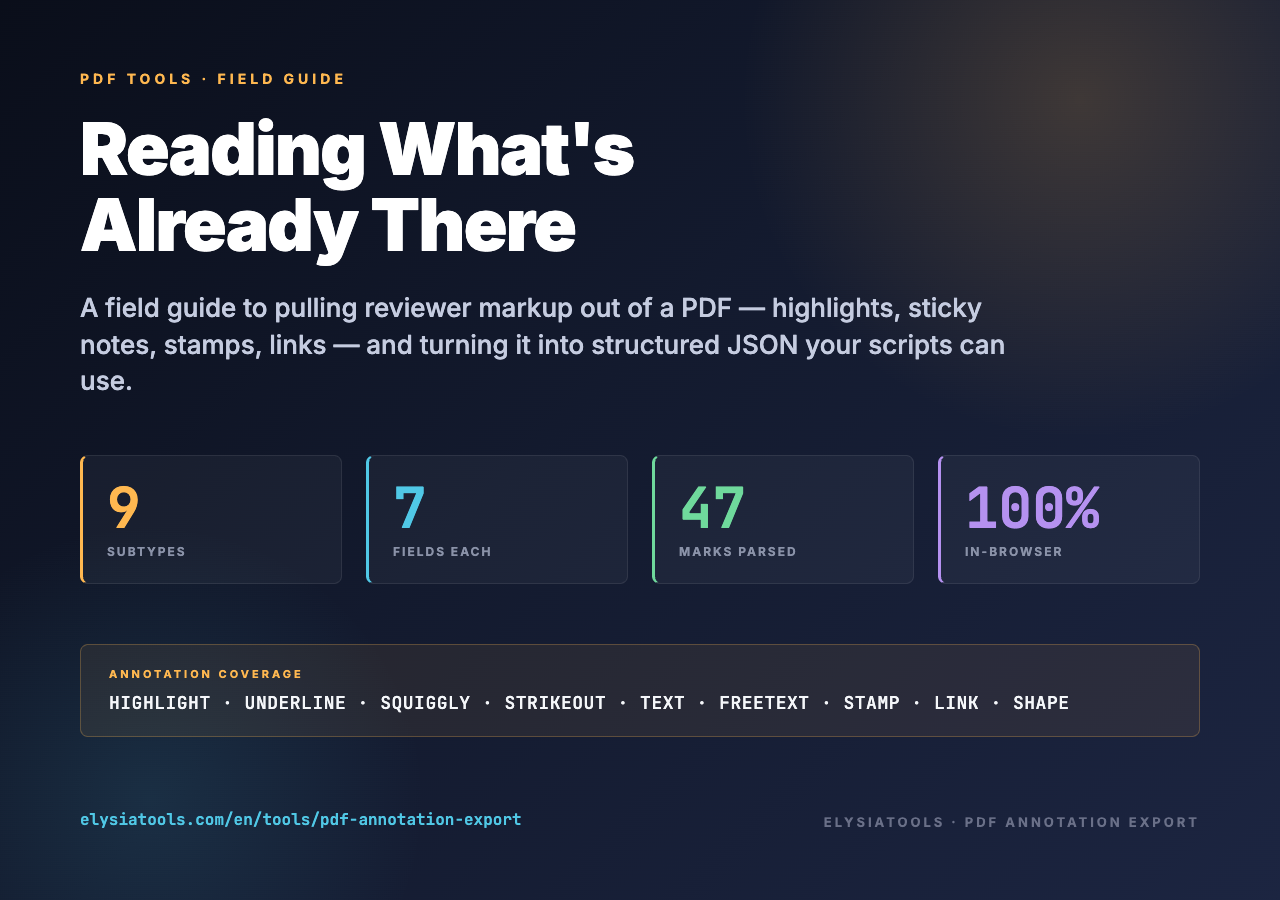
When a colleague sends back a 60-page draft with 47 highlights and 12 sticky notes attached to specific clauses, the value is not in the PDF. The value is in the markup — the human commentary embedded inside the file. Most teams treat that markup as decoration to be skimmed once and forgotten. The smarter move is to treat it as structured data. A purpose-built tool can lift every annotation off the page and hand it back as JSON: who said what, on which page, in what form, when.
This piece is a field guide to PDF Annotation Export, the elysiatools.com tool that does exactly that. It runs entirely in the browser through a pure-JS pipeline, takes a single PDF, and returns the annotations as a JSON string in the output panel — no download step, no server round-trip. We will walk the eight annotation subtypes it understands, the seven fields it extracts per mark, the JSON shape it produces, and the practical workflows it unlocks when chained with the rest of the elysiatools PDF toolbox.
What “annotations” actually means in a PDF
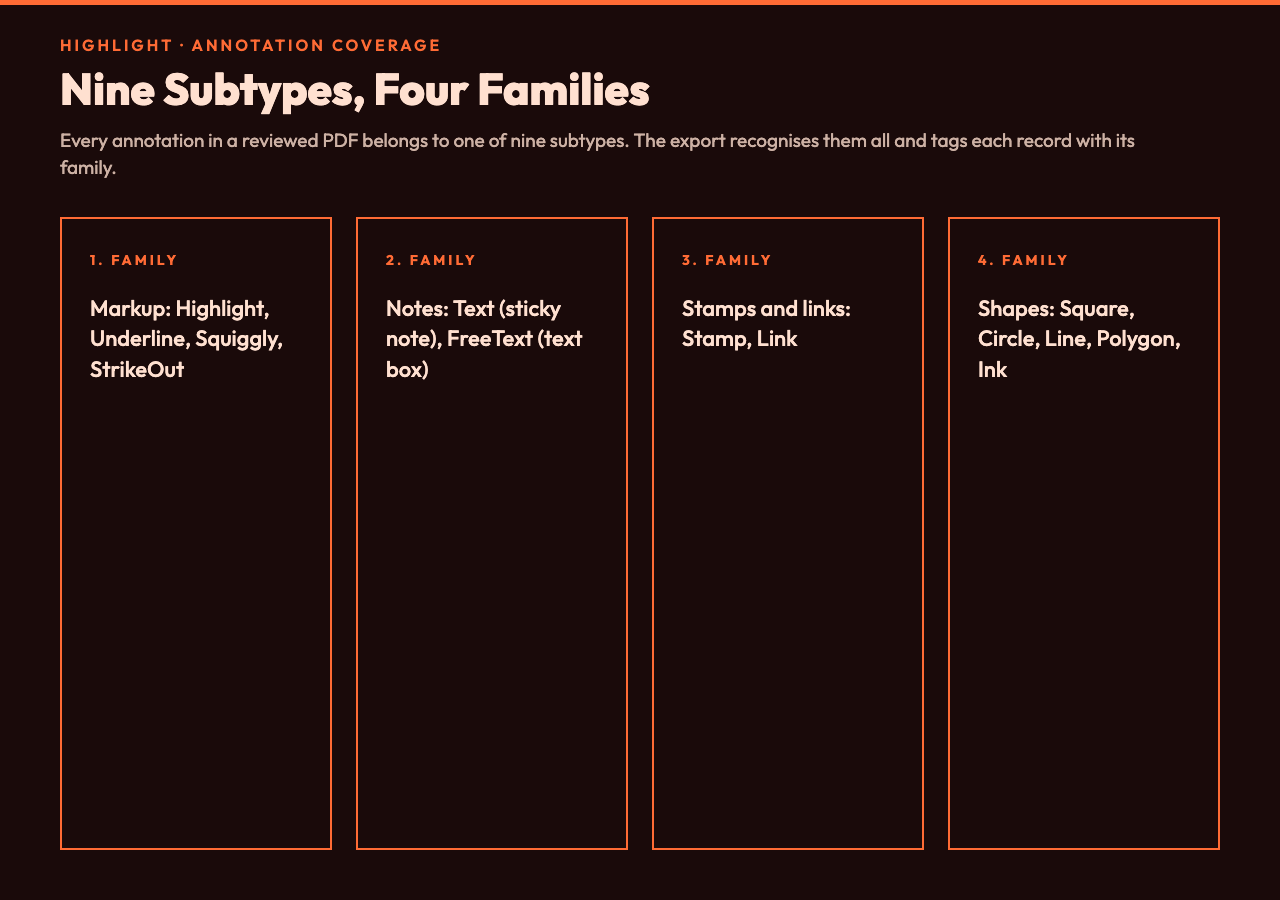
The PDF specification (ISO 32000) defines an annotation as anything that is not part of the page content stream but sits alongside it — a digital post-it stuck to a rectangle on a page. Adobe Acrobat draws them as the familiar yellow highlight, the speech-bubble sticky note, the rubber stamp. Underneath they are dictionary objects with a /Subtype entry that classifies them. The PDF Annotation Export tool recognises nine subtypes, organised into four families:
- Markup family — Highlight, Underline, Squiggly, StrikeOut. These ride on top of a text selection. Squiggly is the wavy underline you see in Word’s “Track Changes” review.
- Notes family — Text (the speech-bubble sticky note) and FreeText (a text box overlaid on the page).
- Stamps and links — Stamp (rubber-stamp images, including custom “DRAFT” or “REVIEWED” marks) and Link (clickable regions, often invisible).
- Shape family — Square, Circle, Line, Polygon, and freeform Ink (pen strokes). These are common in technical review and architectural markup.
What is not extracted is anything that is technically a form widget: a checkbox, a radio button, a dropdown, or a text input on a fillable AcroForm. Those use a different PDF dictionary type (/Widget) and live in a different export pipeline — see the PDF AcroForm Filler for that side of the world.
The seven fields the tool returns per annotation
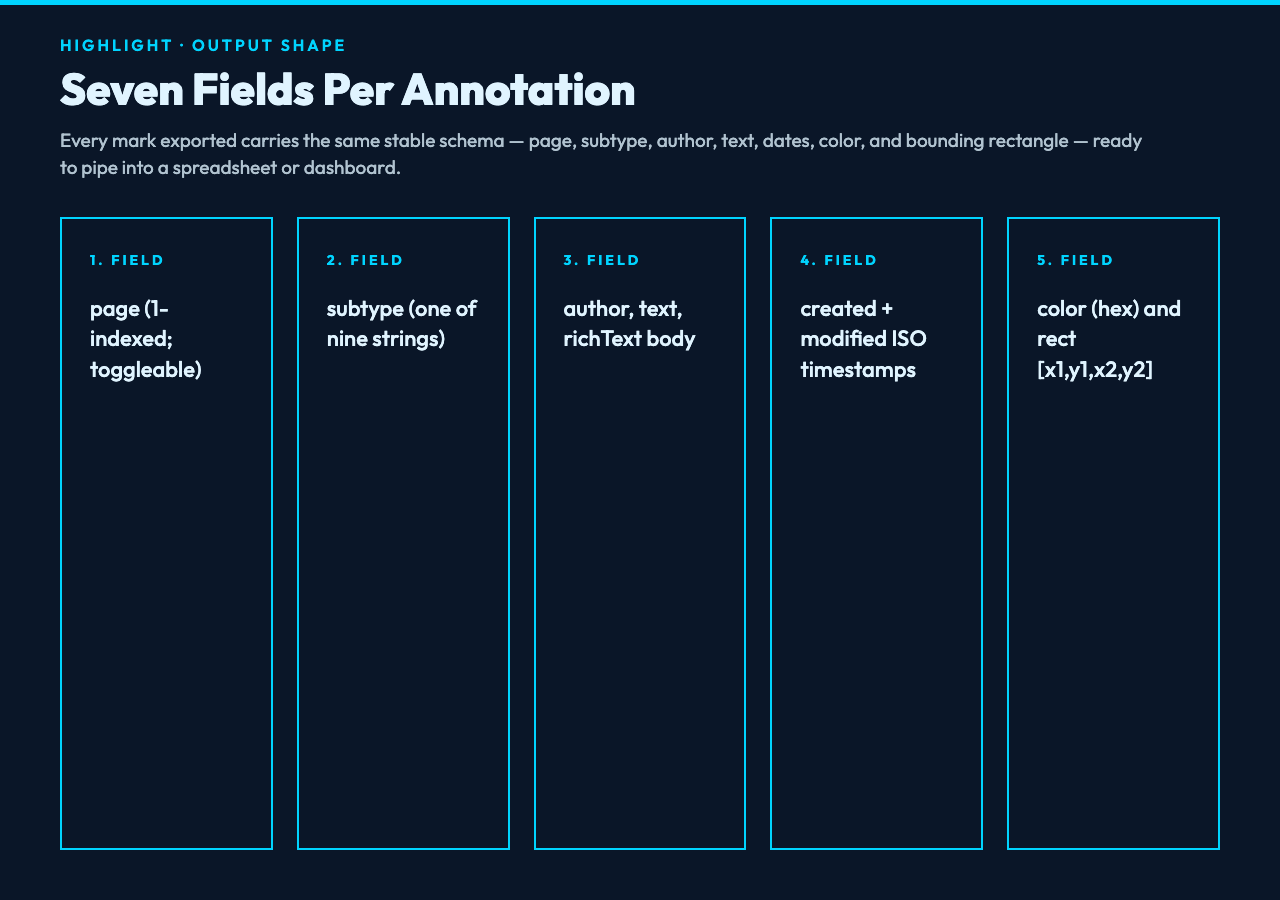
Every annotation that comes out of the export has the same shape. The fields are deliberately stable so you can pipe them straight into a downstream tool or a spreadsheet without re-mapping:
- page — 1-indexed page number. The tool respects the
Include Page Numberscheckbox; when off, the field is omitted to keep the JSON compact. - subtype — one of the nine strings listed above.
- author — the PDF
/Tentry. This is usually the reviewer’s name as set in Acrobat or Preview, but it can be blank if the reviewer chose to remain anonymous. - text — the plain-text contents. For a highlight, this is the underlying text the highlight covers. For a sticky note, this is the note body.
- richText — the XHTML-style body when the note was formatted. Plain
textis preferred when present. - created / modified — ISO-format timestamps from the PDF date metadata.
- color — stroke / fill hex (e.g.
#ffff00for the default Acrobat yellow). - rect — the bounding rectangle as
[x1, y1, x2, y2]in PDF user-space units.
Two omissions worth noting: reply chains (sticky-note replies threaded under the original note) are flattened — the tool returns each comment as a single record. Locked or encrypted annotations on a permission-restricted PDF will return as records but with empty text. If you need them unlocked first, run the file through PDF Clean to strip permissions before re-exporting.
The output JSON, annotated
The full output is a single JSON object with three top-level keys: sourceFile, count, and annotations. There is also a subtypes histogram that lets you see the shape of the markup at a glance without iterating the array:
{
  "sourceFile": "review-draft-v3.pdf",
  "count": 47,
  "subtypes": { "Highlight": 31, "Text": 12, "StrikeOut": 4 },
  "annotations": [
    {
      "page": 4,
      "subtype": "Highlight",
      "author": "Alice Chen",
      "text": "the SLAs are non-binding in section 7",
      "color": "#ffff00",
      "created": "2026-05-14T09:22:11Z",
      "rect": [72, 488, 320, 502]
    },
    {
      "page": 4,
      "subtype": "Text",
      "author": "Alice Chen",
      "text": "We need legal to confirm before signing.",
      "color": "#ffcc00",
      "created": "2026-05-14T09:24:02Z"
    }
  ]
}
The subtypes histogram is small but surprisingly useful: a draft with 31 highlights and 12 comments tells you it has been read carefully; a draft with 4 highlights and 0 comments tells you the reviewer skimmed it. Aggregated across many files, the histogram is a cheap quality signal for review coverage.
Three workflows where the export pays for itself
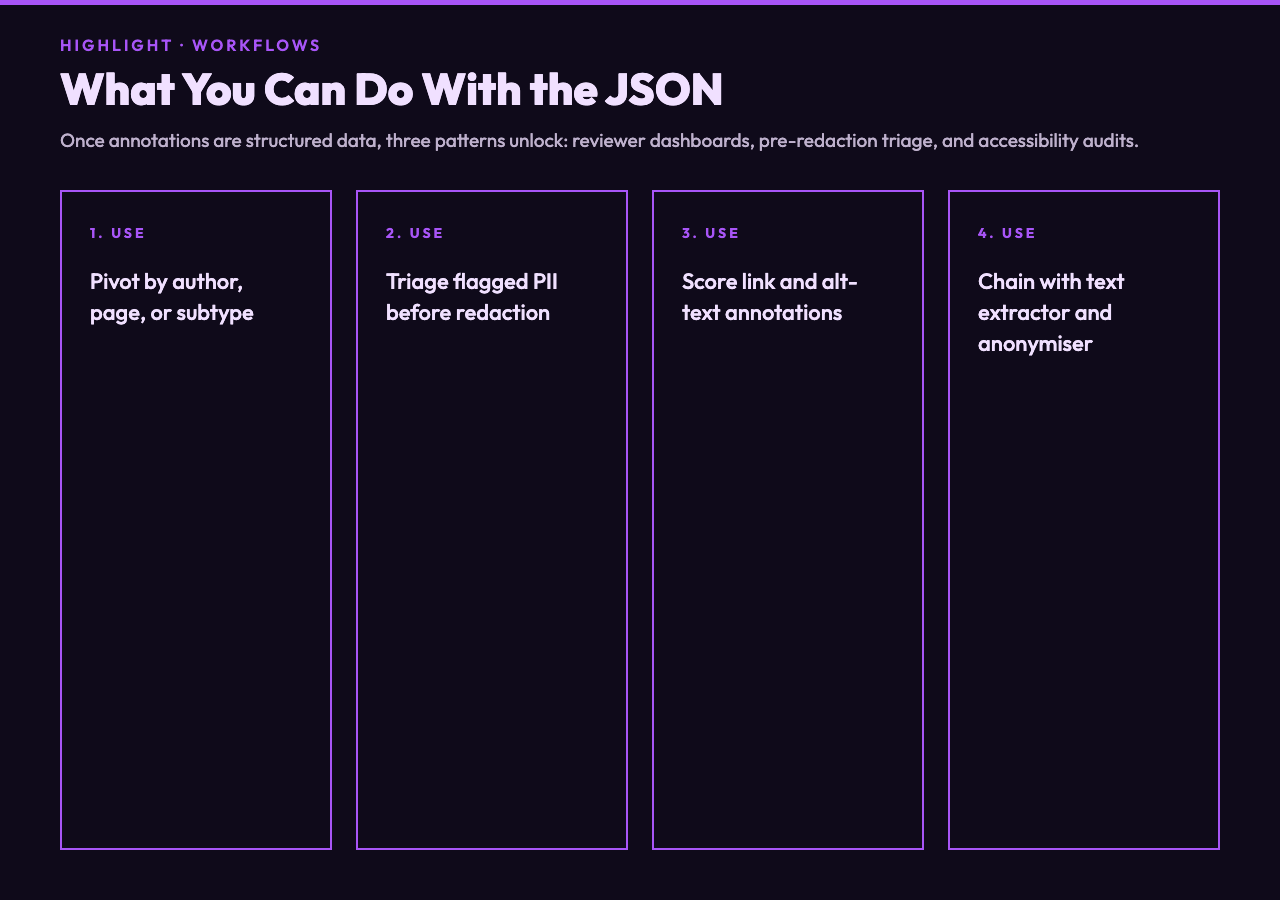
Once the markup is JSON, you can stop thinking about PDFs and start thinking about data. Here are three patterns we have seen teams adopt.
1. Reviewer dashboards
Pipe the JSON output into a spreadsheet. Pivot by author to see who reviewed what, by page to see which sections drew the most markup, or by subtype to spot files where the reviewer used strikeouts (typically a sign of substantial disagreement). For long documents you can join the annotation text against the page text extracted separately by PDF Text Extractor — this gives you a paragraph-by-paragraph map of where the reviewer commented and why.
2. Pre-redaction triage
Before you run a PDF through PDF Redaction Helper, export the annotations to see whether the reviewer flagged any PII concerns directly in the file. Comments like “this is a real SSN” or “remove this name” are gold for the redaction pass — and they live only in the markup layer, not in the page text. The export makes them programmable.
3. Accessibility audits
Tagged-PDF accessibility reviews require checking that highlights, alt text on figures, and link targets are properly formed. Exporting the annotation layer lets you grep for alt-text tags, count link annotations per page, and produce a quantitative accessibility scorecard. Pair the export with PDF Anonymizer Report for a full privacy-and-accessibility review of the file in one pass.
What the tool deliberately does not do
It is worth being explicit about the boundary. PDF Annotation Export reads — it does not write. You cannot use it to add new highlights, edit existing notes, or merge two reviewers’ markups into one file. For those operations you need a full PDF editor.
It also does not understand form-widget annotations. If your PDF is an AcroForm with 200 checkboxes, exporting annotations will return an empty array (or only the visible non-widget annotations). Use PDF AcroForm Filler for that workflow.
Finally, the tool is single-file and in-memory. There is no batch mode — if you have 50 reviewed PDFs to consolidate, you run the tool 50 times and concatenate the JSON arrays downstream. For batch-oriented PDF work, look at PDF Batch Watermark or PDF Batch Compress as references for the batch pattern, then run the same logic on the exported annotation arrays.
Reading the markup like a structural critic
Once you start exporting annotations as data, you stop reading PDFs and start reading markup patterns. A reviewer who leaves 30 highlights and 1 comment is gathering quotes — likely preparing a summary. A reviewer who leaves 3 highlights and 18 comments is arguing. A reviewer who leaves 0 highlights and 5 strikeouts is rewriting.
None of this is in the PDF page content. It only becomes visible once the markup is structured, queryable JSON. That is the whole point of PDF Annotation Export: it converts what humans leave behind in the margins into something your scripts, spreadsheets, and dashboards can actually use. If you want to see what the exported JSON looks like on a real reviewed PDF, the sample files in the PDF Samples hub include annotated drafts you can drop straight into the tool. For the rest of the elysiatools PDF toolbox — text extraction, redaction, anonymisation, optimisation, watermarking — explore elysiatools.com/en/tools.