
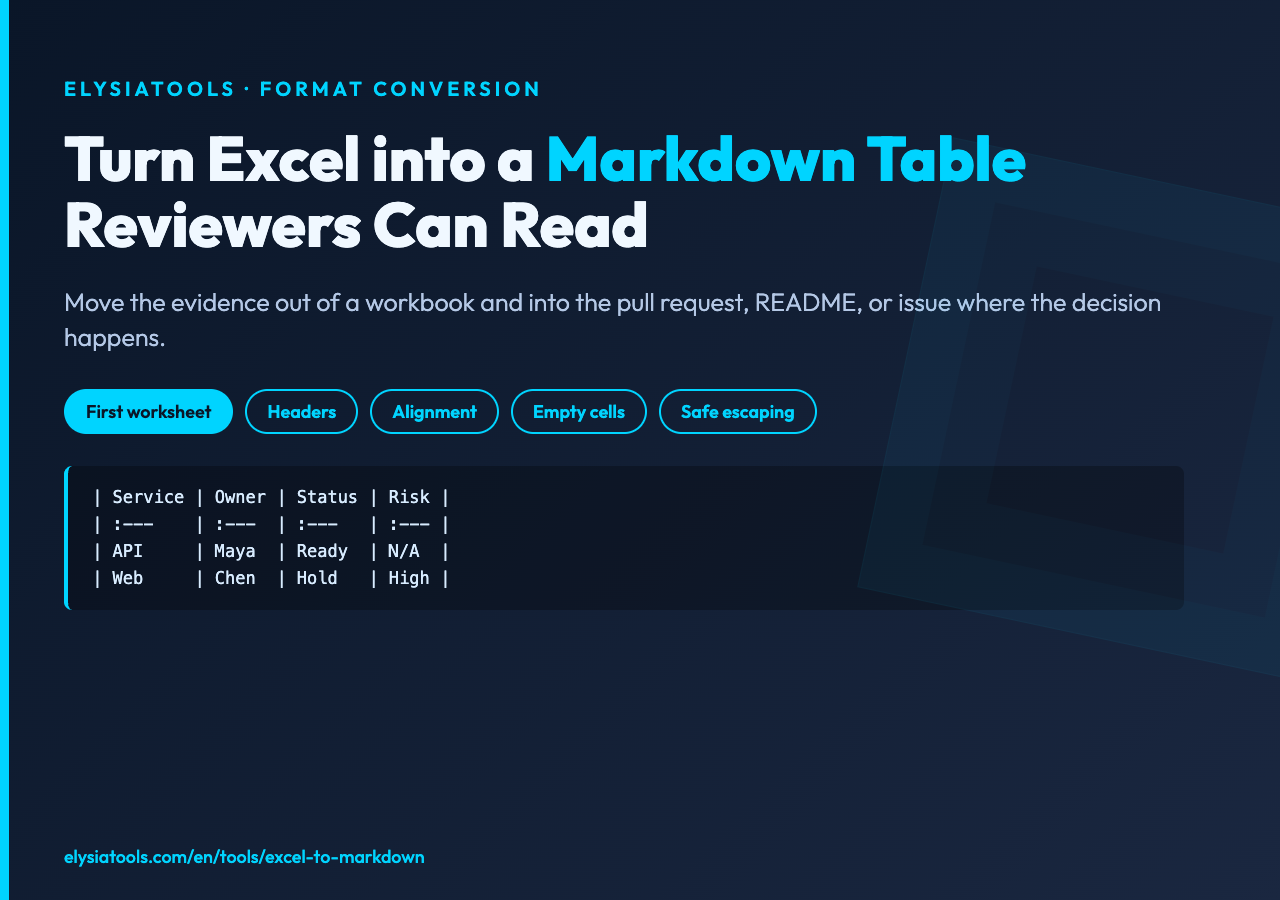
A spreadsheet can hold the right answer and still be the wrong artifact. Attach an Excel file to a pull request and the review detours into a five-step scavenger hunt: download the file, open an app, find the right sheet, locate the changed cells, then translate them back into a comment. A Markdown table keeps the evidence beside the decision.
That is the useful promise of Excel to Markdown Converter: turn the first worksheet of an Excel file into portable table syntax while making the small choices that determine whether the result is readable or broken.
A conversion is also an editorial decision
The Excel to Markdown Converter on Elysia Tools reads the first worksheet and emits a Markdown table. That sounds mechanical, but five inputs shape the output: the workbook, whether row one is a header, whether surrounding whitespace should be trimmed, the column alignment style, and the text used for empty cells.
Those controls matter because Markdown has a stricter shape than Excel. A worksheet can express multiple tabs, formulas, merged cells, rich formatting, dates, blanks, and visual hierarchy. A Markdown table is a flat grid with one header row and one alignment row. The converter is best understood as a deliberate projection from a rich workbook into a reviewable text artifact.
The spreadsheet is the working surface. The Markdown table is the conversation surface.
What the implementation preserves
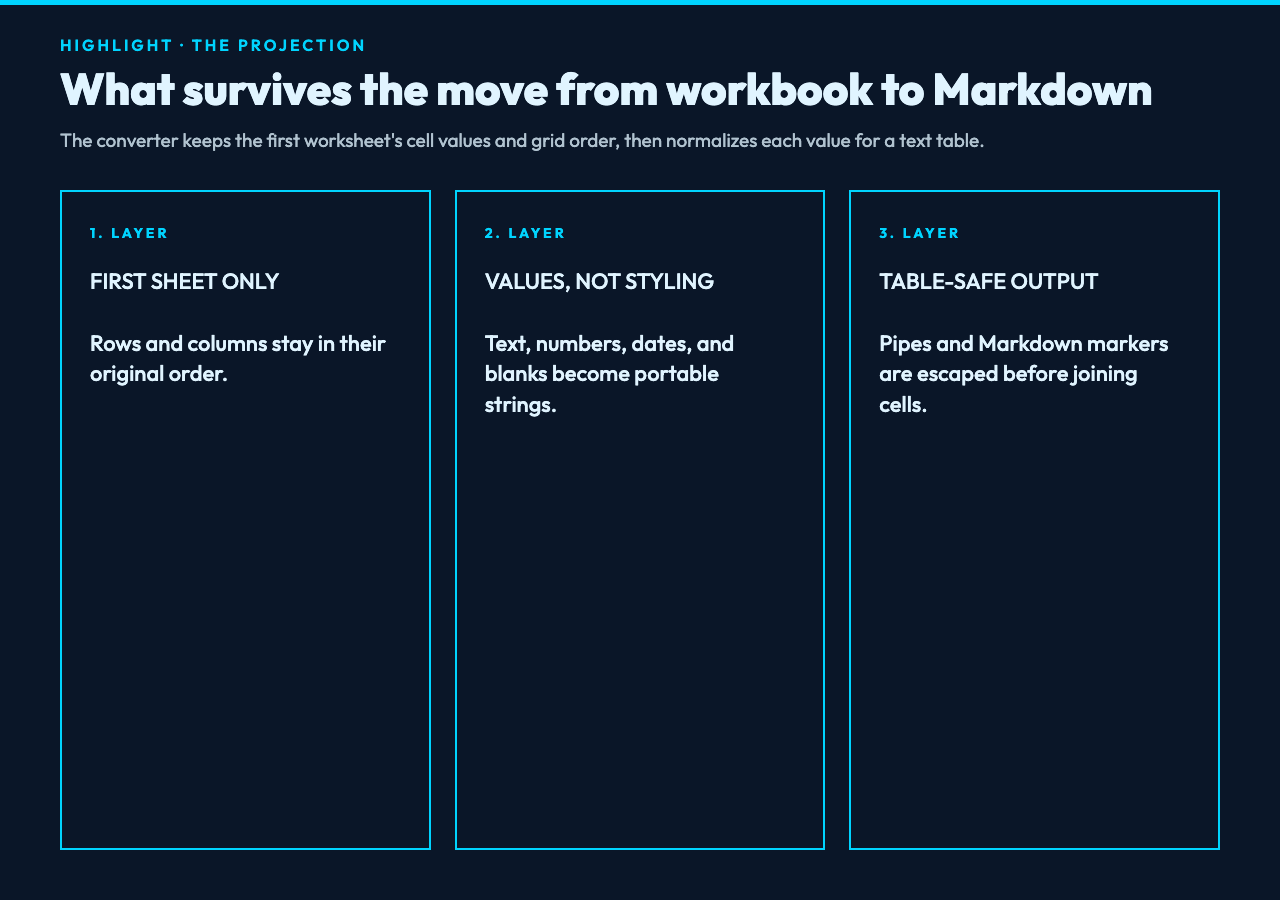
The source uses ExcelJS to open the workbook and selects workbook.worksheets[0]. It walks from row 1 through the worksheet row count and from column 1 through the worksheet column count. That fixed rectangle gives the output a predictable order.
Several cell types receive explicit treatment. Empty values become your chosen placeholder. Text-bearing objects use their text value. JavaScript date objects become ISO timestamps. Numbers become decimal strings. Other values are converted to text, and optional trimming removes whitespace at the edges.
This is practical preservation, not pixel-perfect fidelity. The exported table keeps cell values and row-column position. It does not promise to reproduce colors, formulas as formulas, merged-cell geometry, comments, or workbook navigation.
The first row changes the meaning of the whole table
When First Row Contains Headers is enabled, the converter removes the first data row and uses it as the table header. For a worksheet beginning with Service, Owner, and SLA, that is usually correct.
When the option is disabled, the first row remains data and the converter creates neutral labels such as Column 1, Column 2, and Column 3. This is safer for exports that begin immediately with records, or for machine-generated sheets where the first row is not trustworthy metadata.
A quick rule helps: if a human would use row one to name the fields, enable headers. If row one is an observation, disable it. Getting this wrong does not merely change styling; it either consumes a real record or promotes ordinary data into a schema.
Four messy cells reveal the real job
Imagine the first worksheet contains a 4-column release tracker. Row one names Service, Owner, Status, and Risk. Three data rows follow. One Risk cell is blank, one Owner has extra spaces, one Status contains an asterisk, and one Note contains a pipe character.
With headers enabled, trimming enabled, left alignment, and N/A as the empty-cell placeholder, the output becomes a four-column Markdown table. The padded owner name is cleaned, the blank risk becomes explicit, and both the asterisk and pipe are escaped so the renderer does not turn data into formatting or a phantom fifth column.
This is also where the sample library is useful. The Simple XLS Spreadsheet sample is a compact legacy Excel file intended for binary parsing and import checks. It is a good reminder to confirm file compatibility before planning a conversion workflow: the converter’s implementation reads workbooks through the XLSX reader, even though the manifest advertises both modern and legacy Excel MIME types. Treat legacy XLS input as something to test, not an automatic guarantee.
Why special characters must be escaped

The converter escapes backslashes, pipe characters, asterisks, underscores, backticks, and hash marks before joining cells with pipe separators. This is not cosmetic cleanup. A literal pipe inside a cell would otherwise look like a new column. Asterisks and underscores can become emphasis. Backticks can open code formatting, while a leading hash may be read as a heading in nearby Markdown contexts.
There is a trade-off. Escaping protects table structure, but it also means the generated text is meant for a Markdown renderer rather than for exact byte-for-byte reuse. If a downstream system needs the original strings untouched, keep the workbook or export CSV alongside the Markdown representation.
Alignment is communication, not decoration
Four alignment choices are available: left, center, right, and none. The converter writes the familiar marker row beneath the header, using colon placement to express alignment.
Left alignment works for names, descriptions, and status fields. Center alignment suits short categorical values. Right alignment makes numeric columns easier to scan, but the tool applies one alignment choice to each column. A table that mixes prose, currency, dates, and counts may need a small manual edit after conversion so each column carries the alignment that matches its content.
This limitation is worth stating plainly: the converter gives you a consistent first draft, not a per-column layout editor. That is often enough for a README or issue, where clarity beats spreadsheet styling.
Empty cells need a visible policy
A blank spreadsheet cell can mean unknown, not applicable, not collected, deliberately withheld, or truly empty. Mapping all of those states to an empty Markdown cell preserves ambiguity.
The placeholder option lets you choose a visible policy such as N/A, Unknown, or an em dash. Use an explicit placeholder for audits, migration plans, and operational tables where missingness carries risk. Keep the placeholder empty for decorative or sparse matrices where repeated labels would add noise.
The important point is consistency. A table with three different informal markers for missing data makes reviewers spend time interpreting absence instead of reviewing the content.
Where the converter draws a hard boundary
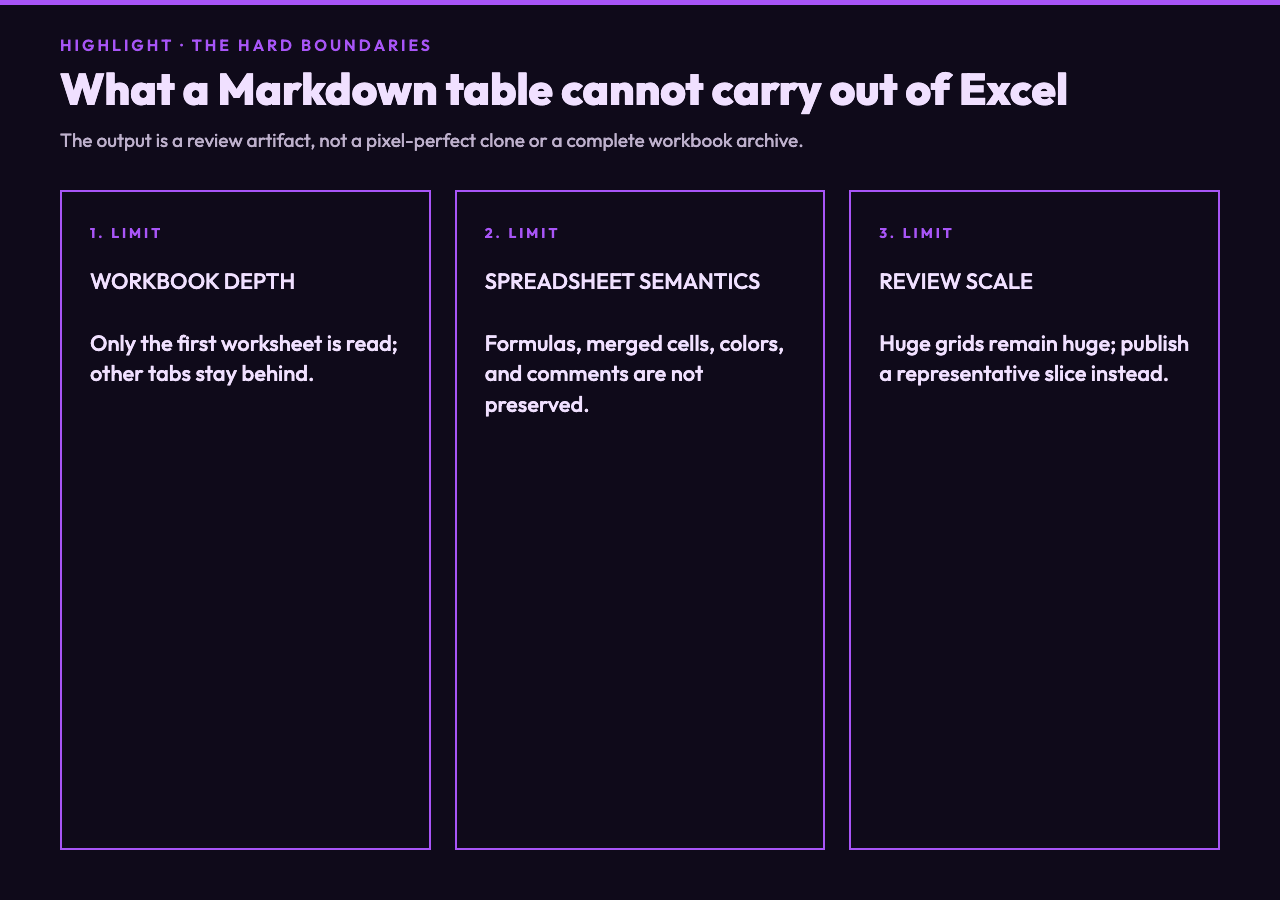
The first-worksheet rule is the largest boundary. A workbook with Summary, Raw Data, and Notes tabs will export only the first tab. Reorder the workbook or split the conversion if a different sheet matters.
The second boundary is workbook semantics. Dates are normalized to ISO strings when they arrive as Date objects, while numbers are serialized as numbers. Display formatting such as currency symbols or percentage masks may not survive as it appeared in Excel. The generated table also has no concept of formulas, merged headers, hidden rows, or cell colors as meaning.
The third boundary is output scale. Markdown tables are excellent for dozens of rows and a modest number of columns. They become hard to review when a worksheet is thousands of rows wide or tall. For large datasets, publish a small representative table and link the original data rather than pasting an unreadable wall of pipes.
A reliable conversion checklist
Before converting, put the intended sheet first and remove purely decorative rows above the real header. Decide whether row one names fields or contains data. Choose a placeholder that communicates what a blank means. Pick alignment for the dominant content type, knowing mixed tables may need a manual pass.
After converting, preview the Markdown in the same renderer that will display it. Check cells containing pipes, emphasis marks, underscores, and code-like text. Count the output columns against the worksheet. Spot-check dates and numbers whose Excel display format carried meaning. If the source is a legacy XLS file, run a small sample before depending on the workflow.
For test data and richer document structures, the Markdown Samples collection provides examples ranging from basic formatting to READMEs, blog posts, and technical documentation. It is a sensible destination for checking how the resulting table sits inside a larger document.
Put the evidence where the decision happens
Excel remains better at calculation, exploration, and rich workbook structure. Markdown is better at sitting beside code, surviving a diff, and being quoted in a review comment. Conversion earns its place when it moves a compact claim — a compatibility matrix, release checklist, experiment summary, ownership map, or benchmark — into the room where the decision will be made.
Keep the workbook as the source of truth, but do not make every reviewer reopen the source merely to inspect the conclusion. Export the first sheet, preview the escapes, check the dates and blanks, then commit the table beside the change it supports. That turns a spreadsheet attachment into shared evidence: visible, diffable, and easy to challenge. Try the converter on Elysia Tools, and explore more focused utilities at elysiatools.com.
