
The right way to think about heading hierarchy is that visual weight is a side effect, not the goal. Search engines, screen readers, and accessibility audits all read your document in a tree, not a column. The Heading Hierarchy Auditor at Elysia Tools inspects that tree: it flags skipped levels, multiple h1 nodes, likely style-only heading abuse, and drift between the main h1 and your document title. This field guide walks through what the tool reports, how to read the report, and how to translate the report into fixes that survive real publishing pipelines.
What the Heading Hierarchy Auditor actually checks
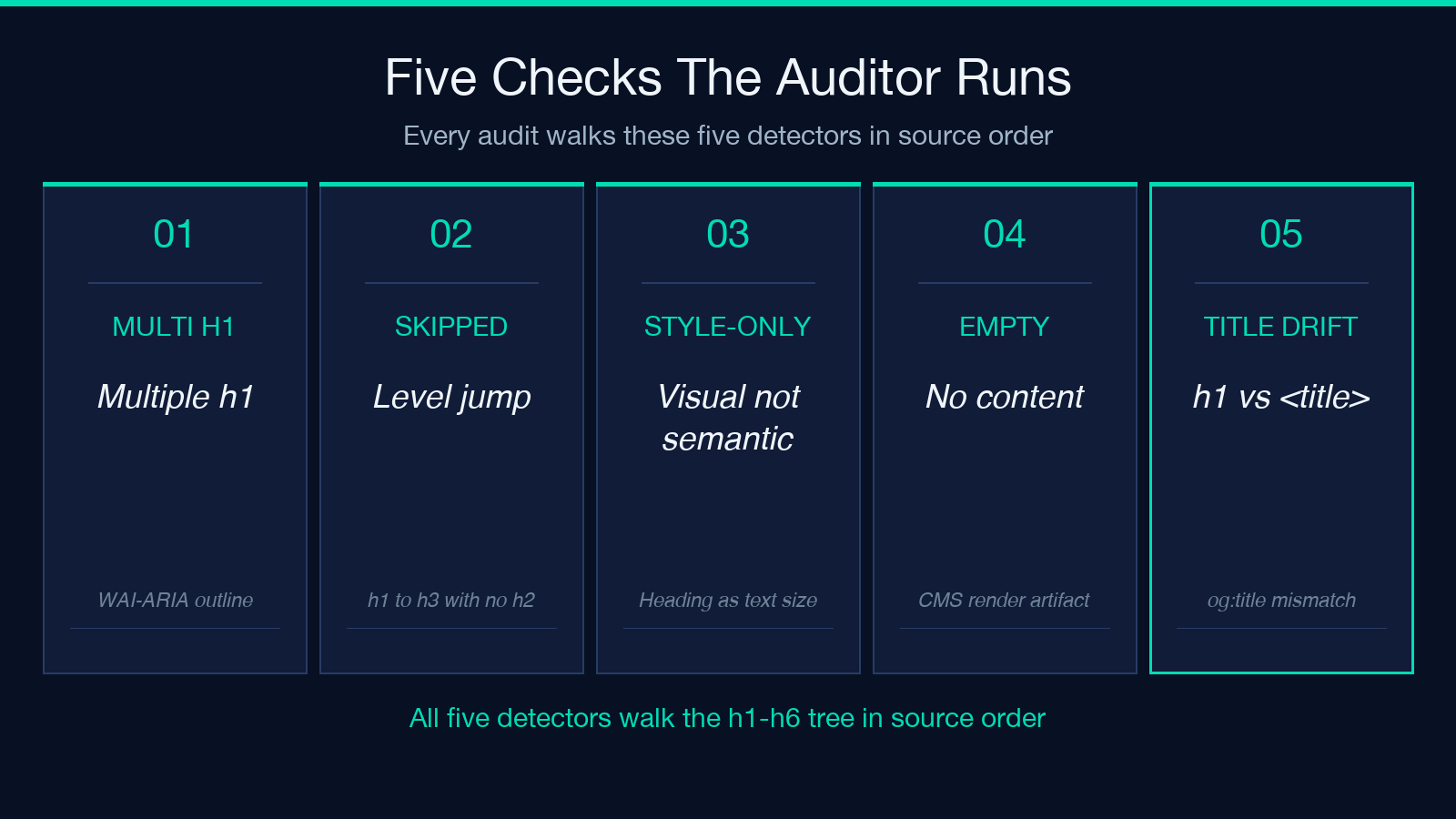
The auditor accepts two input modes. Paste raw HTML and you get a deterministic parse of the markup; provide a page URL and the tool fetches the rendered document and runs the same checks on whatever the browser sees. Both modes walk the h1 through h6 nodes in source order, build a hierarchy tree, then run five pattern detectors against that tree:
- Multiple h1 nodes — a page is supposed to have exactly one top-level heading per WAI-ARIA and HTML5 outlines
- Skipped levels — jumping from h1 to h3 without an h2 in between breaks the document outline
- Likely style-only headings — h2 or h3 used purely for visual size, with no content section beneath it
- Empty headings — nodes with no text content, usually a CMS artifact
- h1 vs title drift — the primary heading text does not match the
<title>orog:title
Two toggles reshape the report. Compare With Metadata Titles cross-references the main h1 against your document title and Open Graph title; Show Fix Suggestions appends a suggested replacement level or replacement strategy to each flagged node. Both are off by default because they make the report noisier on a quick scan.
Reading the hierarchy tree output
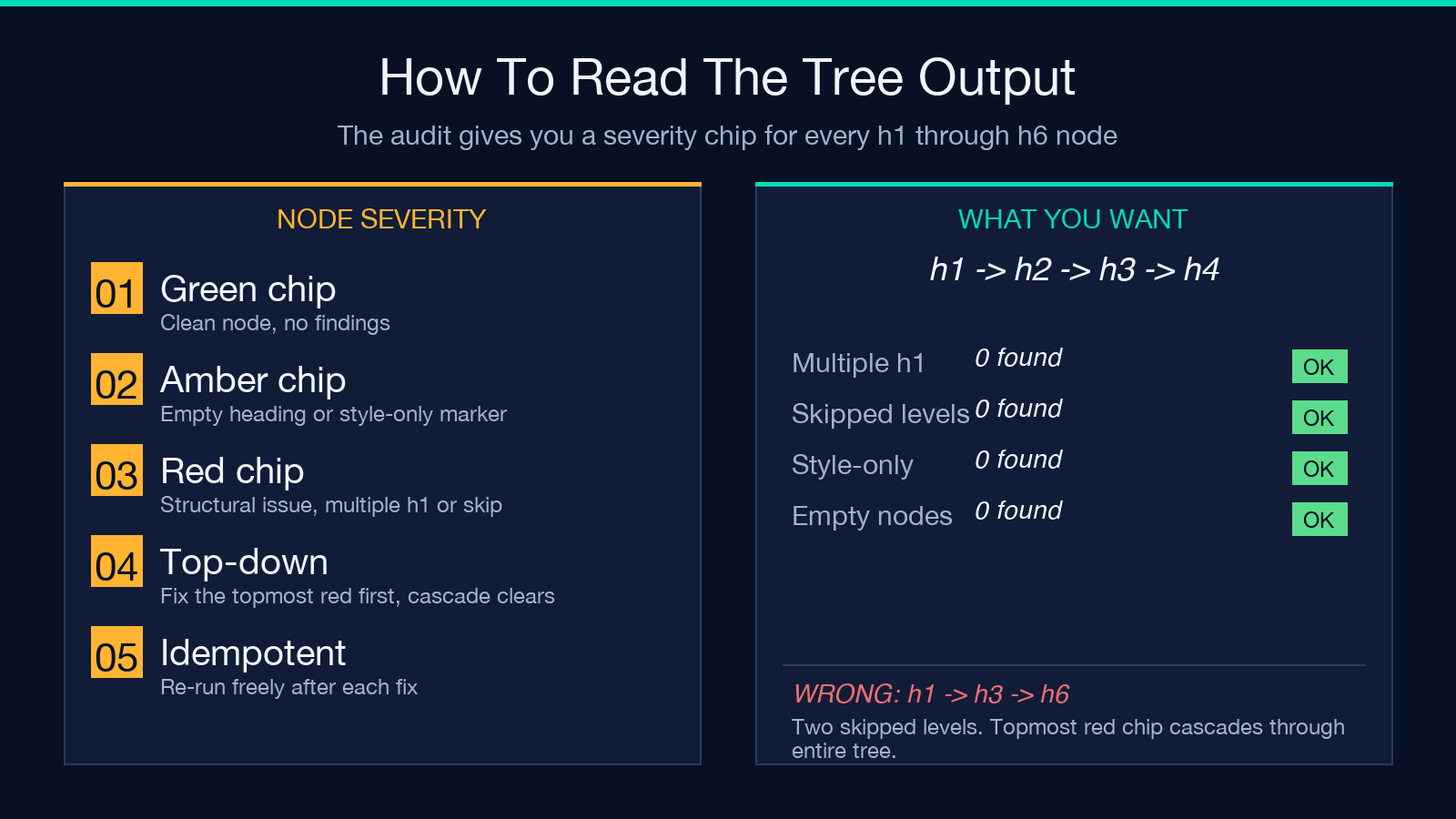
The first section of every report is a tree view that mirrors the rendered outline. Each node carries its level, its text content, and a severity chip:
- Green: clean node, no findings
- Amber: minor issue (empty heading, style-only marker)
- Red: structural issue (multiple h1, skipped level)
Work top to bottom. A red chip at the top of the tree is almost always the root cause of every red chip below it, because skipping levels cascades. Fix the topmost red node first, re-run the audit, and the rest of the tree tends to fall in line. The Heading Hierarchy Auditor re-runs are free and idempotent, so use that loop aggressively.
Common patterns the report catches
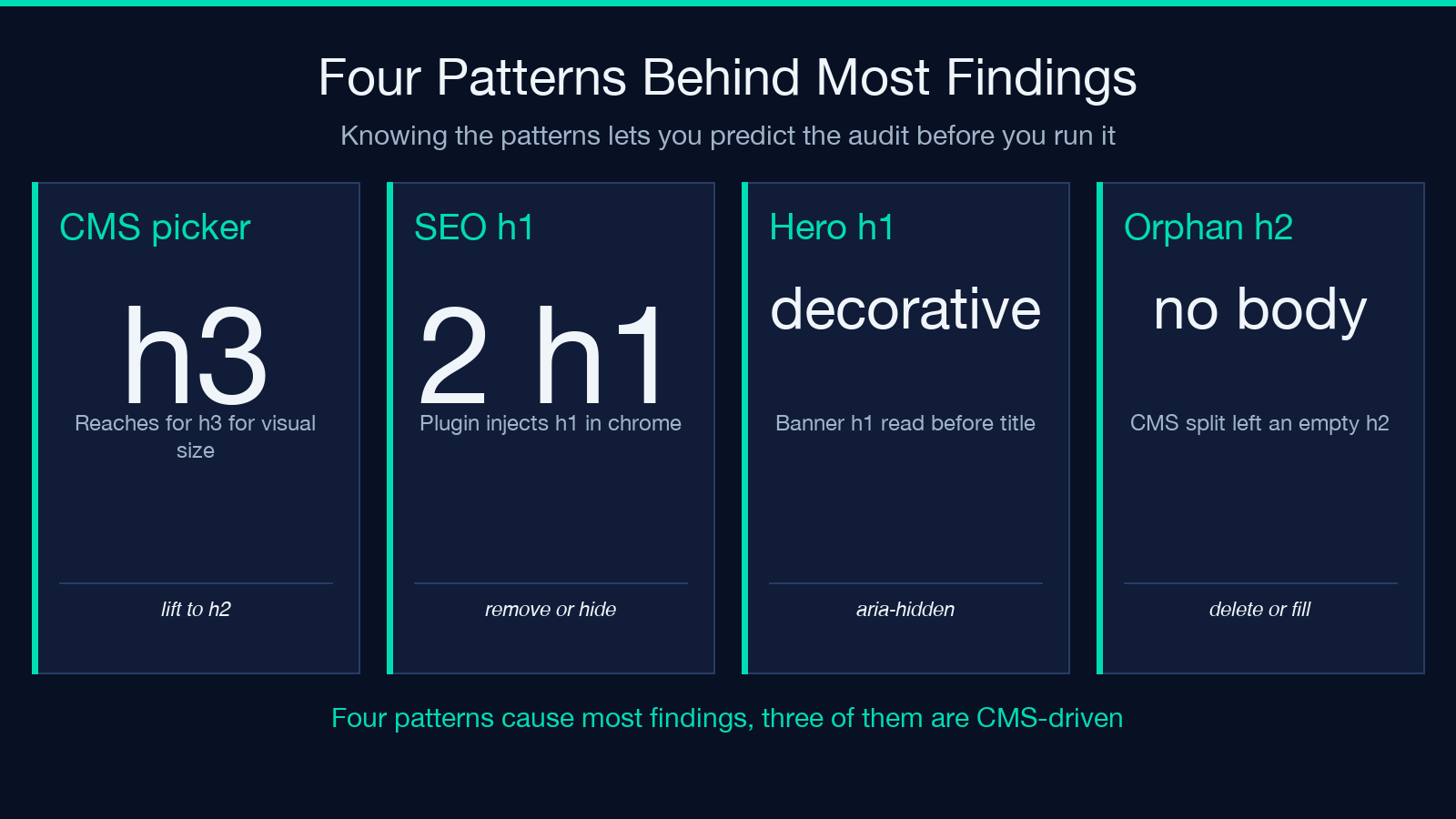
Four patterns account for the bulk of real findings across the wild web. Knowing them lets you predict the report before you run it:
- The CMS heading picker — content editors reach for h3 when they want larger text, regardless of section depth. Every CMS-driven blog has at least one h3 floating without a parent h2.
- The SEO h1 — designers and SEO plugins both inject an h1 in the page chrome (logo, page title) that the editor never sees. Two h1s, no warning, instant audit fail.
- The accessibility h1 — a hero banner with
<h1>Welcome</h1>at the top of every page. The h1 is decorative, but screen readers still announce it before the article title. - The orphaned h2 — an h2 that ends a section with no content under it, often a leftover from a CMS split.
Pair this with a broader accessibility scan via the Accessibility Checker — heading hierarchy is one slice of WCAG, but the audit catches patterns that the broader checker attributes to other rules.
How the report translates to fixes
The Show Fix Suggestions toggle produces a fix table that pairs each flagged node with a recommended action. Three fix recipes cover most cases:
- Demote a style-only heading — change the h3 to a styled
<p>(or use a CSS class). The hierarchy becomes cleaner and the visual weight stays. - Promote an orphaned parent — if you have a stray h3 followed by h4s but no h2, lift the surrounding
<section>and rename the orphan to an h2. - Remove the decorative h1 — wrap a hero h1 in
aria-hidden="true"if it is purely visual, or move it to a<div role="heading" aria-level="1">so it does not compete with the document h1 in the accessibility tree.
For the SEO h1 case, the fix is almost always structural rather than stylistic: your page template should not be injecting an h1 in the chrome. The audit gives you the evidence to push back on the template.
When to skip the report
There are three situations where the audit’s findings are not worth acting on:
- Single-page apps with virtual DOMs — the auditor sees whatever HTML you paste or fetch. If your headings are rendered client-side from JavaScript, you need a pre-render snapshot to get a real read.
- Email templates and PDF exports — heading rules in WCAG target web documents. Use the audit on the web version of the same content.
- Legacy pages under a deprecation notice — if the page is marked for retirement, do not invest in the fix; redirect it and move on.
The auditor is a guidance tool, not a policy enforcer. Use it as input to the migration plan rather than as a checklist.
Pairing with the rest of an SEO workflow
Heading hierarchy is one input to on-page SEO and accessibility, not the whole picture. Three other tools at Elysia Tools complement it without overlap:
- Accessibility Checker — broader WCAG scan; covers heading-adjacent rules like landmark structure, color contrast, and form labels
- Heading Hierarchy Auditor — what we are covering now
- Heading Hierarchy Auditor on a URL — same tool, URL input mode; useful for spot-checking competitor pages or partner sites that link to yours
The heading audit is the cheapest of the three to run, so make it the first gate in any content-quality pipeline. Anything that fails it should not move on to the slower audits.
Putting it together
Run the Heading Hierarchy Auditor on your top ten pages by traffic, then sort the findings by severity. The top three findings almost always share a root cause — a CMS template, a hero pattern, an SEO plugin. Fix that root cause, and you have fixed the audit for the whole site at once.
If you only have time for one habit, run the audit after every theme change. Theme updates are the single most common cause of new heading issues, because they reset the chrome (logo h1, hero h1, sidebar h2s) without warning content editors. Five minutes of audit after every theme update is worth more than ten hours of post-launch cleanup.
Where to look next
Two follow-up reads extend what this guide covers. The first is the Accessibility Checker for the rest of the WCAG surface area; the second is the Heading Hierarchy Auditor’s URL-input mode for spot-checking any page without copy-pasting markup. Both live at elysiatools.com/en/tools.
