
PDF/A Convert Field Guide: When “Self-Declared” Archival PDF Is the Difference Between a Five-Year Submission and a Five-Day Re-Scan
Lead phrase. Most long-term archival flows need a PDF/A file, but most pipelines bolt on Ghostscript or a licensed Acrobat pre-flight to produce one.
The PDF/A Convert tool takes a different path: it runs entirely in the browser via pdf-lib, writes the ISO 19005 XMP packet the standard requires, and strips the four features that block PDF/A compliance (encryption, JavaScript actions, OpenAction triggers, and the NeedAppearances flag). The trade-off is real — pure JavaScript cannot do ICC colour management or embed missing font programs — so the output is what the documentation calls a “soft conversion.” For the 80 percent of submissions that only need a PDF/A self-declaration, a structural cleanup, and a header/XMP check that satisfies most archive systems, that trade-off is exactly right. For the remaining 20 percent that have to pass veraPDF byte-level validation, you still need Ghostscript. This field guide walks through when each path applies, how the four supported profiles (1b, 2b, 2u, 3b) differ in practice, and which features the tool strips or keeps so you can decide whether a self-declared PDF/A is acceptable for your downstream consumer.
What “Self-Declared PDF/A” Actually Means (and Why Your Auditor Will Care)
The PDF/A standard (ISO 19005) defines two layers of conformance. The first layer is structural: the document must declare itself as PDF/A in its XMP metadata, embed all fonts it references, and avoid a closed list of forbidden features (encryption, JavaScript, external references, transparency modes that depend on a specific viewer). The second layer is semantic: every colour must be tied to an ICC device profile, every embedded font must be properly subset and embedded, and every annotation must be self-contained without reference to an external appearance stream. Most archival systems, including the document management platforms used by government archives, university libraries, and corporate compliance teams, check the first layer — they look for the pdfaid:part and pdfaid:conformance XMP fields and confirm that forbidden features are absent. A smaller set, including legal e-discovery workflows and ISO 19005 certification audits, also check the second layer via veraPDF or a comparable validator.
The PDF/A Convert tool does the first layer completely and honestly documents that it does not do the second. If your downstream consumer’s acceptance test reads the XMP packet and confirms that encryption, JavaScript actions, OpenAction triggers, and optional content layers are absent, the output passes. If your consumer runs veraPDF with the T2 conformance checker, the output will fail for any document that references a non-embedded font or a non-ICC colour space. The tool’s documentation names this trade-off in plain language, which is why the output is honest to call “PDF/A compliant at the structural level” rather than promising full ISO 19005 conformance for every input.
How the Four Profiles Actually Differ (1b vs 2b vs 2u vs 3b)
The standard defines several profiles, and the right choice depends on what your downstream consumer accepts and what features your source PDF uses. The tool exposes four:
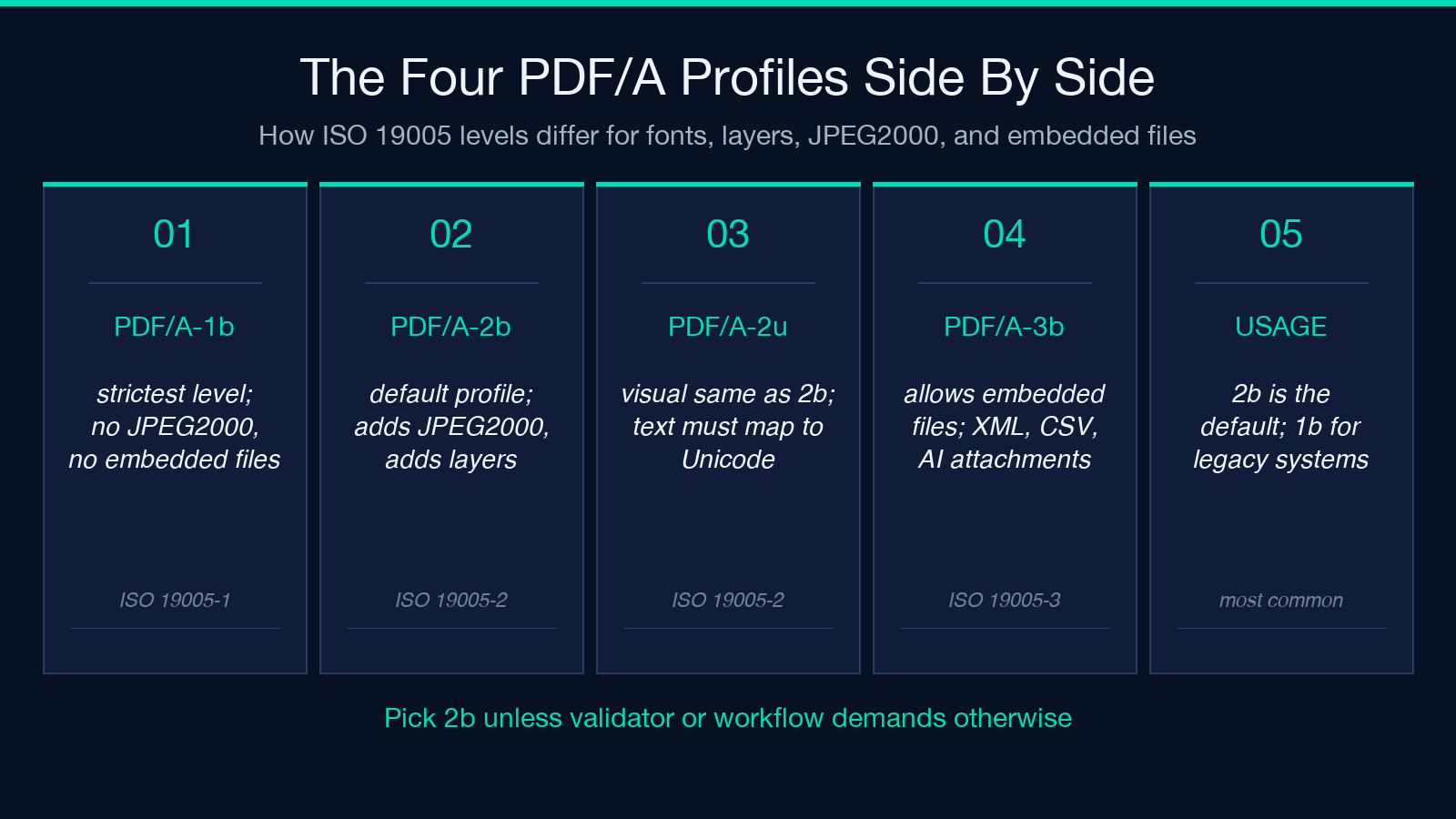
- PDF/A-1b (basic, most compatible): the original 2005 profile. The strictest about what it allows — no JPEG2000, no transparency, no embedded files. Choose this when the consumer’s validator is older or when the document does not need any of the features 2b adds.
- PDF/A-2b (basic, allows JPEG2000): the 2011 update. Adds support for JPEG2000 compression, transparency groups, and optional content (layers). Most modern archival systems accept 2b. The tool’s default.
- PDF/A-2u (Unicode): identical to 2b for visual conformance, but every text string must map cleanly to Unicode. Use this for documents that contain non-ASCII text or symbols that would render differently under a non-Unicode CMap.
- PDF/A-3b (allows embedded files): relaxes the “no embedded files” rule. Allows attaching arbitrary files (XML, CSV, source data) into the PDF/A itself. Useful for invoices that need to carry the source data, or archival submissions that need a machine-readable companion to the visual PDF.
The tool’s profile selector writes the corresponding pdfaid:part and pdfaid:conformance values into the XMP packet and then strips features that are incompatible with the selected profile. For 1b/2b/2u, embedded files are removed because the standard forbids them. For 3b, embedded files are kept and re-marked with the PDF/A-3 AFRelationship. This per-profile stripping is the practical value of running the tool rather than just renaming the file extension or hand-editing the XMP packet.
The Three Forbidden Features the Tool Strips (and Why They Got There)
The tool strips four categories of features that PDF/A forbids:
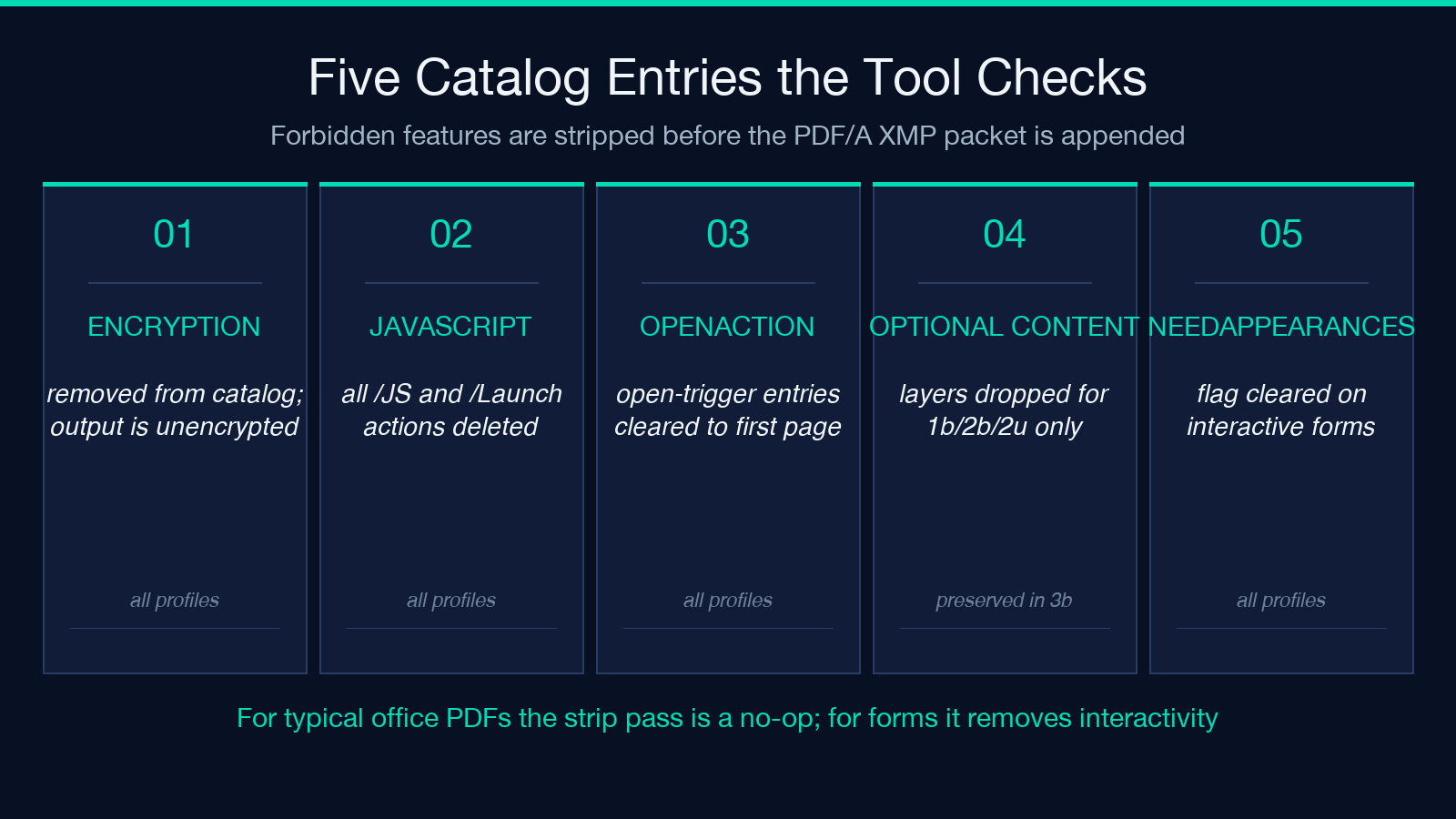
- Encryption — strictly forbidden by all four profiles. The tool removes the encryption dictionary from the PDF catalog. Note that this is irreversible: if your source PDF relies on encryption for access control, the converted output will be readable by anyone who has the file.
- JavaScript actions — many interactive forms include JavaScript triggers that run on open, on click, or on field validation. The tool removes all JavaScript action entries from the catalog and from individual annotations. Form fields remain but behave as static fields.
- OpenAction triggers — the “open this page” or “run this script on open” entries. The tool clears them so the PDF opens to its first page without triggering any launch behaviour.
- Optional content layers — the visibility-toggleable layers that some PDFs use for multilingual editions or “show/hide” diagrams. Stripped for 1b/2b/2u because the standard does not define how optional content should be archived. Kept for 3b if the layer structure is intact and the layer names are preserved.
It also clears the NeedAppearances flag on interactive forms (the flag that tells the viewer to regenerate field appearances on render), because PDF/A requires that all visual representations be embedded in the file.
For a typical office document (Word-exported PDF, scanned-then-OCR’d PDF, report from a business intelligence tool), none of these features are present, and the tool’s strip pass is a no-op. The output is structurally identical to the input, with the XMP packet added. For a heavily interactive form or a layered design file, the strip pass removes functionality, and you should communicate that to the document owner before submitting the converted file to an archive.
Font Embedding: The Honest Limitation
PDF/A requires that every font referenced by the document be embedded in the file. The tool surveys the font references in the catalog and warns (in the result panel) about any non-embedded fonts, but it does not embed missing fonts because pure JavaScript has no font file database to draw from. This is the practical limitation that separates a self-declared PDF/A from a veraPDF-clean PDF/A.
The mitigation path is straightforward: before running the tool, generate the source PDF with embedded fonts. Most modern document tools (Word, LibreOffice, InDesign, ReportLab, WeasyPrint, Puppeteer with Chrome) embed fonts by default. If your source PDF was generated by an older tool that links to system fonts instead of embedding them, the converted output will still pass the XMP/structural check, but will fail a byte-level validator. In that case, regenerate the source PDF with embedded fonts and re-run the tool, or fall back to a Ghostscript-based pipeline that can both embed missing fonts and perform the PDF/A declaration in one step.
The Input/Output Contract and When to Use This vs Ghostscript
The tool’s interface is intentionally simple — one PDF file input (up to 100 MB), one profile selector, and a file result. No batch mode, no profile mixing, no per-page options. That constraint is deliberate: PDF/A conversion is a whole-document transformation, not a per-page transformation, and most archival workflows want one consistent profile across the entire submission rather than a mix. If you need to convert a batch of PDFs to the same profile, generate a shell loop that calls the tool’s underlying logic on each file, or run the tool manually for each file in the submission. The output file is a PDF with the XMP packet appended to its metadata stream and the forbidden-feature strips applied to its catalog; the file extension stays .pdf and the output size is usually within a few percent of the input.
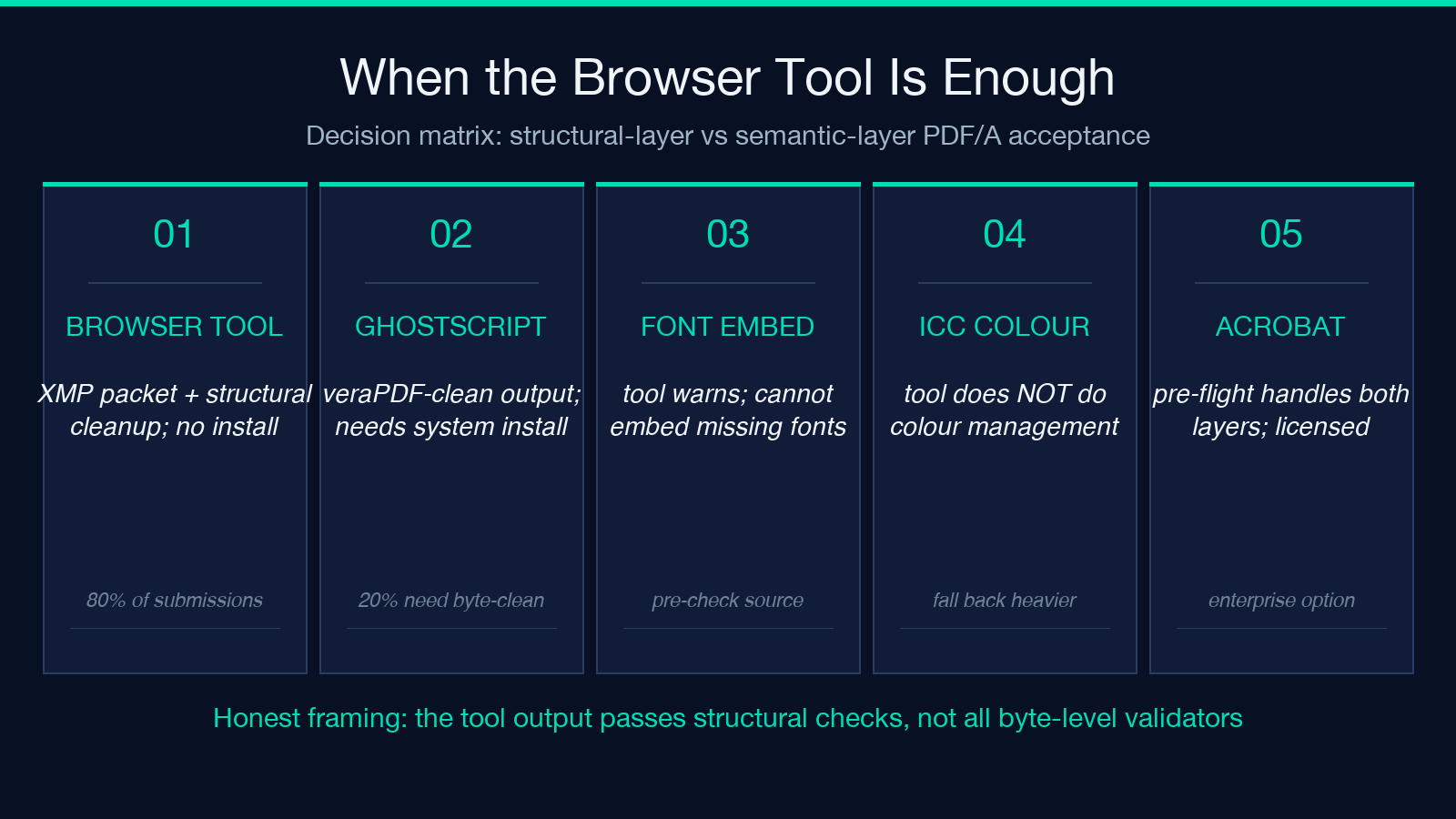
The honest decision matrix for choosing between the browser tool and a heavier pipeline:
- Use the PDF/A Convert tool when: the downstream consumer’s acceptance test checks the XMP packet and the structural-cleanliness rules; your source PDF was generated by a modern tool that already embeds fonts; you want a fast, in-browser conversion without a server-side dependency; or you need a one-off conversion and do not want to install Ghostscript on a workstation.
- Use Ghostscript (or Acrobat pre-flight) when: your downstream consumer runs veraPDF with strict byte-level validation; your source PDF references non-embedded fonts that need to be embedded during conversion; or you need ICC colour management conversion to a specific output intent profile (sRGB, ISO Coated v2, etc.).
Both paths produce a PDF/A file. The tool’s path is faster, browser-based, and dependency-free, at the cost of leaning on the consumer’s validator to be at the structural level rather than the semantic level. Ghostscript’s path is heavier (it requires a system install or a Docker container) and slower, but it can perform every transformation ISO 19005 defines.
A Worked Example: Converting a Word-Export PDF to PDF/A-2b
Take a typical input: a 12-page quarterly report exported from Word as PDF, with embedded fonts, no encryption, no JavaScript actions, and no OpenAction. The conversion flow:
1. Upload the PDF to the PDF/A Convert tool. 2. Select PDF/A-2b from the profile dropdown (the default). 3. Click convert. The tool reads the PDF, surveys the catalog, finds no forbidden features, builds the XMP packet with pdfaid:part = "2" and pdfaid:conformance = "B", appends the packet to the metadata stream, and writes the cleaned catalog. 4. Download the result. The output PDF is byte-similar to the input (within ~1 KB for the XMP packet) with the PDF/A-2b self-declaration.
If you open the output in a PDF inspector and look at the XMP metadata, you should see:
<pdfaid:part>2</pdfaid:part>
<pdfaid:conformance>B</pdfaid:conformance>
If you open it in veraPDF with the T2 conformance checker for PDF/A-2b, it should pass for any document whose source fonts were already embedded. For a Word-exported PDF, this is the common case.
Common Failure Modes (and What to Do About Them)
- The output fails veraPDF because of non-embedded fonts. Fix the source: regenerate the PDF with the embedding option enabled in your authoring tool, then re-run the conversion.
- The output has lost interactivity (form fields are now static). This is expected — PDF/A strips JavaScript. If the interactivity is essential, the document is not a candidate for PDF/A conversion.
- The output’s file size is dramatically smaller than the input. Check whether the source had embedded files (PDF/A-3 only) or optional content layers. These are stripped for 1b/2b/2u. If the smaller file is missing expected attachments, switch to PDF/A-3b to preserve them.
- The validator complains about a transparency group or an annotation appearance stream. This is a semantic-layer failure that the tool cannot fix. Path: use Ghostscript’s PDF/A-2b preset or run an Acrobat pre-flight.
Why This Matters for Five-Year Submissions
A growing number of regulatory and contractual workflows require five-year or seven-year retention with the archived documents in PDF/A. If the acceptance test only checks the structural layer (most do), the PDF/A Convert tool gives you a fast, dependency-free conversion path that you can run on a workstation, on a serverless function, or inside a CI pipeline without installing Ghostscript or licensing an Acrobat pre-flight. For the smaller set of workflows that require veraPDF-clean output, the same tool gives you the structural cleanup as a first pass, and you can layer Ghostscript on top only for the documents that need byte-level conformance.
The honest framing: the tool’s output is a PDF/A-2b (or 1b/2u/3b) self-declaration with the structural-cleanliness rules satisfied. If your downstream consumer’s validator is at the structural level, you are done. If it is at the semantic level, you need a heavier pipeline, and this tool has told you so up front rather than promising something it cannot deliver.
For more on how PDF/A profiles map to real-world archival acceptance tests, see ISO 19005-2:2011 for the standard’s text, or explore the PDF tools collection for related conversions (PDF/A-3 invoice workflows, batch PDF/A submissions, XMP metadata editors). If you need the heavier byte-level pipeline, Ghostscript’s PDF/A-2b preset is the canonical open-source path.
