
When the same dataset gets fed into three downstream tools, the third one breaks because two rows held a salary of -1200, a temperature of 412°C, and a score that was typed as a phone number, you have not found a bug. You have found the gap between what your schema claims to allow and what your fields actually contain. The Data Range Limiter at Elysia Tools is built for that exact moment: it lets you pin every numeric column to an explicit [min, max] interval and pick how each out-of-bounds row is handled before the data leaves your pipeline. This field guide walks through how to set the configuration, how the three handling strategies differ in practice, and the four pitfalls that turn a clean clip into silent corruption.
What the Tool Actually Does
The Data Range Limiter accepts a CSV with headers and a JSON object describing per-column ranges. For each numeric column in scope, it walks every cell and applies one of three strategies: clip (pull the value to the nearer boundary), filter (drop the entire row if any column is out of bounds), or mark (leave the value untouched but emit a <col>_modified boolean flag). The output is a new CSV with the same shape as the input — same headers, same row order under clip/mark, same total row count minus any filtered rows.
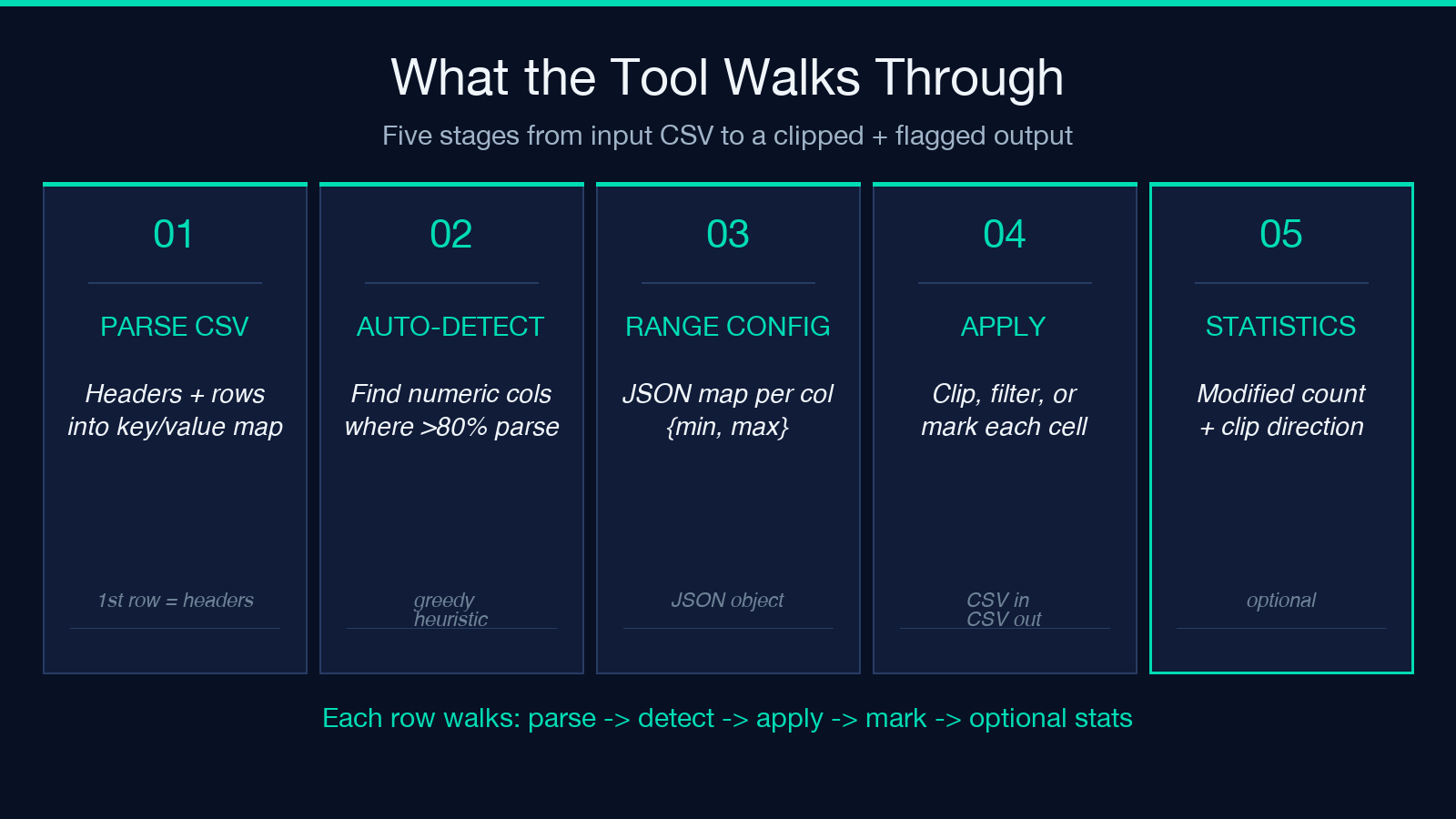
The configuration is straightforward. A rangeConfiguration JSON looks like this:
{"age": {"min": 18, "max": 65}, "salary": {"min": 0, "max": 250000}, "temperature": {"min": -10, "max": 80}, "score": {"min": 0, "max": 100}}If you leave targetColumns blank, the tool auto-detects numeric columns by scanning every header and keeping the ones where at least 80% of non-empty values parse as numbers. That threshold matters: a column named id full of pure-digit strings like 42001 will be detected as numeric and clipped, which is almost never what you want. Always name the columns explicitly unless your CSV is guaranteed to be header-clean.
The default handlingStrategy is clip, which is the safest choice for downstream consumers but the most lossy for the rows it touches. A clipped salary becomes the boundary value, indistinguishable from a row that was already at the boundary — so if you also turn on markModified, you get an audit trail back. The tool emits <col>_modified: true for every cell that was actually pushed against a boundary, and false for cells that were already in range. That single boolean column is the difference between “we know the data has been adjusted” and “we are silently shipping a synthetic distribution.”
Choosing the Right Handling Strategy
The three strategies are not interchangeable — each one is the right answer for a different downstream consumer.
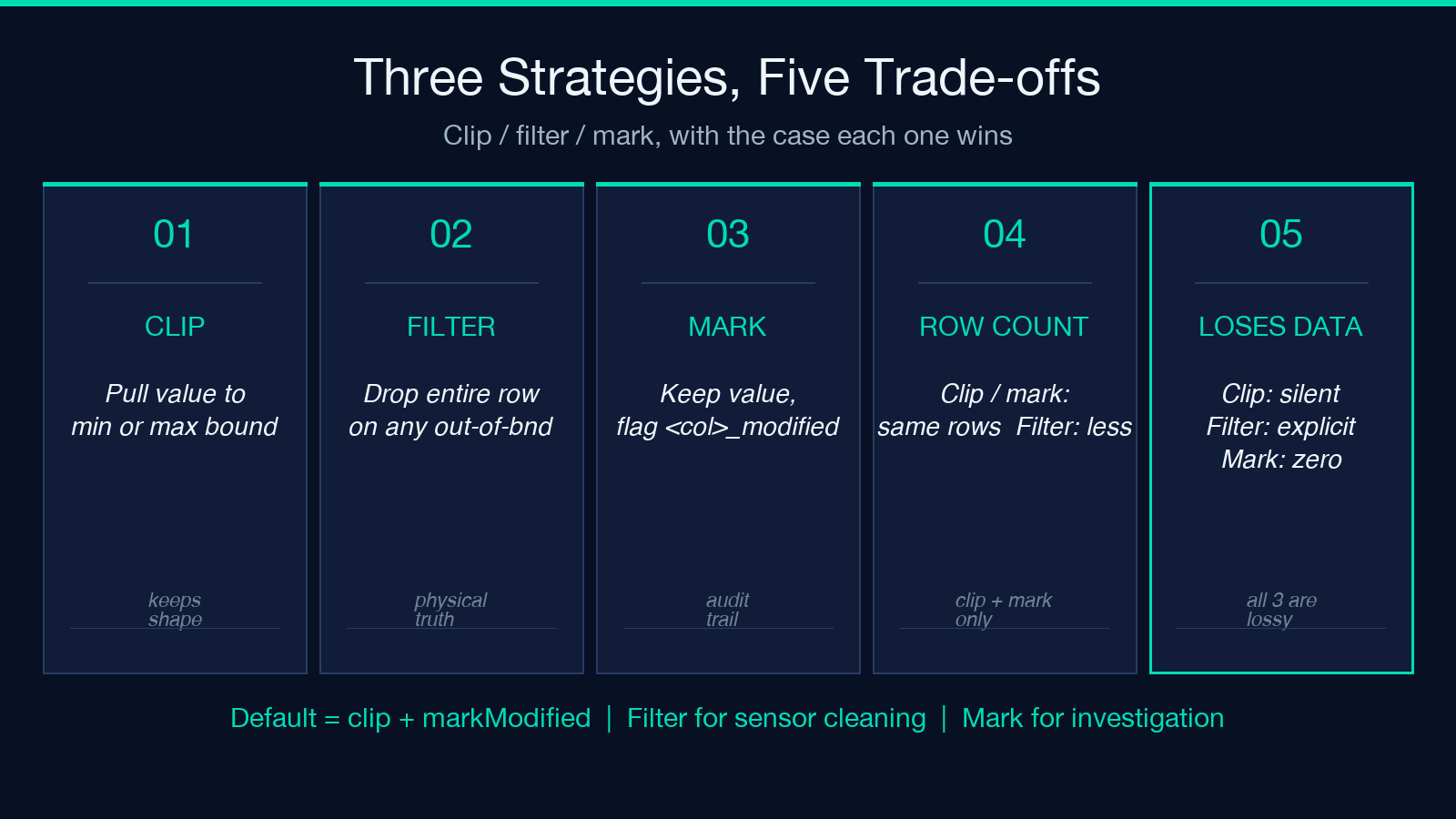
Clip is the right choice when you are feeding the data into a chart, a model, or any consumer that requires every row to be present and every numeric value to be within a known domain. Charting libraries reject negative values in a “customer age” axis silently, models trained on a fixed-range feature behave better when no row is suddenly outside the training distribution. Clip preserves row count, preserves row identity (the name column still matches), and the only loss is that extreme values get pulled inward by however many units they overshot.
Filter is the right choice when the rows themselves are the artifact. If a sensor produced a temperature reading of 412°C and the sensor’s rated range is -10°C to 80°C, the row is not “wrong on one field” — the entire reading is suspect. Filtering drops the row, which means your downstream table loses one observation, but the remaining rows are guaranteed to be physically plausible. Filter combined with includeStatistics gives you a Records Removed count you can report as part of your data-quality summary.
Mark is the right choice when you need to investigate before deciding. A marked CSV is identical to the input except for the appended <col>_modified flags, so you can pass it through your existing pipeline unchanged, and then query it later: “show me every row where salary_modified is true and trace those IDs back to the source system.” Mark is also the only strategy that preserves the original distribution for statistical analysis while still letting you know which values were outliers.
How Auto-detect Ranges Works (and When It Bites)
The autoDetectRanges checkbox turns on an IQR-based heuristic. For any column without an explicit range in your config, the tool computes Q1 and Q3 across the column, then suggests [Q1 - 1.5·IQR, Q3 + 1.5·IQR]. That is the textbook Tukey fence — the same one a box plot draws around the whiskers — and it is the right starting point for sensor data with a roughly normal distribution.
It bites on three kinds of data:
- Skewed distributions. A column where 90% of values cluster near zero and 10% are large positives will produce a suggested min of zero or slightly below, and a suggested max that catches every legitimate large value as “out of bounds.” Tukey assumes symmetry.
- Categorical numerics. Columns like
year(2018-2024) orzip_code(10001-99950) are detected as numeric but their range is meaningful, not statistical. Clipping them to the IQR fence destroys the column. - Sparse columns. A column where most rows have null and the rest are valid numbers will produce a tiny IQR and a fence that hugs the data too tightly.
The defense in all three cases is to leave the auto-detect off and supply ranges manually. Use auto-detect only when you genuinely do not know the domain and are willing to inspect the suggested ranges before trusting them. You can also use a hybrid: pass an explicit range for the columns you know and let auto-detect fill in the rest, which is a reasonable default for exploratory analysis.
Reading the Statistics Block
When includeStatistics is checked, the output CSV is followed by a plain-text block that looks like this:
Handling Strategy: CLIP
Original Records: 1000
Processed Records: 1000
Records Removed: 0
Columns Processed: age, salary, temperature, score

age:
  Applied Range: [18, 65]
  Original Min: 12.00
  Original Max: 71.00
  Processed Min: 18.00
  Processed Max: 65.00
  Values Clipped: 47
  Values Modified: 47
  Modification Rate: 4.70%
The most informative fields are Original Min/Max versus Processed Min/Max — the gap between them is the empirical evidence of how much your input data was outside the range you thought it should be in. A Modification Rate of 0.1% means your config matches your data; a rate of 30% means your config is wrong or your data source has a problem worth investigating before the clip hides it.
clipDistribution.below and clipDistribution.above tell you which boundary the column is hitting. If below is high, your range’s min is too aggressive (or your data has a long lower tail); if above is high, your max is the one to reconsider. That asymmetry is invisible from Values Clipped alone.
Common Pitfalls When Wiring It Into a Pipeline
Four failure modes show up repeatedly when the tool is used as a step inside a larger workflow rather than as a one-off.
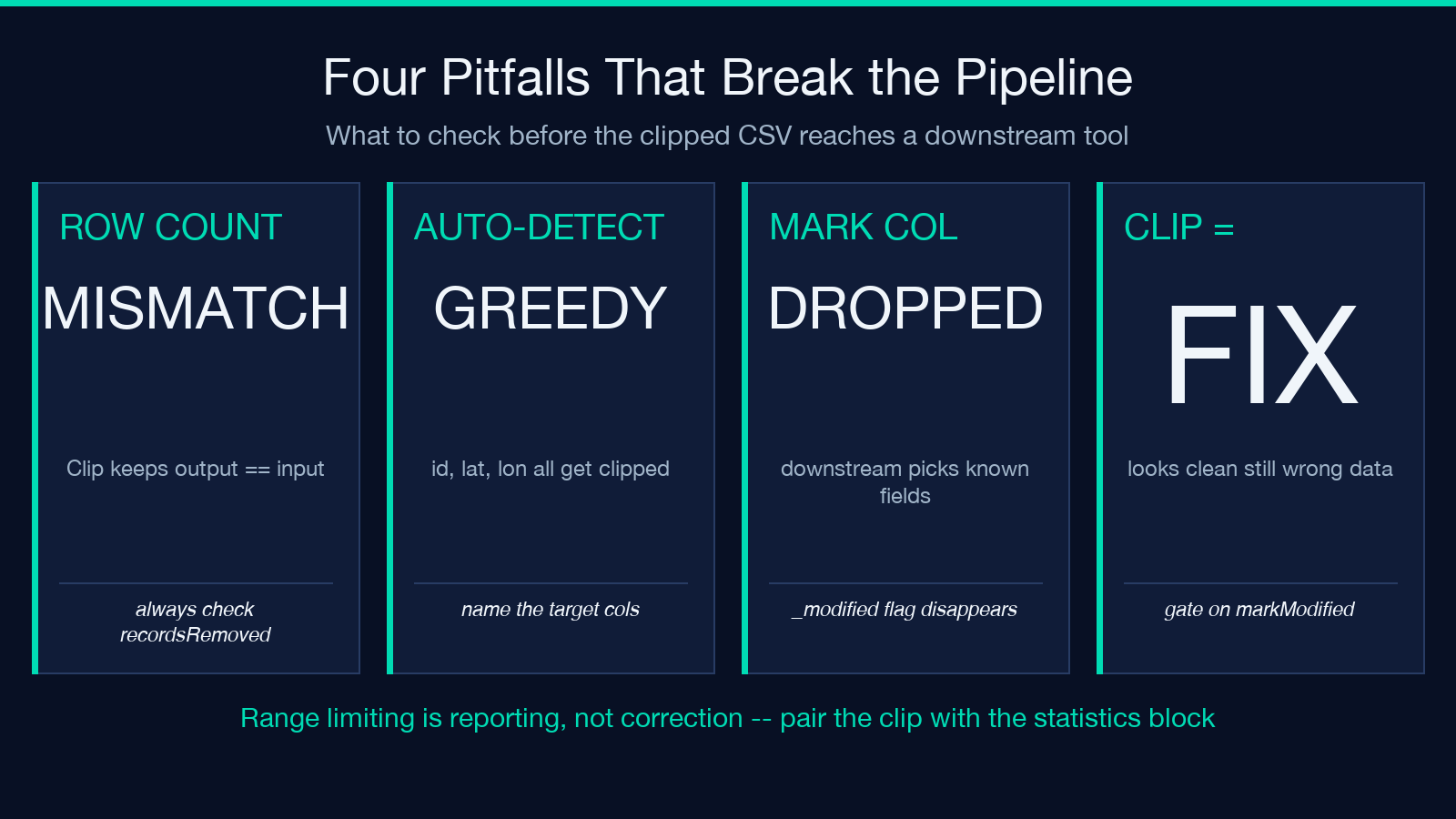
Pitfall 1: Forgetting that clip preserves row count, filter does not. Downstream code that assumes len(output_rows) == len(input_rows) will break silently under filter strategy if it does not check the metadata’s recordsRemoved field. Always read metadata.recordsRemoved before assuming the row count held.
Pitfall 2: Auto-detecting columns you did not intend to clip. The numeric-column detector is greedy. If your CSV has id, created_at, lat, lon, and score, and you leave targetColumns empty, all five will be clipped. id becomes [min(id), max(id)] which usually does nothing but adds work; lat becomes a clamped latitude which can introduce real error if your dataset has poles near ±90.
Pitfall 3: Stripping the markModified flag column on downstream processing. The most useful output column is the one your downstream tool most often drops. If you ingest the output into a system that selects only known fields, the _modified flags disappear and you lose the audit trail. Either preserve all output columns explicitly or copy the flags to a separate column before the next step.
Pitfall 4: Treating clip as a substitute for validation. A clipped dataset looks clean on a chart, but the underlying data is still wrong. Clip is presentation, not correction. If your downstream model is making decisions based on these values, you should also gate on markModified and either exclude the flagged rows or weight them down.
The Data Range Limiter is most useful when you treat it as a reporting step, not a correction step — it tells you how much of your data falls outside the contract you wrote, and it gives you a safe clipped version to render in the meantime. Pair the visual output with the statistics block and you get both the chart that does not break and the number you can put in front of whoever owns the source system.
For working examples of the same configuration applied to different domains — sensor cleaning, salary band enforcement, score normalization — see the Elysia Tools Samples library. The full tool, including every option described above and the auto-detect heuristic, lives at Elysia Tools, and the broader collection of numeric and CSV utilities is browsable at elysiatools.com.
When to Run It Before vs. After Other Cleaning Steps
Order matters. If your pipeline also normalizes missing values, deduplicates rows, or converts units (Celsius to Fahrenheit, dollars to cents), decide where range limiting sits in that chain.
Run it after missing-value imputation, because a value filled in from a column mean can itself fall outside the range you care about — and you want that fill flagged the same way a sensor reading would be flagged. Run it after deduplication, because a duplicated row that happens to be out-of-bounds should be detected as a duplicate first and removed before the range check makes a clip-or-keep decision about it. Run it before unit conversion, because clipping on Celsius values then converting is simpler than converting first and clipping on the Fahrenheit side, where the boundary numbers are less intuitive.
Run it before chart rendering, model training, or anything that consumes the numbers directly. Run it after any step that produces new numeric values (rolling averages, computed columns like bmi = weight / height^2), so those derived fields are also subject to the same range contract as the raw inputs.
Building a Range Config from a Reference Dataset
When you do not know the right range for a column, the safest starting point is a reference dataset you already trust. Export a slice of historical data that has been validated, compute the empirical min and max per column, and pad each boundary by 5-10% to allow for legitimate variation. For a salary column where trusted data runs $30,000 to $180,000, start with {"min": 28500, "max": 190000} rather than the literal min and max.
That padding matters because a strict [min, max] taken from a trusted sample will reject the first row of new data that happens to fall outside the trusted range — and you will end up clipping legitimate outliers that you just did not have in your reference. A small buffer absorbs normal distribution drift without letting true bad data through.
If your reference dataset is large enough, compute the 1st and 99th percentiles instead of min and max, and use those as your [min, max]. The percentile-based range is robust to one or two extreme values in the reference, where the literal min/max is not.
Checking the Output Before You Ship It
Three sanity checks catch most mistakes before the clipped CSV reaches a downstream consumer.
First, count rows. len(original_records) == len(processed_records) + records_removed should hold exactly. If it does not, something went wrong in the filter pass or your input had a row that the CSV parser rejected silently.
Second, count flags. If markModified is on and handlingStrategy is clip or mark, the number of true values in the <col>_modified column should equal the Values Clipped total in the statistics block. If it does not, the two passes diverged — usually because of a non-numeric value that the range check skipped but the modification flag still recorded.
Third, spot-check boundaries. Pick a row where salary_modified is true and verify the output salary is exactly the max (or min) you configured. If it is off by even one cent, you have a rounding bug in your downstream consumer, not in the tool — but you want to know that before the dataset is shipped.
The Data Range Limiter is most useful when it is part of a loop where you run it, read the statistics, refine the config, and run it again. The first pass tells you where the data is wrong; the second pass tells you whether your config is right. After two or three iterations, you have a config that matches your domain and a dataset that respects it.
