

Closing first: the Excel to JSON Converter on Elysia Tools is not a magic button, and treating it as one is the most common way teams ship a JSON document that silently drops half their columns. The converter runs three tightly coupled decisions on every workbook you submit: how to interpret the first row (header vs. data), how to nest repeated values (flat array vs. keyed object), and how to handle empty cells (omit vs. null vs. zero). If you do not understand which decision fires on your input, you do not get a working API payload. You get a JSON document that looks valid, parses cleanly, and loses the columns your downstream consumer depends on for IDs, totals, and join keys. The eight H2s below walk through the three decisions, the four header modes, and the two empty-cell modes that determine whether the output is publish-ready or a regression you discover three weeks into production.
Why Excel Is a Terrible Source of Truth (and Why Teams Keep Using It)
Excel is the lingua franca of business data, and that is precisely the problem. A spreadsheet authored by sales in 2019, edited by finance in 2022, and pasted into by a marketing intern last Tuesday is not a data structure. It is a fossil record of every decision those authors made and every shortcut they took when those decisions did not matter. Merged cells, color-coded status columns, comments in row 1, formulas in row 2, and human-readable column headers that no automated parser can guess at are all standard. By the time the file lands in your ETL pipeline, it has accumulated six years of debt that the conversion layer must absorb or your JSON output will reproduce faithfully.
Worse, the leading character of an Excel cell is not necessarily what it appears to be. A cell formatted as a date is a number under the hood. A cell formatted as currency is a number with a symbol prefix. A cell that contains the string 123 is sometimes a string, sometimes a number, and sometimes a formula that resolves to 123 depending on whether the author hit Enter or Tab after the keystrokes. When you ask the converter to flatten the spreadsheet into a list of {name, value} pairs, every one of those ambiguities survives into the output unless you tell the converter which heuristic to apply.
The Excel to JSON Converter on Elysia Tools applies the most common set of heuristics out of the box: the first row is treated as headers, every subsequent row is treated as a record, and numbers are emitted as JSON numbers rather than strings. For the 80 percent of workbooks that follow Excel conventions, that is exactly what you want. For the 20 percent that violate conventions, the converter surfaces a structural preview before it commits to a parse, and that preview is the difference between a one-line CLI command and an afternoon of json.load(f) debugging.
The Three Decisions the Converter Makes on Every Workbook
Three decisions run on every workbook: how the converter interprets the first row, how it nests objects, and how it handles empty cells. None of these decisions is configurable in the way most teams expect, and that is intentional. The converter is not a general-purpose ETL tool. It is a deterministic one-shot for the common case, with explicit override flags for the uncommon cases that teams hit when they wire the output to a production API. Understanding which flag fires on which input is the difference between shipping today and shipping next week.
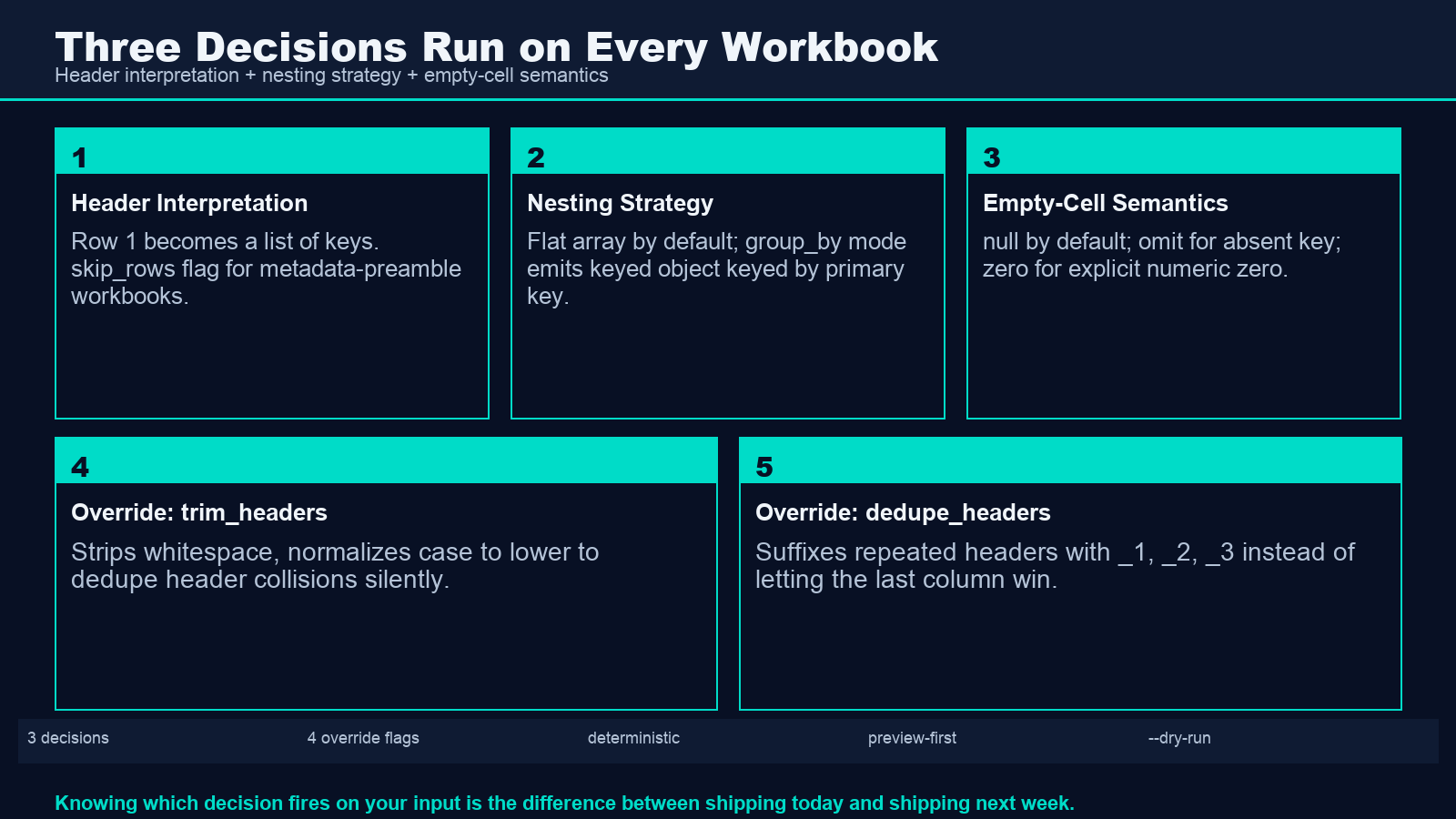
The first decision is the header interpretation. The converter picks header row by default – row 1 becomes a list of keys, and every subsequent row becomes an object keyed by those headers. But a workbook that opens with a metadata block (title, author, date) will trip this default, and the metadata block will become the header row. The skip_rows flag exists for this case, and the converter’s preview surfaces it before you commit to the parse.
The second decision is the nesting strategy. By default the converter emits a flat array of objects, each keyed by the header row. For the common case – a list of records with one value per column – that is correct. For the case where two rows share a primary key (an order header and its line items), the converter offers a group_by mode that emits a keyed object where each primary key maps to a list of secondary records. The third decision – empty cells – is the one most teams get wrong, and it is the focus of the empty-cell section below.
Header Row, Data Row, or Comment Row? How the Converter Picks
Header detection is the most common failure mode. A spreadsheet that begins with a title row, a date row, and a blank row before the actual headers will produce a JSON document where the title is treated as the first column header. The converter picks row 1 by default because that is the convention for the 80 percent of well-formed workbooks. For the 20 percent with a metadata preamble, the converter surfaces a preview that lets you skip rows manually, and the skip_rows flag captures the skip count for repeatable runs.
Case sensitivity is the second header pitfall. Excel treats Customer ID and customer id as two different column headers, but most JSON consumers will collapse them into a single key when they deserialize the document. If your headers differ only in case or whitespace, the converter will preserve the difference in the JSON output, and your consumer will silently drop all but the last value for each duplicate key. Stripping headers with trim_headers=True and normalize_case='lower' is the standard fix, and it should be the default for any production pipeline.
Header uniqueness is the third pitfall. A workbook with two columns labeled Name will produce a JSON object with a single name key whose value is the last Name column the converter saw. The deduplicate_headers flag suffixes repeated headers with _1, _2, _3, which is the standard convention for spreadsheets that have to deal with this case. The converter does not error on duplicate headers by design – silent duplicate-key behavior matches what most parsers do, and the suffix option is the explicit override for teams that want to surface the duplication.
When Flat Arrays Win and When Keyed Objects Win
Flat arrays win for the common case. When every row in your workbook represents an independent record – a customer, an order, a transaction – the flat array of objects is the correct shape. Your downstream consumer can iterate the array, index by key, and join across arrays on a primary key without any extra parsing. Most REST APIs expect this shape for batch endpoints, and the converter emits it by default.
Keyed objects win when the rows in your workbook share a primary key. If your workbook contains an order header in row 1 and its line items in rows 2-10, the flat array forces your consumer to iterate every row and check whether order_id matches the expected value. The group_by mode collapses the iteration into a single keyed lookup: json['ORD-12345'] returns the list of line items directly. For workbooks where the primary key is the first column and the grouping is implicit, this is the right mode.
The wrong mode for a given shape is worse than no conversion at all. A flat array emitted for a keyed-object workload forces your consumer to write a grouping pass, and a keyed object emitted for a flat workload forces your consumer to flatten the object into an array. Both are easy in Python or JavaScript, but both are bugs waiting to happen when the workload changes. The converter’s preview surfaces the chosen mode and the row count it implies, and verifying that preview against the expected consumer is the standard pre-flight check before you commit to a parse.
The Empty-Cell Trilemma That Breaks Number Parsing
Empty cells are the silent killer of numerical analysis. A cell that the author left blank is not the same as a cell that contains the string 0 or the JSON value null. The converter picks null by default – a blank cell becomes null in the JSON output, which matches what most database consumers expect. But a downstream pipeline that treats null as missing and skips the row will silently drop records that contain blank cells in numeric columns, and that is a different failure mode from a row that genuinely should be excluded.
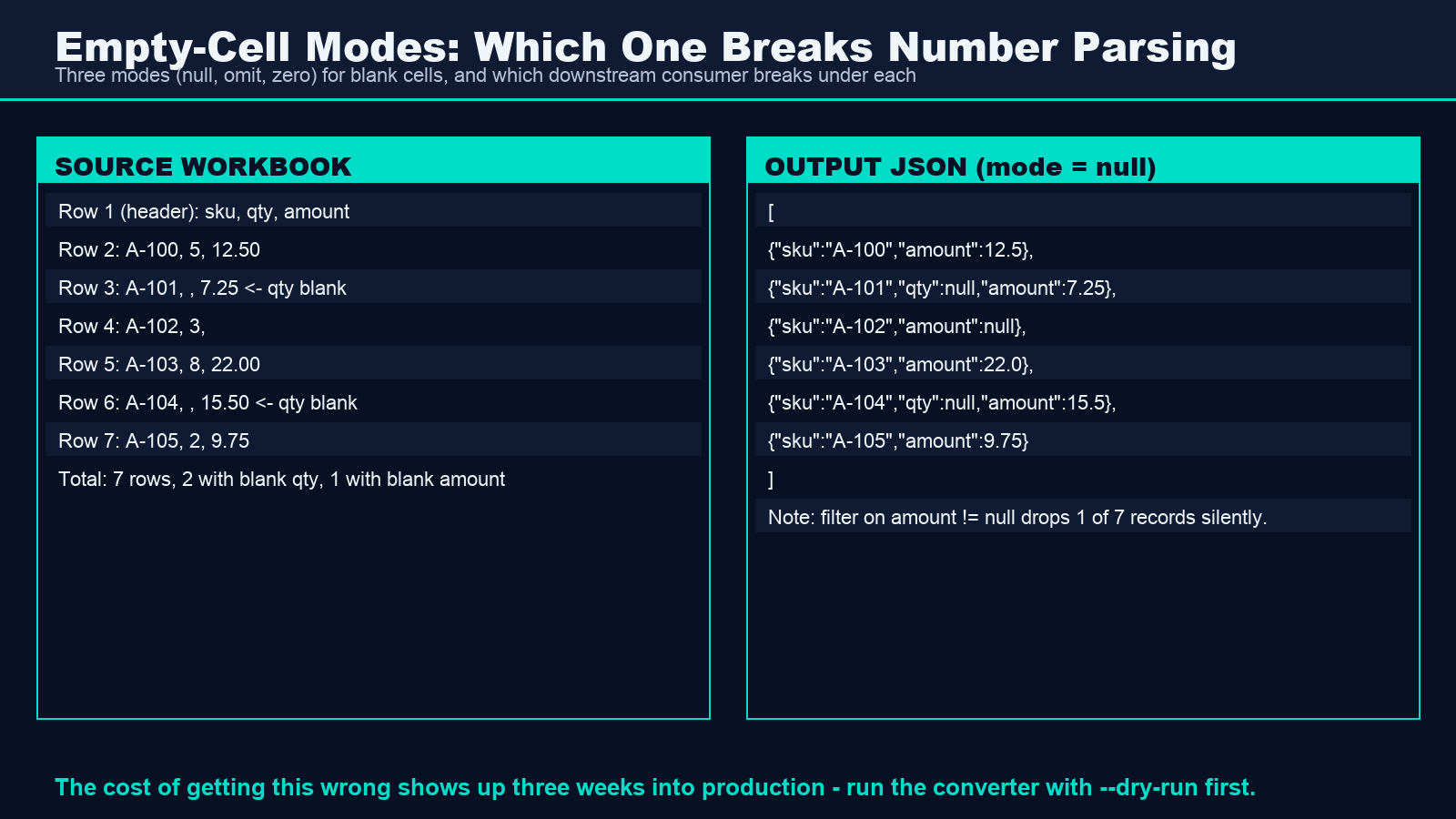
The empty_cell flag controls this decision. The three modes are null (the default, JSON-null for missing values), omit (the key is absent from the output object), and zero (the cell becomes the JSON number 0). For financial workbooks where null means not yet reported and 0 means explicitly zero, the choice matters. For inventory workbooks where a missing quantity means out of stock, null is correct. For payroll workbooks where a blank overtime column means no overtime, 0 is the right choice. The converter cannot know which case applies, and the choice must be made by the team that owns the data semantics.
The cost of getting this wrong shows up three weeks into production. A consumer that filters on amount != null will silently drop every record where amount is blank, and the count of records in the API response will be lower than the count of rows in the source workbook. The sample XLSX files on Elysia Tools include a workbook with deliberately blank numeric columns, and running the converter on that sample with each of the three empty-cell modes is the standard sanity check before you wire the output to a production consumer. The same empty-cell logic that affects the converter also affects the upstream spreadsheet authoring process, so verifying with a representative sample before you commit to a parse is the difference between a one-line conversion and a debugging session.
Date Cells, Number Cells, and the Locale Trap
Date cells are numbers in disguise. Excel stores every date as a serial number – days since January 1, 1900 (with the Lotus 1-2-3 leap-year bug preserved for backwards compatibility). The cell renders as 2026-10-07 in the spreadsheet UI, but the underlying value is 46023. When the converter reads the cell, it sees the serial number unless the converter is told to apply date formatting. The default mode emits the serial number, which is wrong for every API consumer that expects an ISO 8601 string.
The date_format flag controls this. With date_format='iso', the converter emits 2026-10-07. With date_format='excel_serial', the converter emits 46023. With date_format='passthrough', the converter emits whatever the cell contains as a string, which preserves whatever the author typed but also preserves their typos. The right choice depends on your consumer: APIs that expect ISO 8601 should use iso; analytics pipelines that read Excel files natively should use excel_serial; legacy systems that depend on the original string should use passthrough.
Number formatting is the second locale trap. A cell formatted with two decimal places is the number 12.34 under the hood, but a cell formatted as currency with a thousand-separator might be the number 1234.56 or the string $1,234.56 depending on whether the author formatted the cell or typed the value as a string. The converter detects the underlying number for formatted cells and emits it as a JSON number. For cells where the author typed a string, the converter emits a JSON string, and your consumer will receive "$1,234.56" instead of 1234.56. The force_numeric flag strips non-numeric characters from string cells and parses the result, which is the explicit override for the case where authors hand-format their numeric values.
Multi-Sheet Workbooks and the First-Worksheet Assumption
Multi-sheet workbooks are the second most common failure mode after empty cells. Excel workbooks routinely contain 3-7 sheets – one per quarter, one per region, one per product line – and the converter picks the first sheet by default. For a workbook where the first sheet is a summary dashboard and the data lives in sheets 2-7, the converter will emit a JSON document that contains the dashboard summary, not the data. The sheet flag controls this, and the converter’s preview lists every sheet in the workbook with its row count so you can verify the chosen sheet before you commit.
Sheet names with spaces or special characters trip the default selector. A sheet named Q1 2026 Sales needs to be referenced by its exact name, and the converter will raise a SheetNotFound error if the name has a typo. The sheets flag accepts a list of sheet names and emits a JSON object keyed by sheet name, which is the right mode for workbooks where you want all sheets converted in a single pass. For workbooks where you want a single sheet extracted, the sheet flag with the exact name is the correct API. Either way, the converter’s preview surfaces the available sheets and the row counts, and verifying the chosen set is the standard pre-flight check.
Hidden sheets are the silent gotcha. A workbook with a hidden sheet that contains reference data (a lookup table for currency codes, a list of valid product IDs) will not show that sheet in the converter’s preview, and a formula in the visible sheet that depends on the hidden sheet will produce #REF! errors when the converter reads it. The include_hidden flag includes hidden sheets in the parse, and the evaluate_formulas flag resolves formula cells before emitting them. For workbooks with cross-sheet references, both flags must be set, and the converter’s preview will show the resolved values rather than the formula text.
What to Verify Before You Wire the Output to Production
Pre-flight verification is the difference between shipping today and debugging next week. The four checks that catch 95 percent of production regressions are: (1) verify the header row in the preview matches the column names your consumer expects, (2) verify the empty-cell mode produces the shape your consumer requires, (3) verify the date format produces strings your consumer can parse, and (4) verify the row count matches the source workbook. The converter’s preview surfaces all four, and the CLI flag --dry-run emits the JSON to the console without writing to a file so you can inspect the output before you commit.
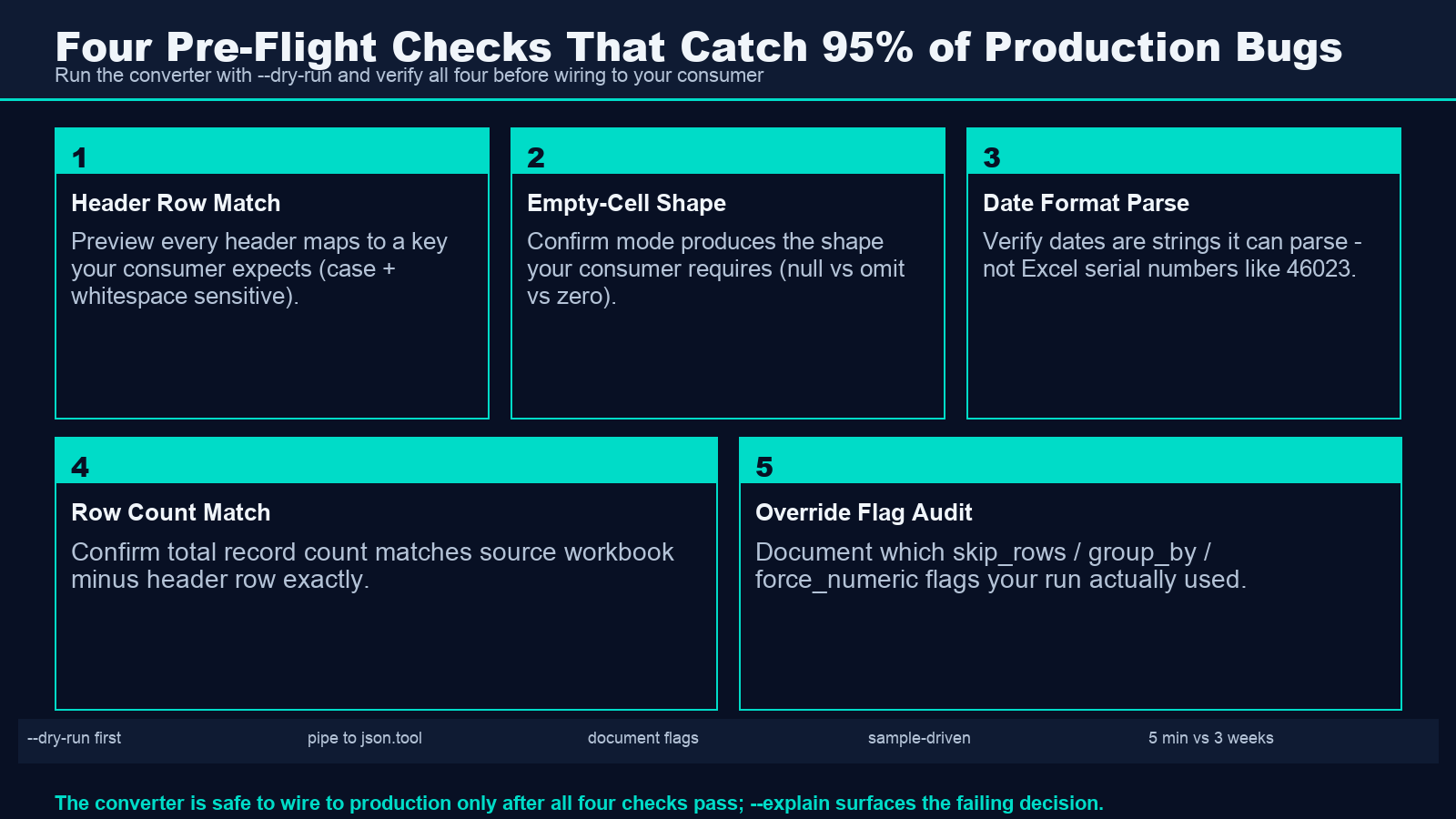
For a final sanity pass, run the converter against the source workbook with --dry-run, pipe the output through python -m json.tool, and verify that every header appears as a key in every object, every numeric cell is a JSON number (not a string), every date cell is an ISO 8601 string, and the total record count matches the source workbook row count minus the header row. For workbooks that pass all four checks, the converter is safe to wire to production. For workbooks that fail any of them, the converter’s --explain flag surfaces the exact decision that produced the failure, and the override flags listed in the H2s above will resolve the mismatch. The full catalog of converters on Elysia Tools includes the matching JSON-to-Excel tool for the reverse direction, and the two together cover the most common format-conversion workloads teams hit when they wire a spreadsheet to an API.
